- 54 -
7. 3 iPhone/iPad Series
Please use 2
nd
generation iPhone3GS/iPhone4 or iPad , this Apple application, like all iPhone/iPad
application, needs to be downloaded directly from the iPhone/iPad AppStore.
1) Open Apple iTunes
2) Search for “KWeye” from our third party supplier. It will be a free application.
3) Download and install onto iPhone as per iPhone installation procedures.
4) Please locate the icon and click on it to open the application.
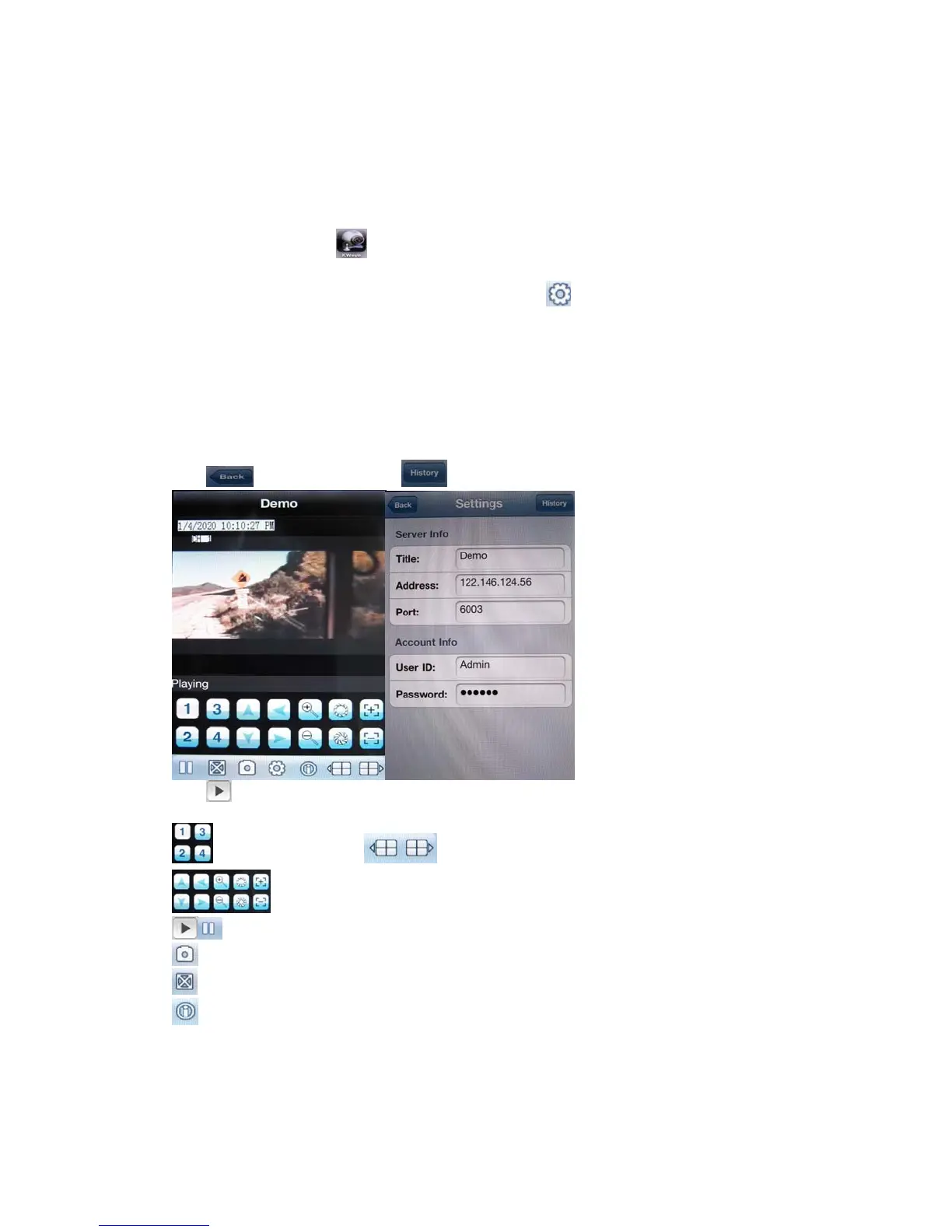
5) You will see following screen.
6) To set up the connection to the DVR, please first click icon to enter settings menu as below right
screenshot:
Server Info.
Title: Description of this DVR
Address: DVR IP address or DDNS
Port : Mobile Port [6003 by default]
Account Info.
User ID: Login User Name〖Admin〗by default
Password: Password [888888 by default]
Click
after setting, or click to choose other DVR that ever connected.
Click icon to connect DVR immediately, after login DVR successfully, user can watch the remote
video from mobile phone; the other icons function are as follows:
switch channel,click show another 4 channel list
Control PTZ camera direction, Zoom, Iris and Focus.
Play / Stop button
Picture Snapshot.
Full Screen
This software information



 To Next Page