- 31 -
5.4.1 Camera Channel
Select camera channel for apply camera setting. Select [ALL] for apply to all channels.
5.4.2 PTZ Protocol
Select PTZ device protocol. Support CLT-618, JY2000, Philip, Pelco-D, Pelco-P, Panasonic, Samsung, SYYT,
TD500, Tiandy, VIDO, VTS, YAAN, Yiboer and etc.
5.4.3 PTZ Baud Rate
Select PTZ device baud rate. Support 1200, 2400, 4800, 9600.
5.4.4 PTZ ID
Select PTZ device ID. From 0~255
5.4.5 Color Setting
Adjust camera color attribute, by default the value is 8.
z Brightness: 1 ~ 16
z Contrast: 1 ~ 16
z Hue: 1 ~ 16
z Saturation: 1 ~ 16
5.4.6 Motion Detection Setting
Enable this function and click the of the Motion Detection”, you can find the following setup
Sensitivity of motion detection
There are three level sensitivity of motion detection.
Highest ÆNormal Æ Low or Disable
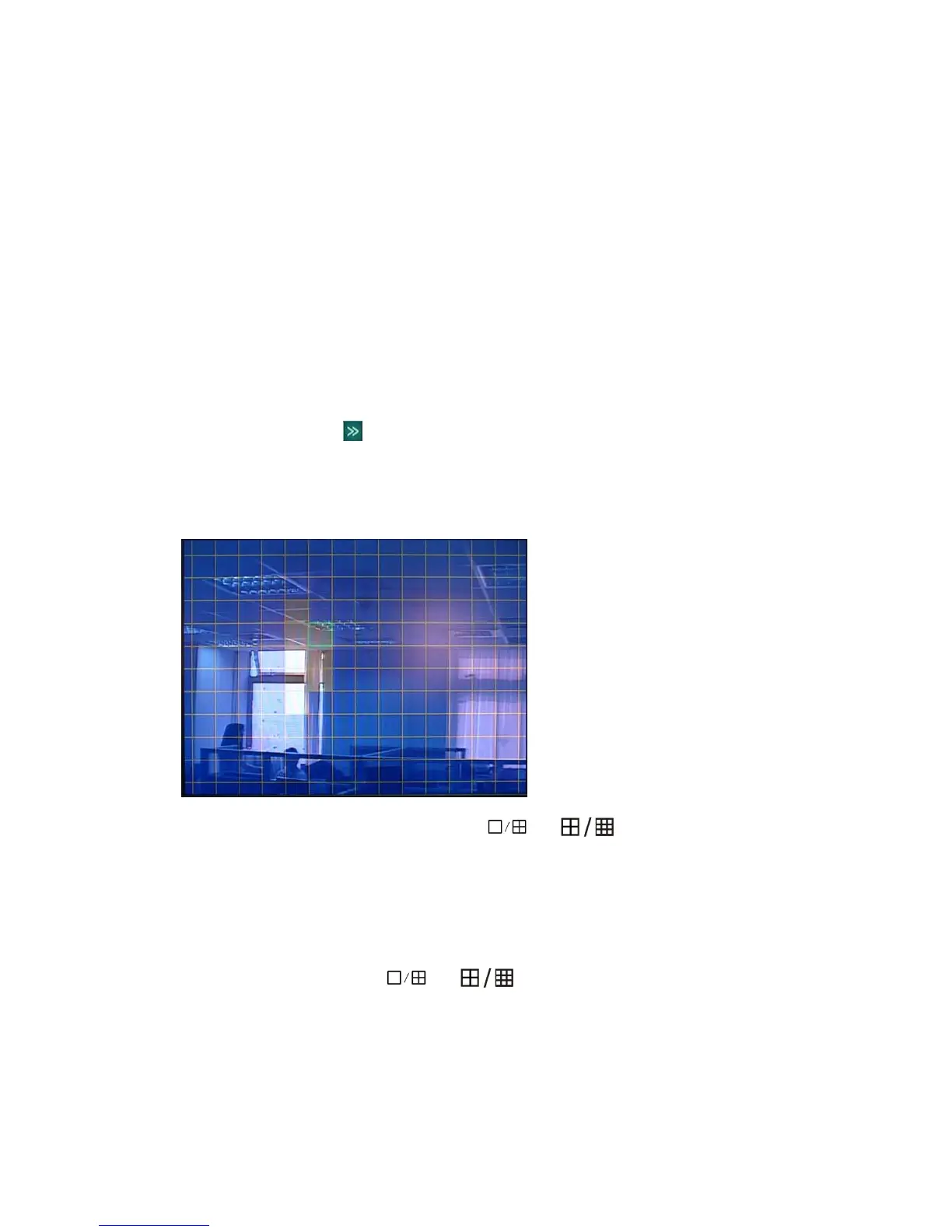
Configure motion detection by region.
Press 【>>】on screen to pop up sub windows for region setting.
There are totally 16 x 12 individual blocks for a camera view. Each cell can be turn on(Blue) or
off(Clear) by single mouse left-click, or press
or (faceplate button), or press [FN]
(remote control); you may define multiple-cell areas by clicking mouse or pressing button on one cell
and dragging the selection in the desired direction, press or click again to confirm; by mouse
right-click or press [ESC] to finish the setting.
5.4.7 Privacy Mask(Mosaic)
Each camera can define multiple regions for privacy protection. Click 〖>>〗open sub windows By
single mouse left-click; or press
or (faceplate button), or press [FN] (remote
control), and define the single cell by [Enter] (faceplate or remote control button); or you may define
multiple-cell areas by clicking mouse or pressing button on one cell and dragging the selection in the
desired direction, press [Enter] (faceplate or remote control button) to define the region; by mouse
right-click or press [ESC] to finish the setting.



 To Next Page