- 52 -
In order to navigate between the buttons, please use the directional keys of your Symbian mobile phone.
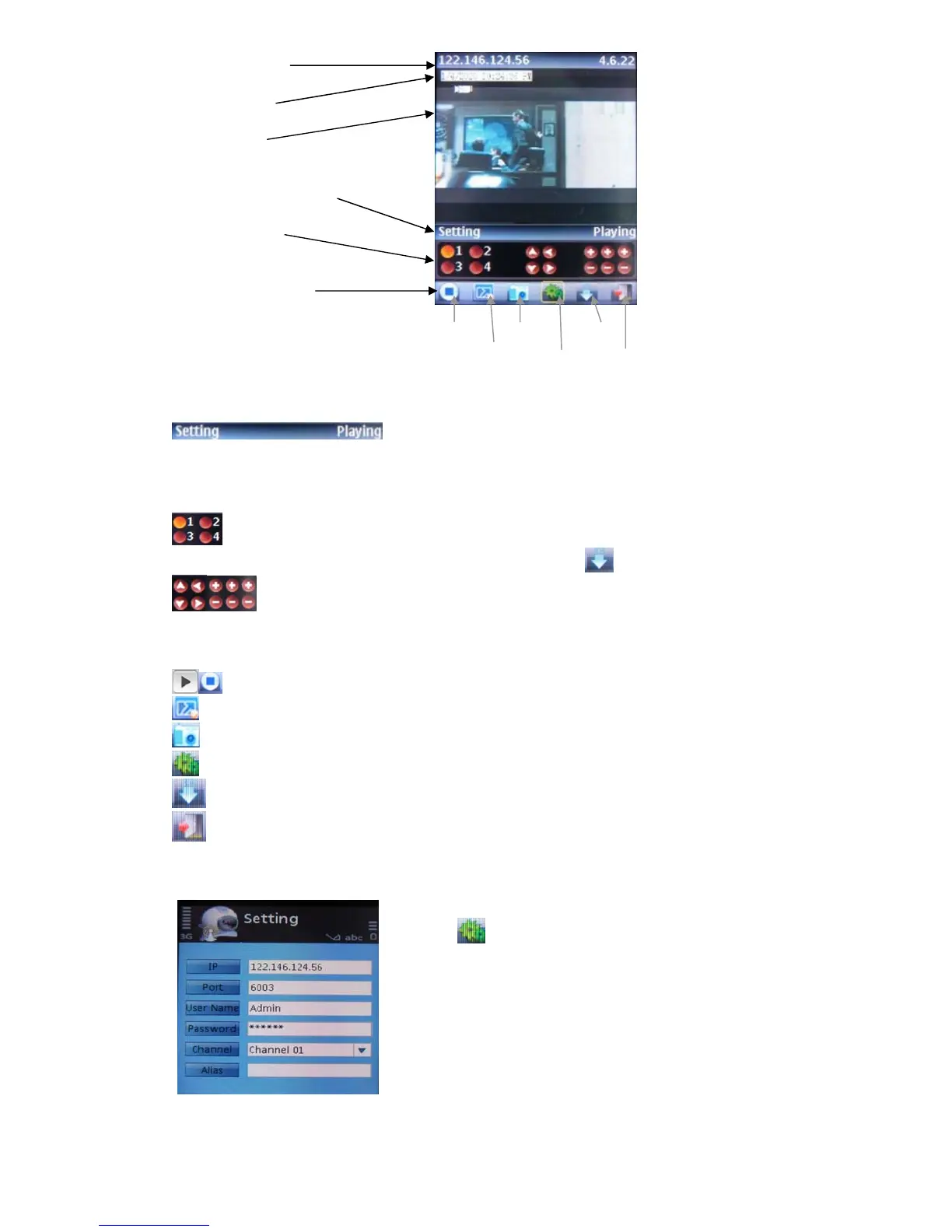
Explanation of the menu buttons and program interface:
Status information line. The first status tag indicates the name for the selected functional button in the
below control bar (in the illustration, it is “Setting”). The second tag word denotes the current status of
the program (in the illustration, it is “Playing”).
Control buttons:
Selection of channels. If your system supports 8 or 16 channels, to switch between channel
buttons 1-4, 5-8, 9-12, and 13 -16, please use functional button
(see below)
PTZ camera direction controls, PTZ camera Zoom, Focus and Iris controls
Functional buttons:
When highlighting these buttons, the name of the corresponding function will be displayed in the status
information line (the first tag name).
Play / Stop button
Full Mode. Displays the camera feed in the full-screen mode. All menus and buttons will be hidden.
Snap. Allows you to take a snapshot of the camera view.
Setting. Brings up the connectivity setup screen.
Next Group. Toggling between other available 4-channel views: 1-4 and 5-8 or 9-12, 13-16
Exit KWeye
In order to start working with the CCTV feed on your Symbian mobile phone, you will have to
configure the program by entering the preferred network access point, IP address(or DDNS) of the DVR,
mobile phone port, username, and password.
Click the
icon to enter the setup window.
In the Setting screen, enter the following data:
IPs: DVR IP address or DDNS
Port: Mobile Port [6003 by default]
User Name: Login User Name〖Admin〗
Password: Password [888888 by default]
Channel: choose channel to connect first
Alias: description of this DVR
IP address line
Camera info.
Camera view
Status information line
Control buttons
Functional buttons
Play/Stop Snap Next
Full Mode Setting Exit



 To Next Page