Objet350 User Guide 5 Using Objet Studio
DOC-17001 Rev.G 5-26
Changing the
Model Material
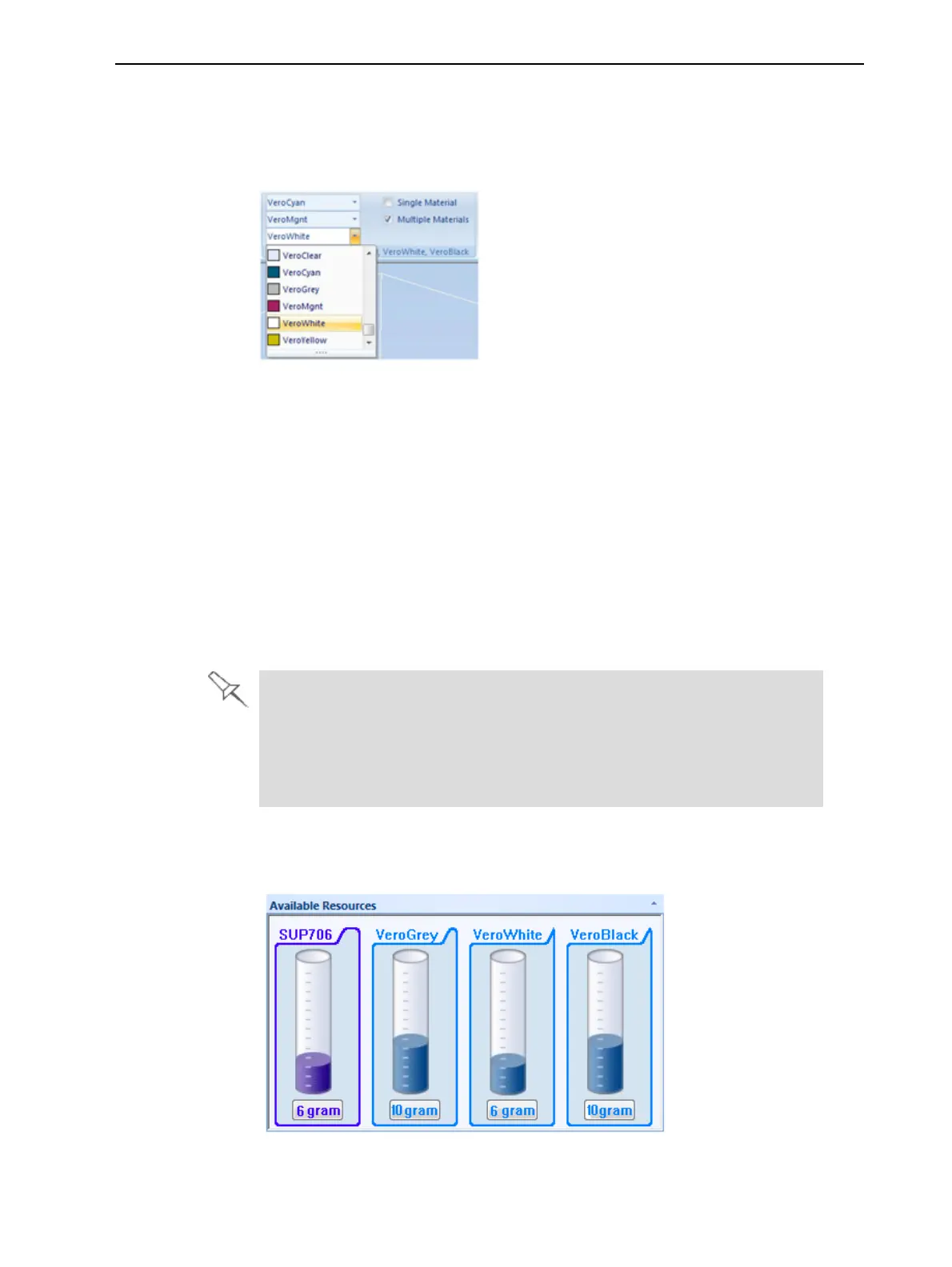
WhenyoudesignabuildtrayinObjetStudio,youcanusemodelmaterials
thatmightnotbecurrentlyinstalledintheprinter.Becausetheinstalled
materialsaredisplayedbydefault,changethematerialselectionsettingson
theTray Settingsribbon,ifnecessary.
Figure5-26Selectinganewmodelmaterial
Changing the
Support
Material
TochangethetypeofSupportmaterial:
1. Intheprinterapplication,runtheMaterialReplacementWizard(see
"ChangingthePrintingMaterial"onpage6-12).
2. InObjetStudio:
❒ WhenchangingtoSUP706,therecommendedGrid Styleis"Lite."
Note: CleaningmodelsprintedwithStandardorHeavygridstylecan
clogthefilterinDT3andCSIIPcleaningstations.Ifnecessary,clean
thesemodelswithaWaterJetcleaningstation.
❒ WhenchangingtoSUP705,therecommendedGrid Styleis
"Standard."
Youcanoverridethedefaultgridstylesettingsforthecurrentprintjobin
theAdvanced Propertiesdialogbox(see"ChoosingtheSupport
Strength"onpage5-63).
YoucansetthedefaultgridstyleintheUser Preferencesdialogbox(see
"SettingUserPreferences"onpage5-74).
Whenyousendaprintjobtotheprinter,thenewSupportmaterialappearsin
theAvailable ResourcessectionoftheJobManagerscreen.
Figure5-27AvailableResourcesinJobManager












 To Next Page