Objet350 User Guide 5 Using Objet Studio
DOC-17001 Rev.G 5-51
Setting Object
Colors
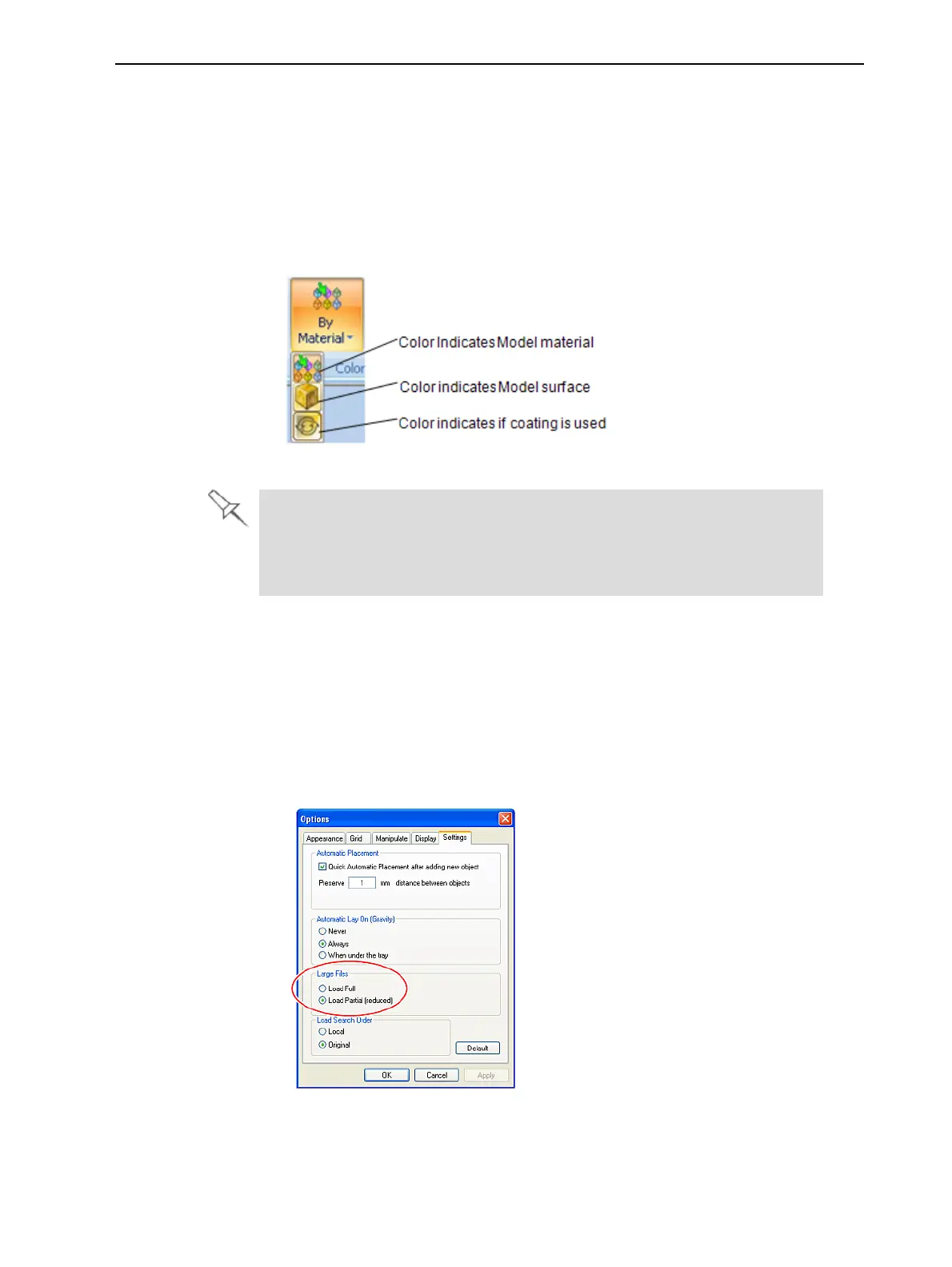
Thecolorofobjectsonthebuildtraycanindicatehowtheyareprinted.Objet
Studioenablesyoutochoosethecolordisplaysothatyoucaneasilyseethe
material,surfaceandcoatingofobjects.
Tochoosehowcolorsareappliedonthedisplay:
➢ OntheModel Settings ribbon,intheColorsgroup,selectoneofthe
optionsfromtheflyouttoolbar.
Figure5-63Colorsdisplayoptions
Beforesendingabuildtraytotheprinter,orwhenyouperformtray
validation,ObjetStudiochecksifthereisaproblemwiththestlfilesorthe
positioningofobjectsonthetray.Ifso,theaffectedobjectsaredisplayed
withspecialcolors(see"TrayValidation"onpage5-55).
Loading Large
Files
Verylargestlfilescanbeslowtoloadandmaybedifficulttomanipulate
easilyonthebuildtray.Ifthisisthecase,youcandisplayjustanimageofthe
objectonthebuildtraywithoutloadingtheentirefile.Thestlfileitselfisnot
changed,andthecompletefileissenttotheprinter.
Todisplayanimageofstlfileswhenyouplaceobjectsonthebuildtray:
1. FromtheToolsmenu,selectOptions,anddisplaytheSettingstab.
Figure5-64Optionsdialogbox,Settingstab
2. IntheLarge Files section,selectLoadPartial(reduced).












 To Next Page