Objet350 User Guide 6 Operating and Maintaining the Objet350 3DPrinter
DOC-17001 Rev.G 6-10
Resuming Production After Printing has Stopped
Iftheprintingprocessisinterrupted,JobManagerstopssendingslicestothe
printer.Thiscanhappen,forexample,iftheprintingmaterialrunsoutinthe
middleofaprintjob,andyoudonotreplacetheemptycartridgeimmediately.
AftertheprinterchangestoStandbyorIdlemode,youneedtoresume
printingfromtheJob ManagerscreenofObjetStudio.
Afterprintingstops,theprintergoesintoStandbymode,whenheatingof
theprintheadsisreduced.About10hourslater,theprintergoesintoIdle
mode,whenheatingoftheprintheadsisstopped.
Tocontinueprintingthemodel:
1. Iftheprinterisinofflinemode,switchittoonlinemodebyclickingthe
redbuttonatthebottomoftheprinterinterface(seeFigure6-3onpage
6-4).
Thebuttonchangesfromredtogreen(seeFigure6-3onpage6-4).
2. Ifyoudon’tknowwhyprintinghasstopped,makesurethatthe
connectionbetweentheprinterandtheservercomputerisactive.
3. IntheJob ManagerscreenofObjetStudio,clicktheResumeicon .
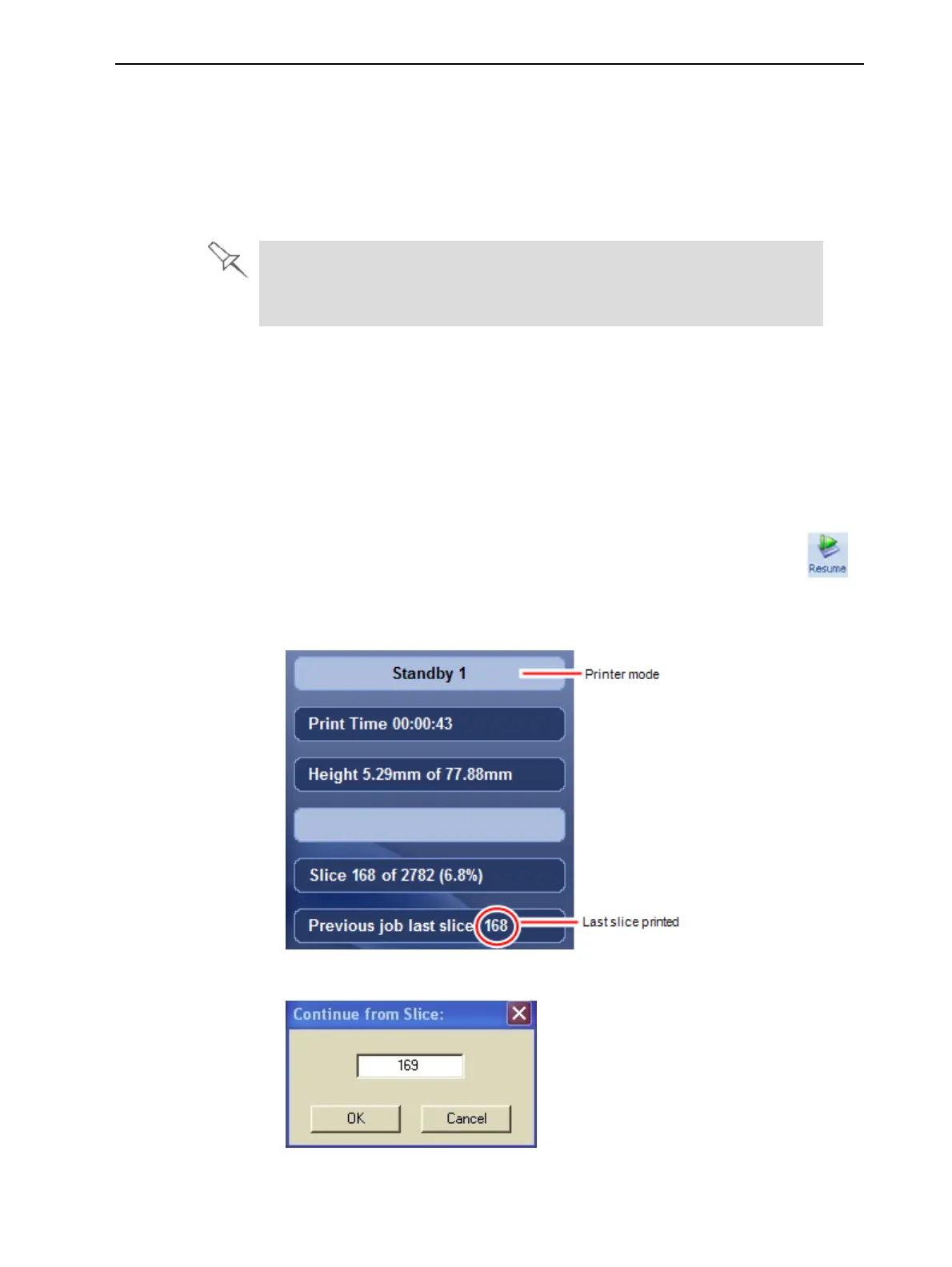
4. IntheContinue from Slicedialogboxthatappears,confirmtheslice
number,aftercheckingtheprinterinterface.
Figure6-6Printerinterfaceafterinterruptedprinting
Figure6-7Continue from Slice












 To Next Page