Objet350 User Guide 5 Using Objet Studio
DOC-17001 Rev.G 5-77
AutomaticZoom
WhenAuto ZoomisselectedintheAdvancedsectionoftheOptionsdialog
box,thedisplayzoomsin,todisplaytheobjectsplacedonthebuildtray.This
allowsyoutocarefullyinspectandmanipulatetheobjects.
Bydefault,thisfeatureisnotenabled.Inanycase,youcanchangethezoom
level,asnecessary(see"ZoomOptions"onpage5-54).
OpenGL Driver
Configuration
TheOpenGLdriverdisplays3Dgraphicsonyourscreen.Thereisnormallyno
reasontoadjustitssettings.IfyoususpectaproblemwiththewayObjet
Studiodisplaysobjects,youcanusetheOpenGLDriverConfigurationtoolto
checkandconfigurethedriversettings.
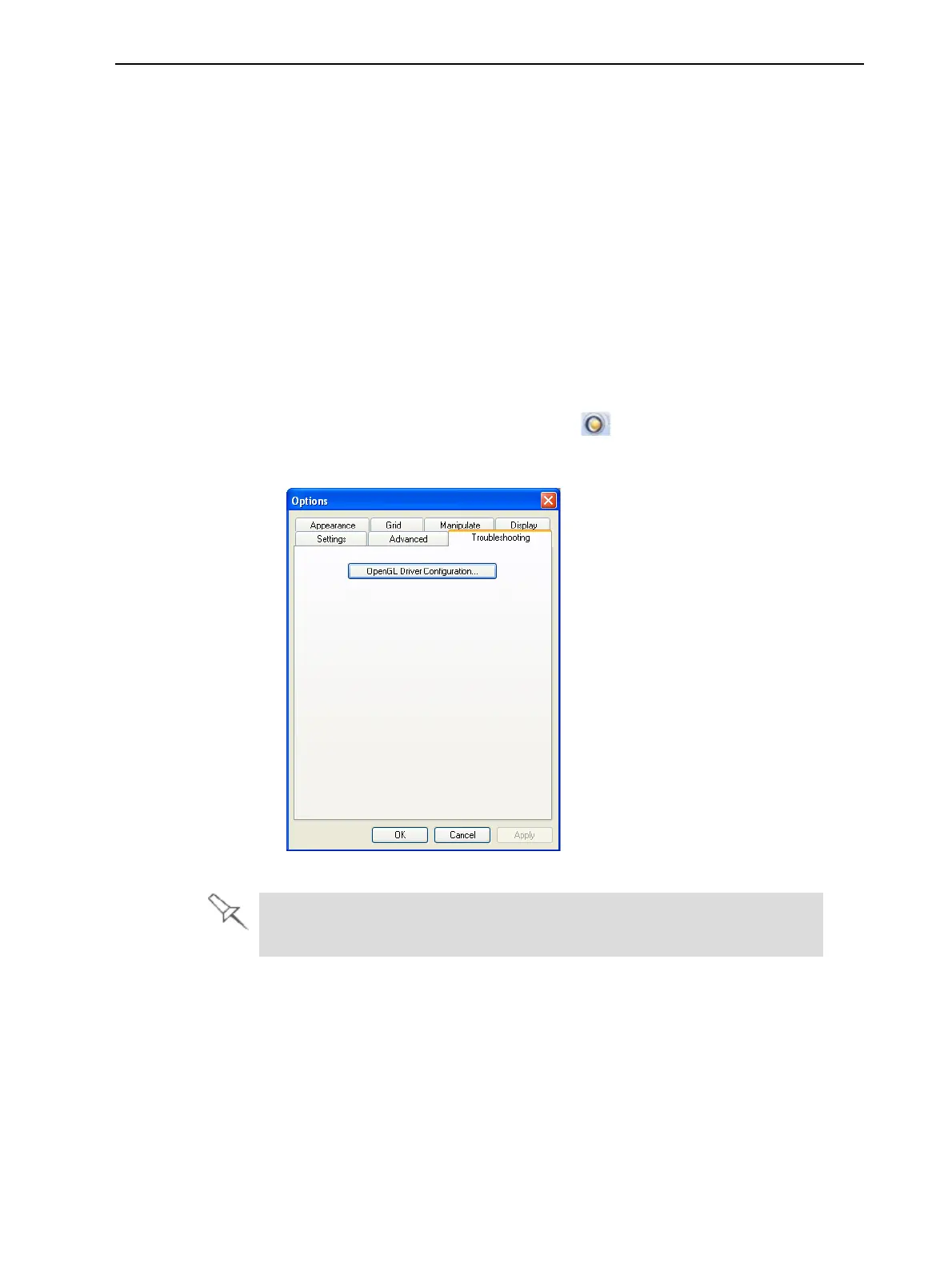
ToaccesstheOpenGL Driver Configurationdialogbox:
1. FromtheToolsmenu,selectOptions.
or—
IntheObjetStudioCommandsmenu ,clickOptions.
2. IntheOptionsdialogbox,displaytheTroubleshootingtab.
Figure5-96AccesstoOpenGLDriverconfiguration
TheTroubleshootingtabisonlyaccessiblewhenProfessionalModeis
active(see"ProfessionalModeFeatures"onpage5-75).












 To Next Page