Status display
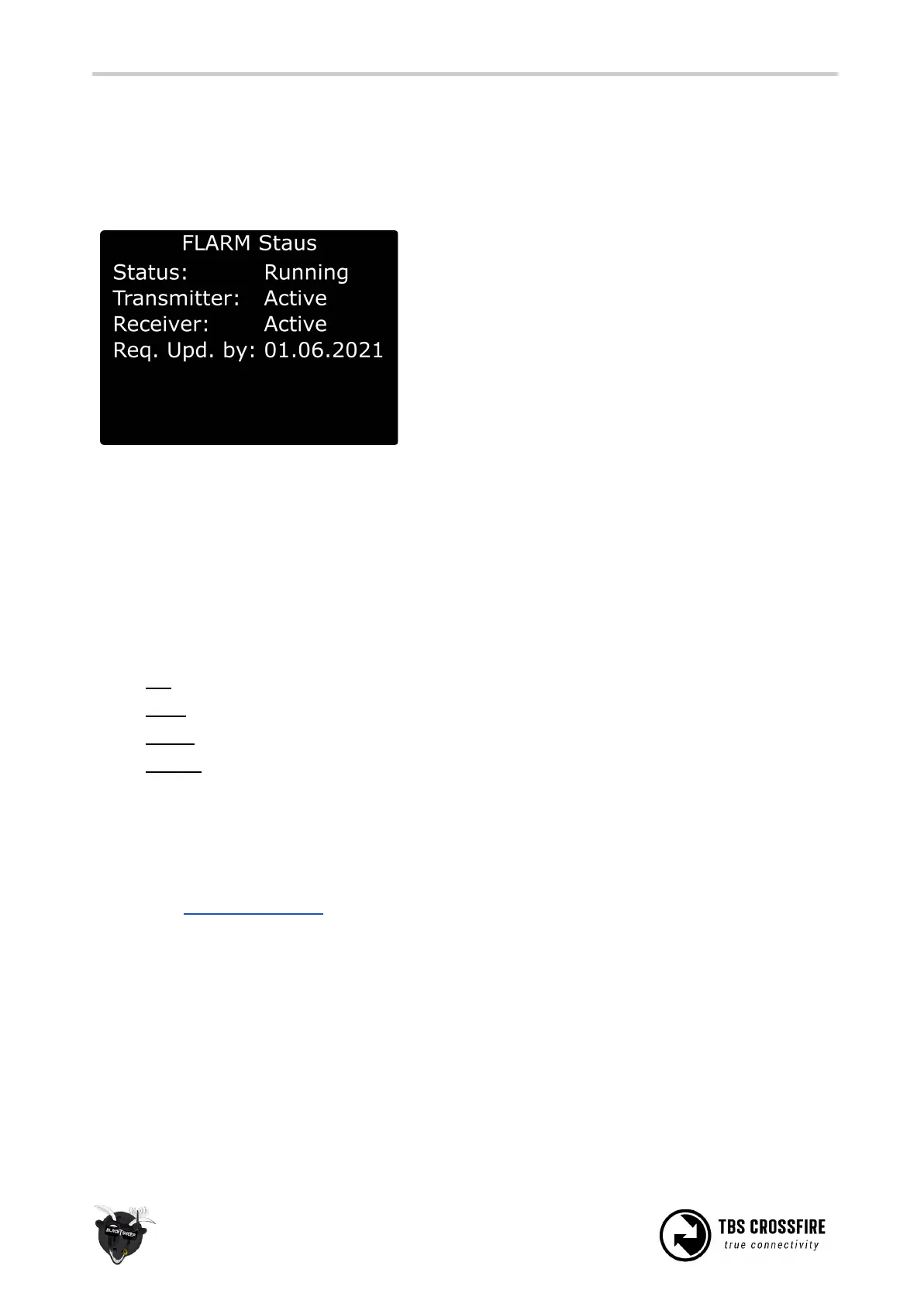
If you own a Standard or Lite Tx, you can see the actual status of your FLARM setup in one of the main
screens of the OLed display:
Status: no Sat Fix/ Fix - are enough satellites
found by the GPS
Transmitter: Active/ Inactive - #TODO
Receiver: Active/ Inactive - Active if a license is
installed
Req. Upd. by: XX.XX.XXX - Will be updated by the
Crossfire updates
Settings
You can find the FLARM settings under
Diversity Receiver/General:
FLARM
Here you can set up which pilots you want to see (OSD and Mission Planner) and if you want to send you
position to other pilots as well:
● Off: No FLARM data will be send or received
● Pulse: Just send out your position
● Buddy: Send your position and show Crossfire pilots (only available with active license)
● Aviation: Send your position and show Crossfire pilots and airplanes and helicopters (only
available with active license)
Flarm Track
● Off/ On - Send your data to the ground stations. If activated you can be seen on maps like the one
from OpenGliderNetwork.
OSD
If you own a TBS Core Pro or a FPVision OSD, they can show you the received pilots in a radar which scales
by itself. If no other pilot is found, the radar will disappear and come back when a new pilot is found.
The shown Types depend on your license and the FLARM setting you have set up before.


 To Next Page