Youalsocanusetheconventionalcamerawithotherprogramsthatprovidefeaturessuchasphotographing,
videocapturing,andvideoconferencing.Tousetheconventionalcamerawithotherprograms,openone
oftheprogramsandstartthephotographing,videocapturing,orvideoconferencingfunction.Then,the
camerastartsautomaticallyandthegreencamerastatusindicatorturnson.Formoreinformationabout
usingthecamerawithaprogram,seethehelpinformationsystemoftheprogram.
Youcanconfigurethecamerasettingstomeetyourneeds,suchasadjustingthequalityofthevideooutput.
Toconfigurethecamerasettings,dothefollowing:
•ForWindows7:StarttheCommunicationsUtilityprogramandconfigurethecamerasettings.
•ForWindows10:Dooneofthefollowing:
–OpentheCameraapp,andclickthesettingsiconintheupper-rightcorner.Followtheinstructions
onthescreentoconfigurethecamerasettings.
–OpentheStartmenuandclickLenovoSettings➙Camera.Followtheinstructionsonthescreento
configurethecamerasettings.
Usingtheinfraredcamera
Note:TheinfraredcameraisonlysupportedontheWindow10operatingsystem.
Theinfraredcameraprovidesapersonalandsecurewayforyoutosignintoyourcomputerwithface
authentication.Aftersettingtheinfraredcameraforfaceauthentication,youcanunlockyourcomputerby
scanningyourfaceinsteadofusingapassword.
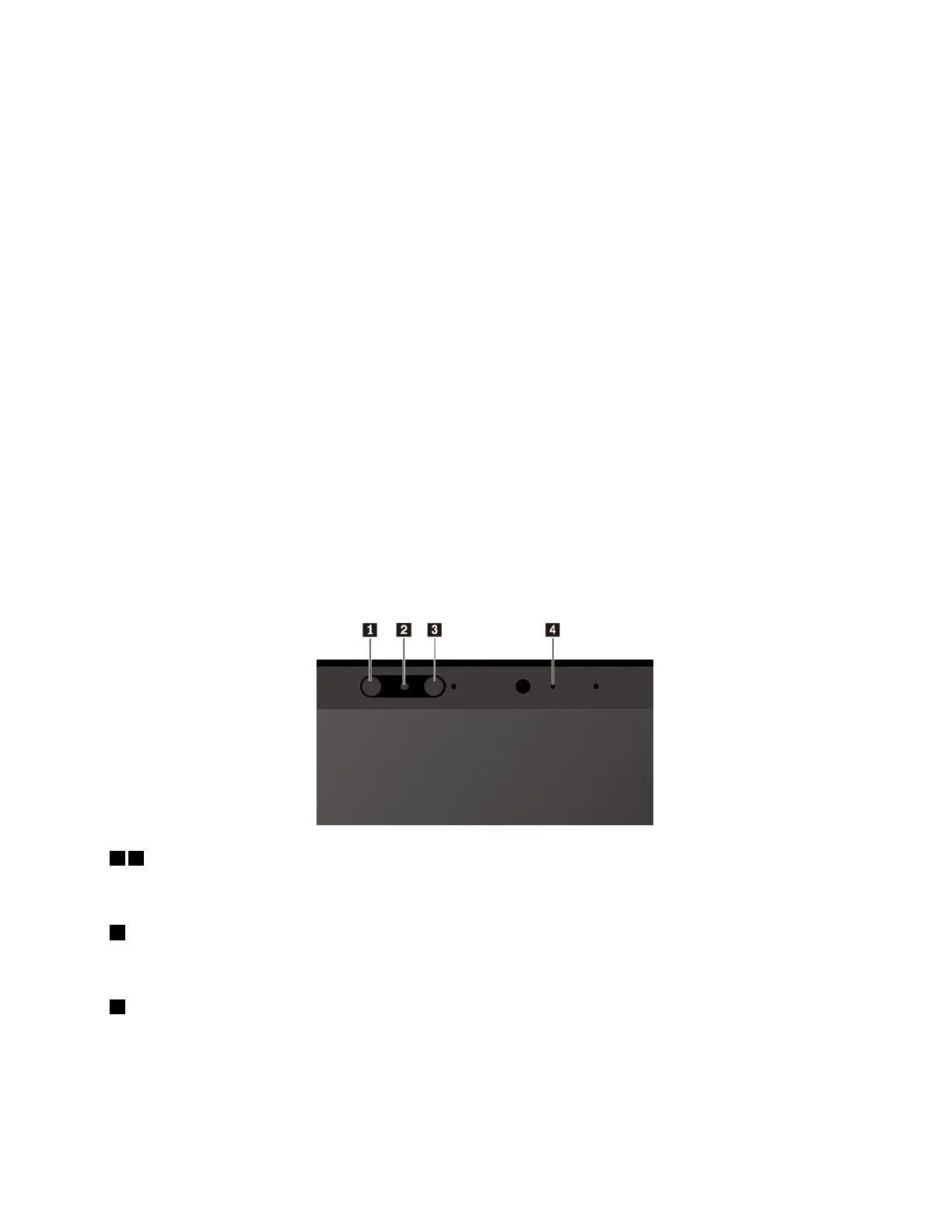
Theinfraredcamerahasthefollowingcomponents:
13Infraredlight-emittingdiode(LED)
TheinfraredLEDemitsinfraredlight.Normallytheinfraredlightisinvisibletothenakedeye.
2Infraredcameralens
Theinfraredcameralensisusedforcreatingthefacialimageofauser.
4Cameraindicator
Whenthecameraindicatorison,theinfraredcameraisintherecognitionmode.
Tosettheinfraredcameraforfaceauthentication,dothefollowing:
1.OpentheStartmenuandclickSettings➙Accounts➙Sign-inoptions.
Chapter2.Usingyourcomputer33



 To Next Page