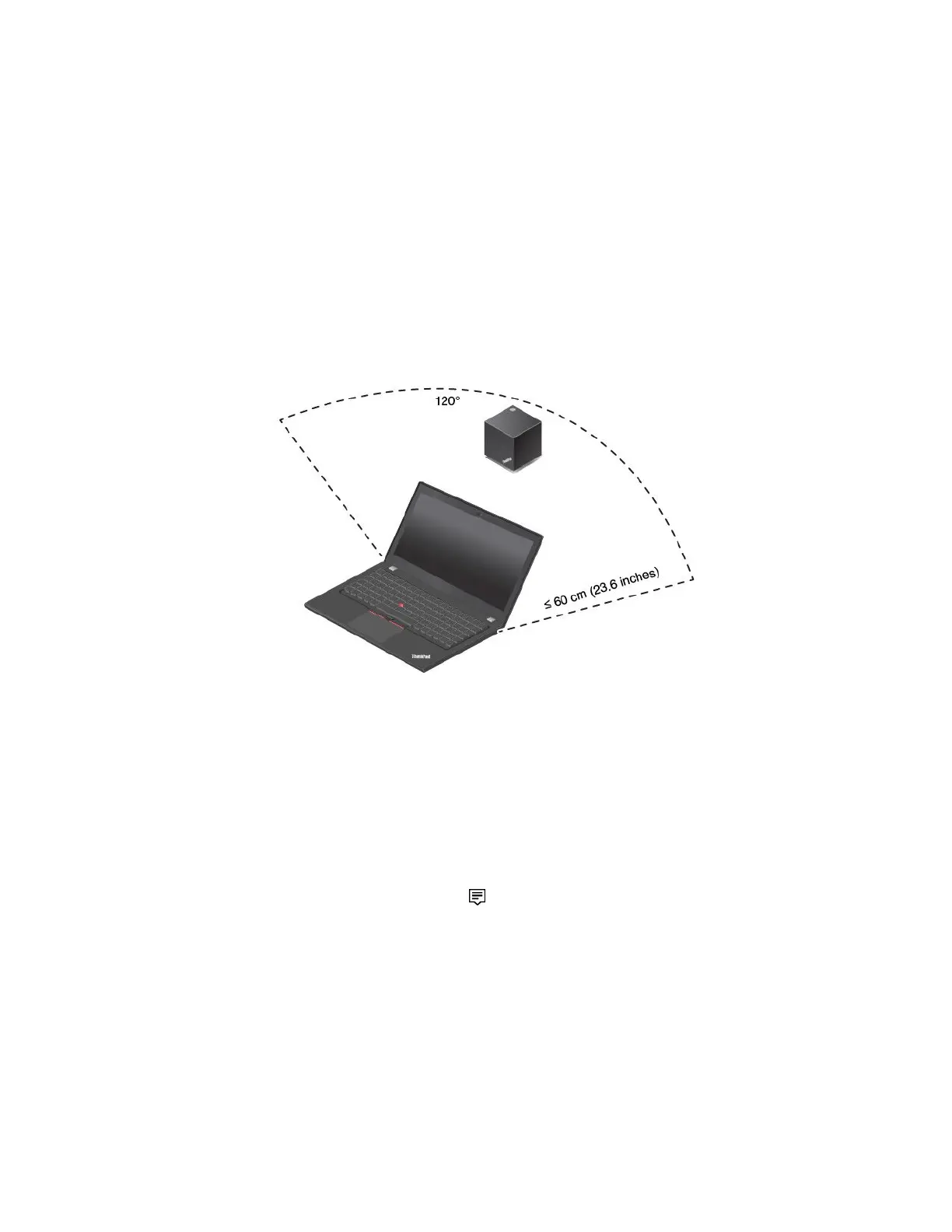
6.Positionyourcomputerclosetothedock,within120cm(47.2inches).Togetthebestperformance,
ensurethat:
•Thedockisplacedwithina60cm(23.6inches)distanceanda120-degreesectorregionrelatively
totherearofthecomputerdisplay.
•Noobjectsarebetweenthedockandthecomputer.
Note:EnsurethattheWiGigdockandyourcomputerareplacedintherecommendedposition.Ifyou
noticeanyofthefollowingconditions,pivotthecomputerdisplayforwardorbackwardslightlyto
achievebetterperformance:
•AmessageisdisplayedindicatingthatthewirelessconnectiontotheWiGigdockisweak.
•ThepointerdriftsontheexternaldisplayconnectedtotheWiGigdock.
•ThecomputerisunexpectedlydisconnectedfromtheWiGigdock.
UsingtheThinkPadWiGigDock
Thissectionintroduceshowtouseandmanagethedock.
ConnectingtotheThinkPadWiGigDock
ToconnectyourcomputertotheThinkPadWiGigdock,dothefollowing:
1.Afterthesetupandpreparation,turnonyourcomputerandthedock.Thendothefollowing:
•ForWindows7:ClicktheStartbuttontoopentheStartmenu,andthenclickAllprograms➙Intel
➙IntelWirelessDockManagertostarttheWirelessDockManagerprogram.
•ForWindows10:ClicktheactioncentericonintheWindowsnotificationarea.Thenclick
Connecttoopenthedevicelist.
2.Selectyourdockfromthelistofavailabledevices.
3.Whenprompted,pressthepower/connectionbuttononthedocktoconfirmthepairing.
4.Followtheinstructionsonthescreentocompletetheconnection.
Afterestablishingtheinitialconnection,youcanmakefurtherconfigurations.Therefore,wheneverthe
computercomeswithintherequiredrange,itwillautomaticallygetconnectedtothedock.
DisconnectingfromtheThinkPadWiGigDock
TodisconnectyourcomputerfromtheThinkPadWiGigDock,dothefollowing:
50T470UserGuide


 To Next Page