CREATE A PROJECT
To create a new project, press 〈2〉 at the Project menu shown on the
previous page.
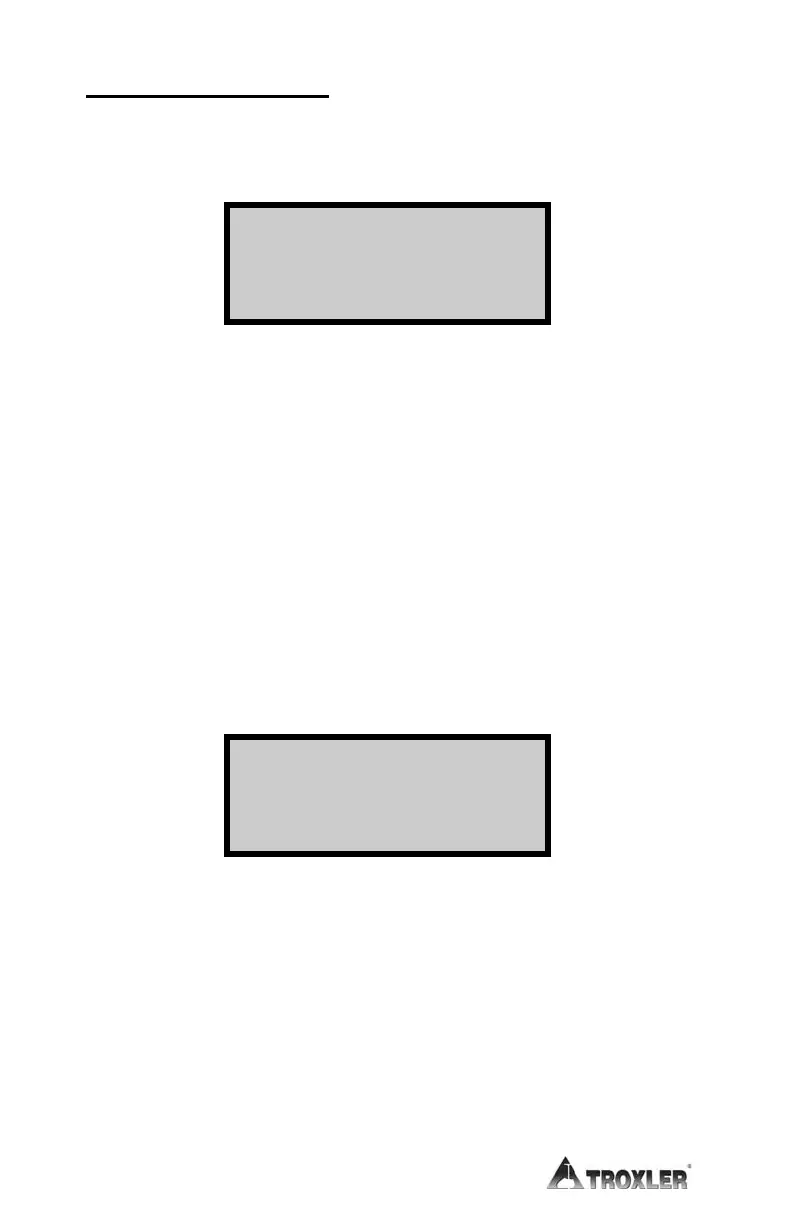
Enter a project name or number at this screen. By default, the
number keys are enabled. To use the alphabetic keys, press the
〈SHIFT〉 key. When the alphabetic keys are enabled, the cursor
blinks. The
〈NO〉 key acts as a character backspace if corrections
must be made.
Enter a project name (up to ten characters) using the gauge keypad.
To clear an entry, press the
〈CE〉 key. After the project name is
complete, press the
〈ENTER〉 key.
The gauge prompts for a project ID number, as shown below. The
project ID number can be any alternate project identification. For
example, the operator could enter the U.S. Federal Highway
Administration (FHWA) project number.
Enter the project ID number (up to sixteen characters) using the
gauge keypad. To clear an entry, press the
〈CE〉 key. After the
project ID number is complete, press the
〈ENTER〉 key.
To enable the new project, press the 〈YES〉 key. The gauge enables
the new project and returns to the Ready screen. The new project
name will appear on the last line of the Ready screen as the active
project.
_ _ _ _ _ _ _ _ _ _
Press ENTER
ID:
_ _ _ _ _ _ _ _ _ _
Press ENTER




 To Next Page