4-2
exclamation point will be shown inside the battery icon if the Certifier Plus Flow Analyzer is
powered but no battery is connected.
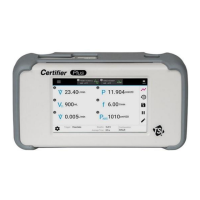
5. Measurements and Units Displays the selected measurement parameters and their current
readings in their selected units. Press either the measurement symbol, reading, or units to edit.
Editing includes adding, removing, or reordering measurements as well as editing the units of
measurement. Refer to the table in Measurements and Units for a complete list of selectable
measurement parameters.
6. Triggers/Averaging Settings Used to set the breath triggers, breath averaging, and time
average for real-time values. Access these instrument settings by pressing the gear icon or by
pressing directly on the value to be edited. If two flow modules are connected, an asterisk (*) will be
displayed in the module card of the flow module that is controlling the triggers.
7. Configurations Displays the name of the configuration that is currently loaded. An asterisk (*)
will appear in front of the name if the currently loaded configuration has been edited by the user.
Press the configuration name or label on the display to access the screen to rename, save, load,
delete, export, or import configuration files.
8. Parameter/Graph Screen Toggle Press to toggle the dashboard between the
Parameter screen and Graph screen.
9. Zero Pressure Sensors Touch to zero the low pressure and high pressure measurements in any
connected flow modules. High/low pressure is available in 4081 High Flow Modules only.
10. Save Data Press to log measurement data or to save a screen capture.
11. Pause Display Touch to pause either the Parameter or Graph screen from updating data
on the display. Even while paused, the instrument will continue to make measurements.
When paused the pause icon will change into a play icon; press the play icon to resume
updating the display.
12. Edit Measurements Press while on the Parameter screen to add, remove, or reorder selected
measurements and their units.
13. Warnings and Errors Notifications If the Certifier Plus Flow Analyzer generates a warning
or an error, a yellow triangle with an exclamation point will be displayed in this area. Click on this
icon to open the Active Warnings and Errors screen which provides you with descriptions of
the issue(s).
Warnings and Errors
Descriptions of any active warnings or errors can be viewed in the Active Warnings and Errors screen.
Errors are shown highlighted in red, whereas warnings are not highlighted. You can clear warnings
manually in this screen if desired. Errors can only be cleared if you take appropriate steps to resolve
the error state or if the Certifier Plus Flow Analyzer is powered down. It is possible that an error may
shut down the Certifier Plus Flow Analyzer automatically if the error state is not resolved.
Possible warnings and errors displayed on the Certifier
TM
Plus Flow Analyzer include:
• Battery missing
• Battery faulty
• Battery is too cold to run
• Battery is too hot to run
• Battery is too cold to charge
• Battery charge is full
• Battery level is low
• Batter level is too low, powering down
• Continuous data log warning
• Continuous data log stopped
• Low disk storage space
• Failed to export to USB drive
• Error opening data log of snapshot


 To Next Page