ТМ
9.1.3.3 Loading image to vending machine
To load the images to the vending machine base:
1.Createafoldernamed“NeroTouch”onaUSBashdrive,formattedtosupporttheFATlesystem,
andcopyimageles.Tocreateownimagesusethetemplate:
https://uonline.unicum.ru/ef/tools/NeroTouch/template.png
Thetemplatespecies:
-format(PNG);
-transparentbackground;
-backlightingunderthedrinks(thebacklightiswhitesoit’snotvisibleonwhitebackground);
-drinkverticalposition(speciedbythebacklightingunderthedrink);
-size(504х660dots/pixels);
- resolution (96 dpi, dots per inch).
Anexampleofthenishedimage: https://uonline.unicum.ru/ef/tools/NeroTouch/sample.png
Note: The images should be saved in PNG format, they can have an “alpha channel” (transpar-
ent,semitransparent,opaquezones).
2.ConnecttheUSBashdrivetotheUSB-port(USB-PC),locatedontheinnersurfaceofthevending
machinedoor(seeg.5.2pos.10andg.6.2).
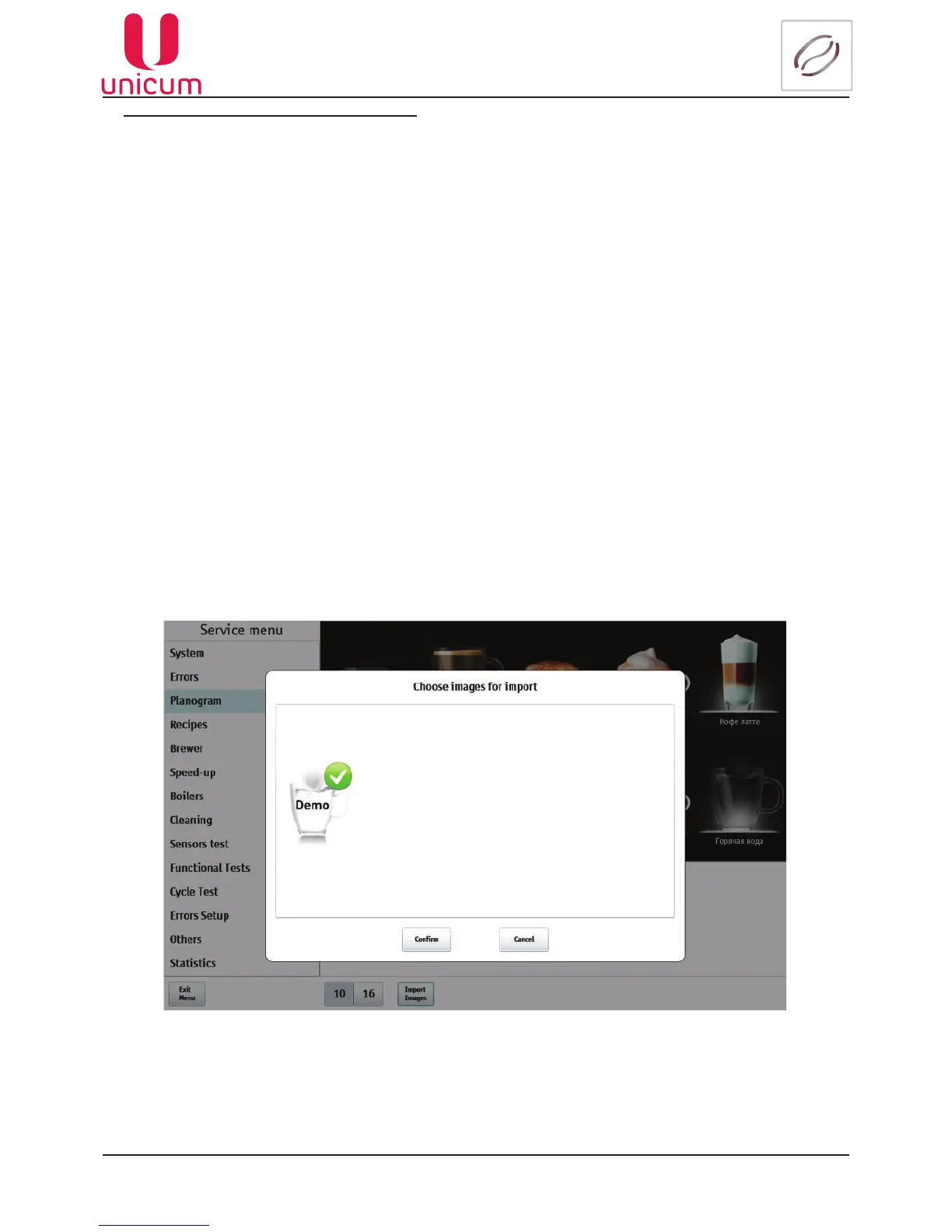
3. Enter the Service menu into the Planogramsection(seethegureabove)andpresstheImport
images.
4.Chooseanimagefromthelist(seeg.9.12.7)andpresstheConrm button.
Fig.9.12.7 - Planogram (Import image)


 To Next Page