User Guide
38
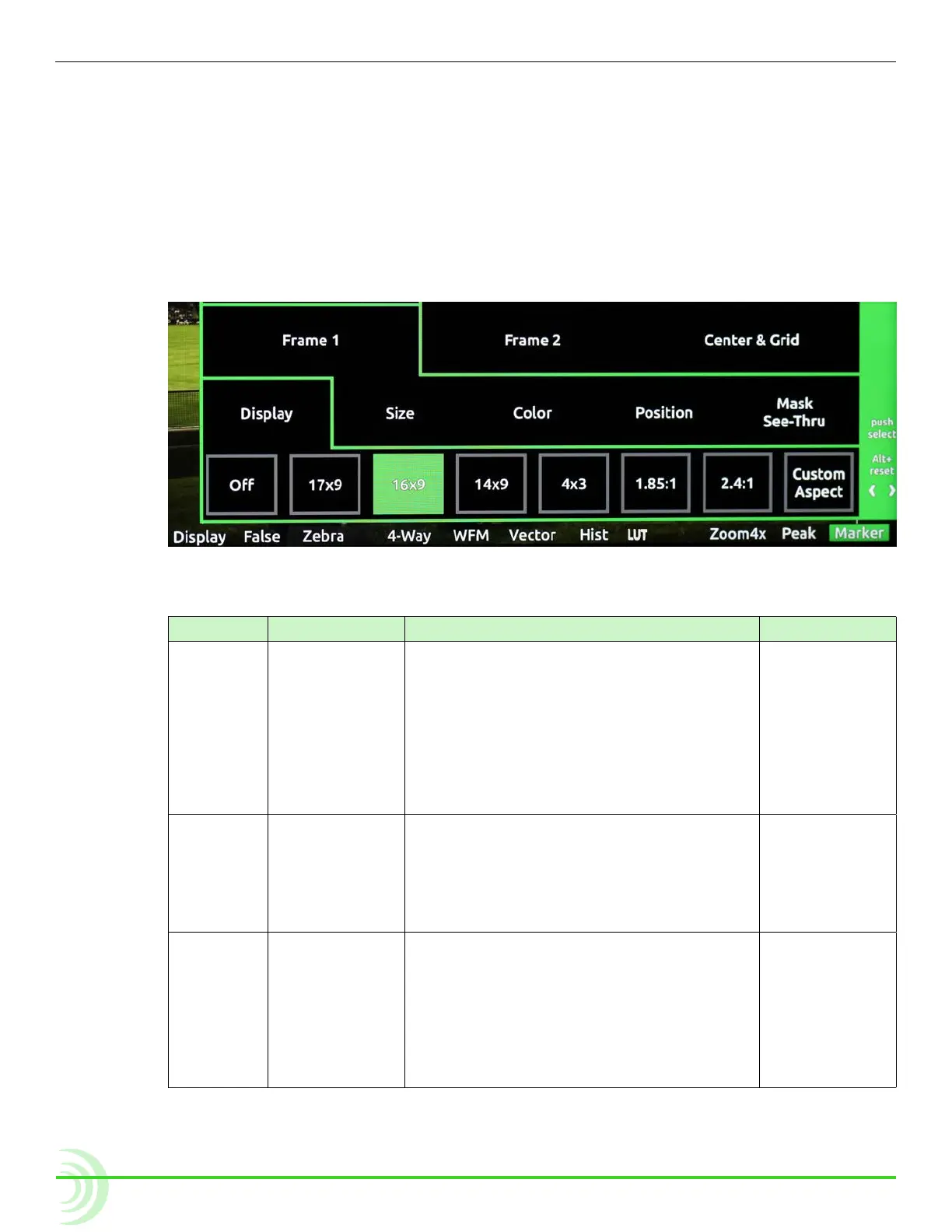
To adjust marker settings:
1. Press and hold the Marker soft key button. The Marker menu appears
superimposed over the lower portion of the screen.
2. Do one of the following:
X Use the touch screen to view and change settings.
X Turn and press the Control knob to select and change settings.
Markers have three main settings—Frame 1, Frame 2, and Center & Grid,
each with its own sub-settings and options.
Frame 1 and Frame 2 have identical sub-settings—Display, Size, Color, Posi-
tion, and Mask See-Thru—as described in the following table:
setting sub-setting Description options
Frame 1 /
Frame 2
Display Use this setting to adjust the marker’s
aspect ratio.
• Off
• 17x9
• 16x9
• 14x9
• 4x3
• 1.85:1
• 2.4:1
• Custom
Aspect
Size Use this setting to adjust the percentage
of the screen making up the inside area of
the frame. For instance, if set to 90%, then
the rectangular frame will make up 90% of
the screen, while 10% will be masked out
around the outer perimeter.
• 1% - 100%
Color Use this setting to adjust the color of the
rectangular line forming the frame.
• White
• Light Gray
• Gray
• Dark Gray
• Black
• Red
• Green
• Blue



 To Next Page