Step 2 Click the button on to enable 802.1x.
Step 3 Enter the account name.
Step 4 Enter the password and confirm password..
Step 5 Click Apply.
Step 6 The message "Apply success!" is displayed, and the system saves the settings.
----End
4.8.2 Setting DDNS Parameters
Preparation
Connect the specified camera to the Internet, and obtain the user name and password
for logging into the Dynamic Domain Name System (DDNS) server.
Procedure
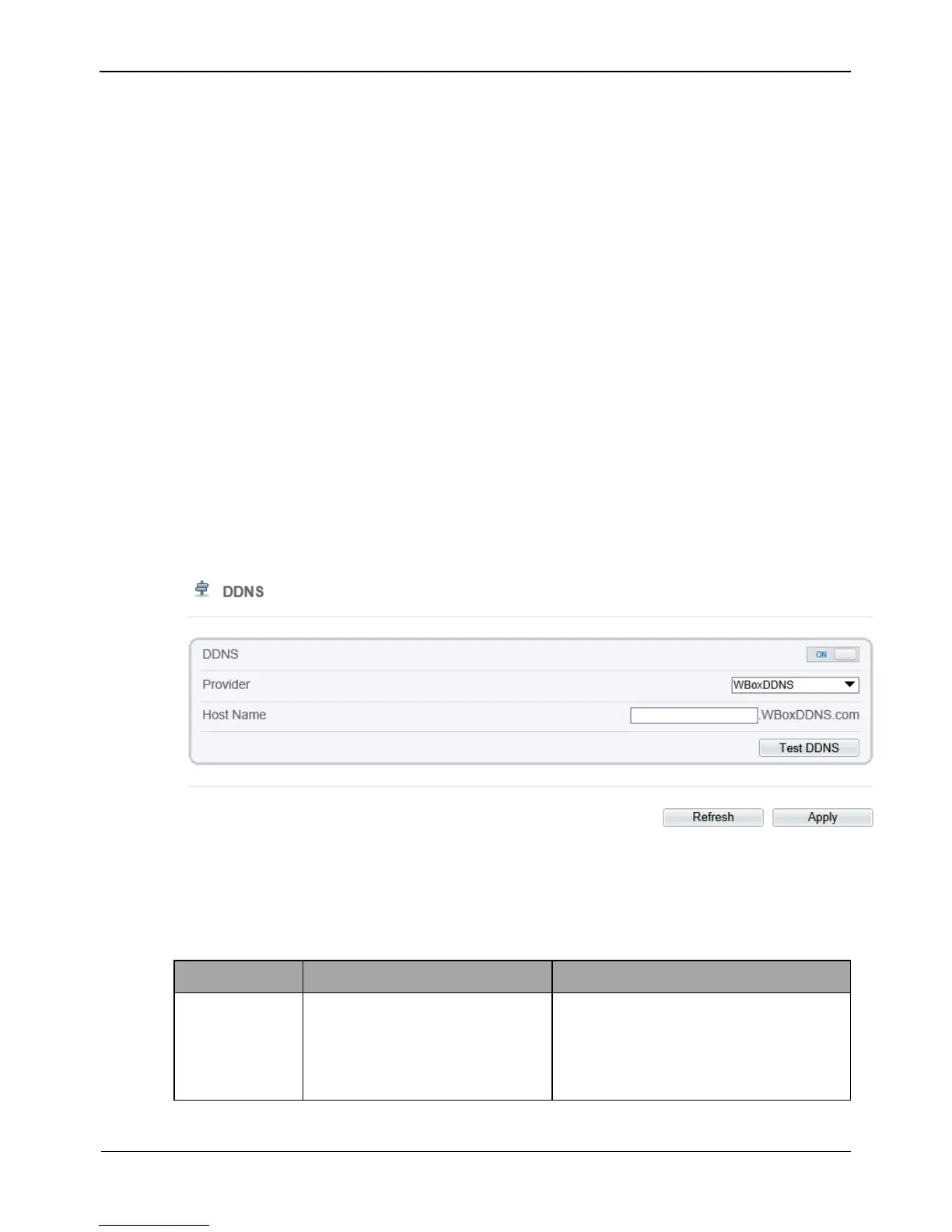
Step 1 Choose Configuration > Network Service > DDNS.
The DDNS page is displayed, as shown in Figure 4-27.
Figure 4-27 DDNS page
Step 2 Click the button on to enable DDNS.
Step 3 Set the parameters according to Table 4-15.
Table 4-15 DDNS parameters


 To Next Page