24
2. Select the check box, the content of the OSD and then set the position to display it.
Position: Click the desired box in the Live View area. After the cursor shape is changed, click and hold
the button to move the box to the desired position. To set the position precisely, use the X and Y
coordinates under Overlay Area.
Overlay OSD Content: The drop-down list provides Time, Preset and Serial Info. You may also select
Custom and enter the content you want.
After you have set the position and OSD content, the symbol appears in the Status column, which
means that the OSD is set successfully. You may set multiple lines of contents for each area and use
and to adjust the sequence of display.
3. After you have completed the settings, a message appears to indicate the successful settings.
You may right-click in the preview window and then choose to view in full screen mode or at an aspect
ratio. You may also double-click the preview window to enter or exit full screen mode.
To cancel OSD for an area, clear the OSD content in the Overlay OSD Content column or select None in the
Position column.
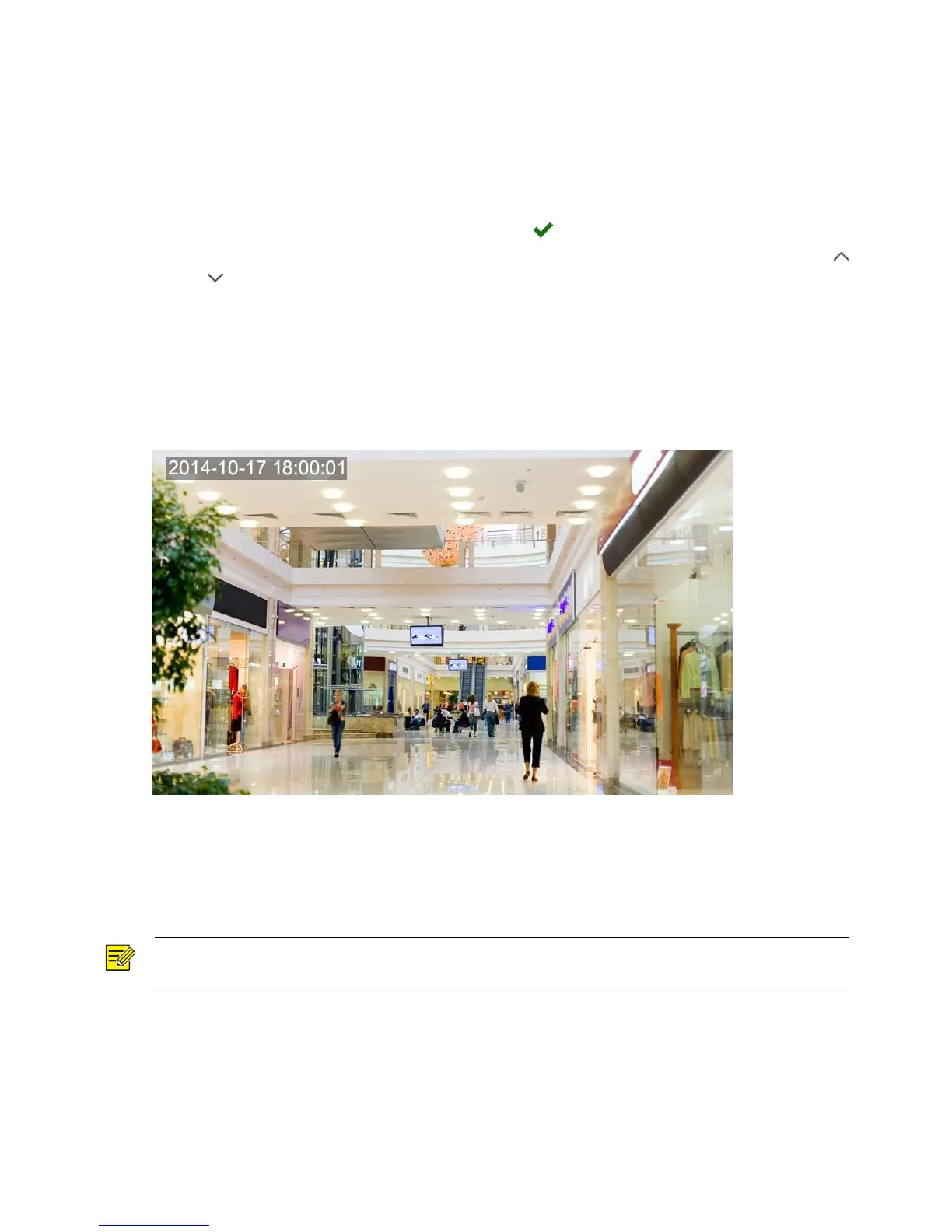
The following shows an example time OSD.
Privacy Mask
On certain occasions, you may need to set a mask area on the camera image to protect privacy, for
example, the keyboard of an ATM machine. When PTZ changes its position or zooms, the Privacy Mask will
be adjusted accordingly to protect the area all along.



 To Next Page