NOTE!
You must use the correct upgrade file for you camera. Otherwise, unexpected results may occur.
The upgrade file is a ZIP file and must include all the necessary files.
The boot program loads the operating system and then the system starts running. The upgrade boot
program function is disabled by default, and only the camera will be upgraded to the latest version. If
enabled, both the camera and the boot program are upgraded, and the operating system of the following
new versions can be booted properly and the camera can be upgraded conveniently.
Ensure that the power supply is normal during upgrade. The device will restart after the upgrade is
completed.
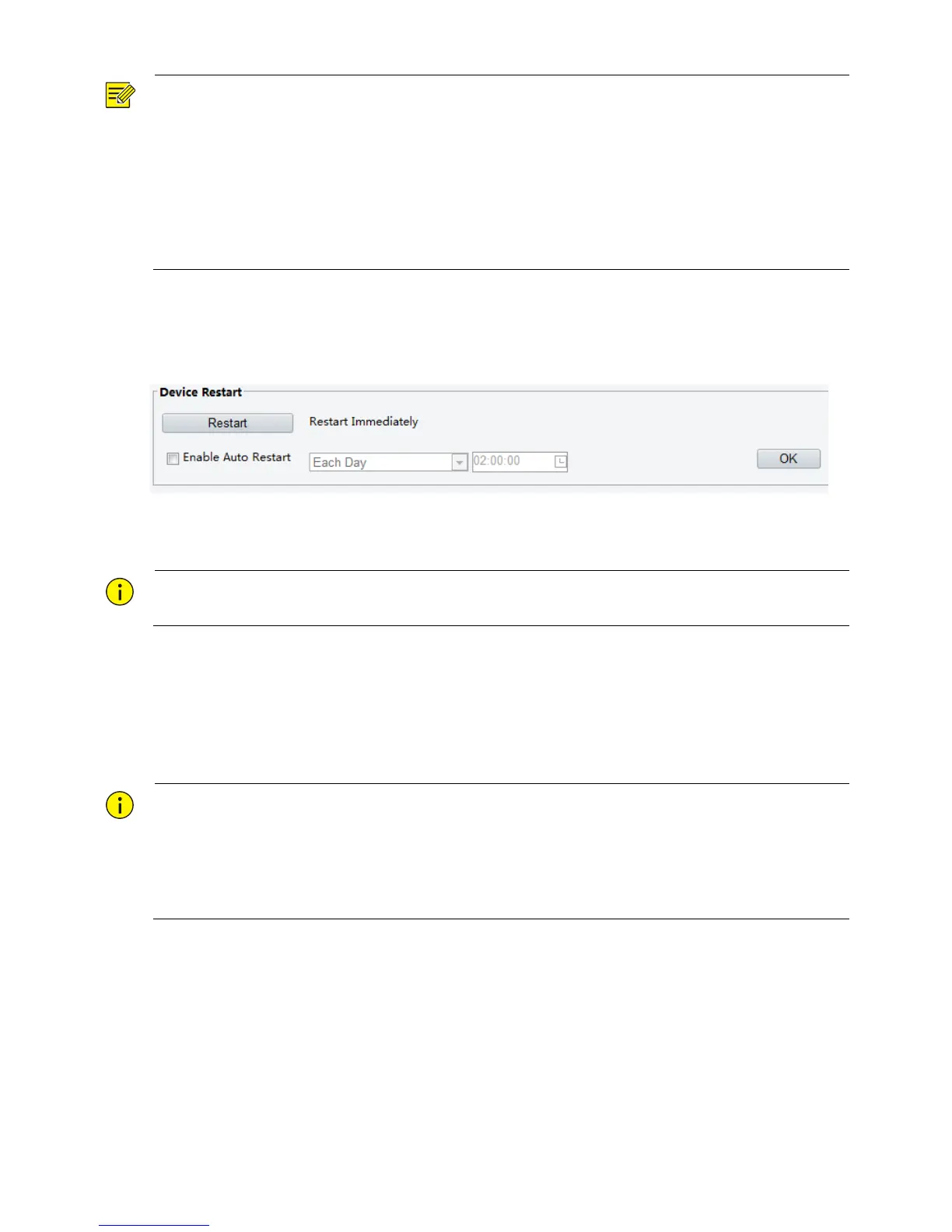
Restarting the System
1. Click Setup > System > Maintenance.
2. Under Device Restart, click Restart. The device will restart after you confirm the operation. You may
also enable auto-restart by selecting Enable Auto Restart and setting a time for auto-start. The device
will restart at the set time.
CAUTION!
Perform this operation with caution because restarting the system interrupts the ongoing service.
Importing and Exporting System Configuration File
Export the current configurations of the camera and save them to the PC or an external storage medium.
You can also quickly restore configurations by importing backup configurations stored on the PC or an
external storage medium back to the camera.
CAUTION!
After you perform the Default operation, all settings are restored to factory defaults, except the following:
login password of the system administrator, network settings, and system time.
Make sure you import the correct configuration file for your camera. Otherwise, unexpected results may
occur.
The camera will restart when the configuration file is imported successfully.
1. Click Setup > System > Maintenance.
2. To import configurations that you have backed up, click Browse next to the Import button and select
the configurations you want to import, and then click Import. The result will be displayed.
3. To export configurations, click Browse next to the Export button, select the destination folder, and
then click Export.
4. To restore default configurations, click Default and then confirm the operation. The device will restart
and restore the default configurations.



 To Next Page