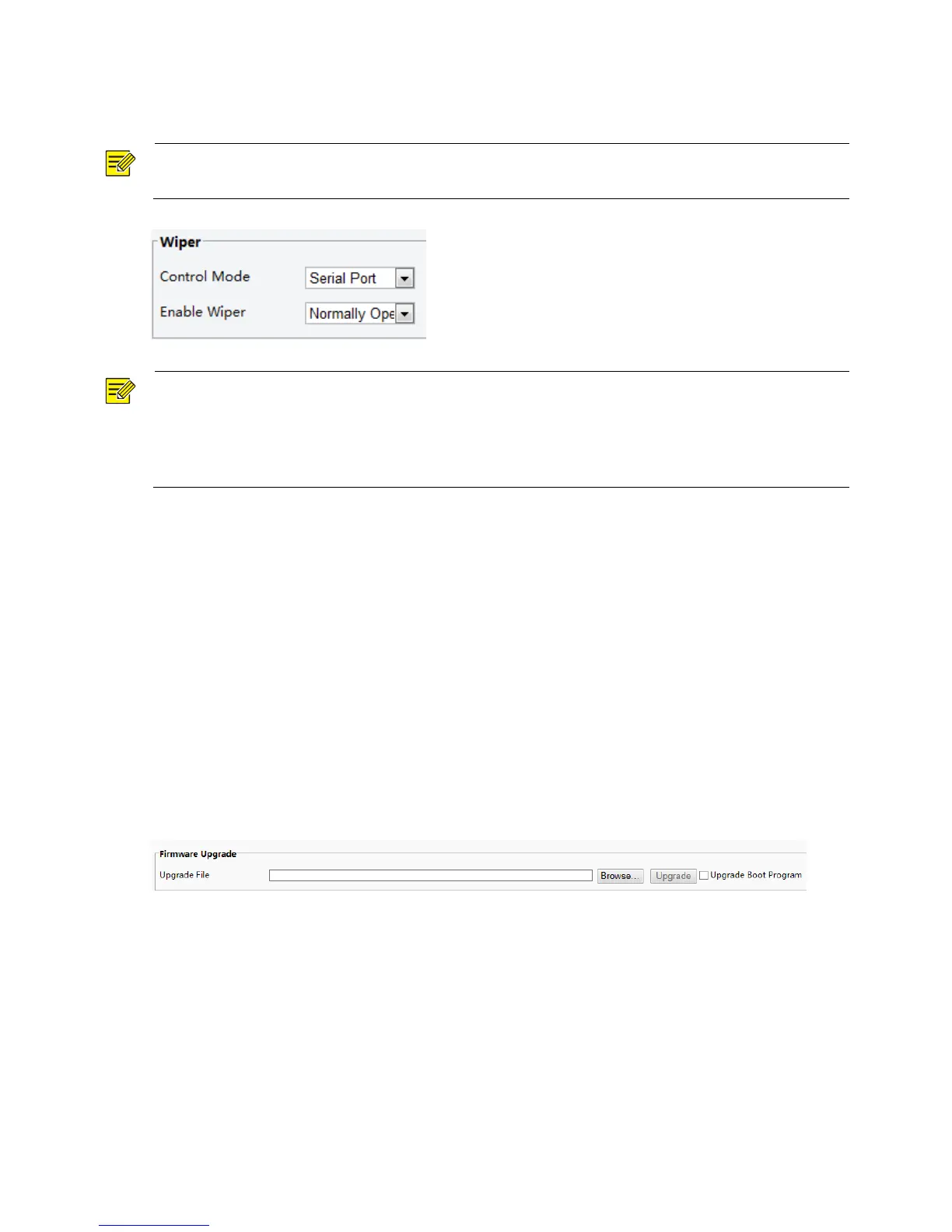
1. Click Setup > System > Ports & Devices, and then click the External Device tab.
2. Set the wiper control mode and the parameters to enable wiper.
NOTE!
Serial Port: The wiper is controlled through PELCO-D instructions. Please set the PTZ protocol to PELCO-D.
Normally Open/Closed: The wiper is controlled through alarm input/output settings, including normally
open and normally closed.
Enable Wiper: This function is available only in alarm input/output mode.
Viewing Device Status
You can view the current status of your camera.
1. Click Setup > Common > Navigation.
2. Click Refresh for the latest status information.
3. View the device information.
Upgrading the Device
If the device is managed by the central management server and you want to upgrade the devices in batch
mode, it is recommended to perform the upgrade operation on the central server. For detailed steps, see
the user manual for the central management server.
1. Click Setup > System > Maintenance.
2. Under Firmware Upgrade, click Browse and select the correct upgrade file.
3. (Optional) Select the check box to enable Upgrade Boot Program.
4. Click Upgrade and then confirm to start. The camera will restart automatically after the upgrade is
completed.



 To Next Page