Recording
Recording process
24
Recording process
Connect
Turn power
on (→ P.18)
Prepare before
recording
Record
(→ P.29)
Play back
and check
(→ P.51)
Check take
information
(→ P.63)
• Connect mics, instruments,
audiovisual equipment and
other devices to Inputs 1–8.
(→ P.8)
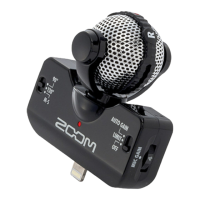
• Connect a mic capsule to the
MIC IN connector. (→ P.9)
• Press to start and
to stop recording.
• You can also set marks.
• Press to start
recording a new track.
• Press to pause
• Press to start playback
and or to stop it.
• Marks, for example, can also
be set.
• Check and edit
metadata.
1. Set the SD card and file format
for recording. (→ P.25)
• Set the recording file format for each
SD card separately.
2. Select the recording tracks
(→ P.27)
• Use track keys to select.
The indicators for selected tracks light
red and you will be able to monitor
input sounds.
• Press two track keys simultaneously
to link them as a stereo track.
3. Make recording settings
• Make other settings, including for the
following functions:
- dual channel recording (→ P.33)
- pre recording (→ P.35)
- high pass filter (→ P.82)
- limiter (→ P.83)
4. Adjust the input levels
(→ P.28)
• The side mic level can also be
adjusted when using a mid-side mic
capsule.
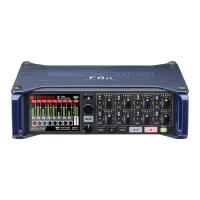
Recording with the follows the process shown below.
The data created for each recording occurrence is called a "take".


 To Next Page