247Security Inc. | 4400 North Point Parkway, Suite # 158, Alpharetta, GA 30022, USA | 1-866-693-7492 | www.247securityinc.com
USER MANUAL, ZEUS Pt
24
4 DVR SETUP
4.1 STARTING DVRVIEWER
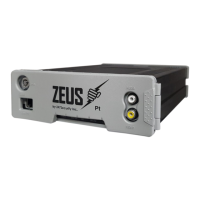
Verify that the ZEUS has successfully powered up by checking the Power and Ignition LEDs which
should be on and solid. You can start the viewer software by finding the DVRViewer folder listed in the
program folder in the start menu. Double click on the icon “DVRViewer”. The DVRViewer software
should be included on the installation CD that is sent along with the unit. The ZEUS requires latest
DVRViewer (please contact 247Security Inc. Technical Support for help).
4.2 DVRVIEWER LOGIN
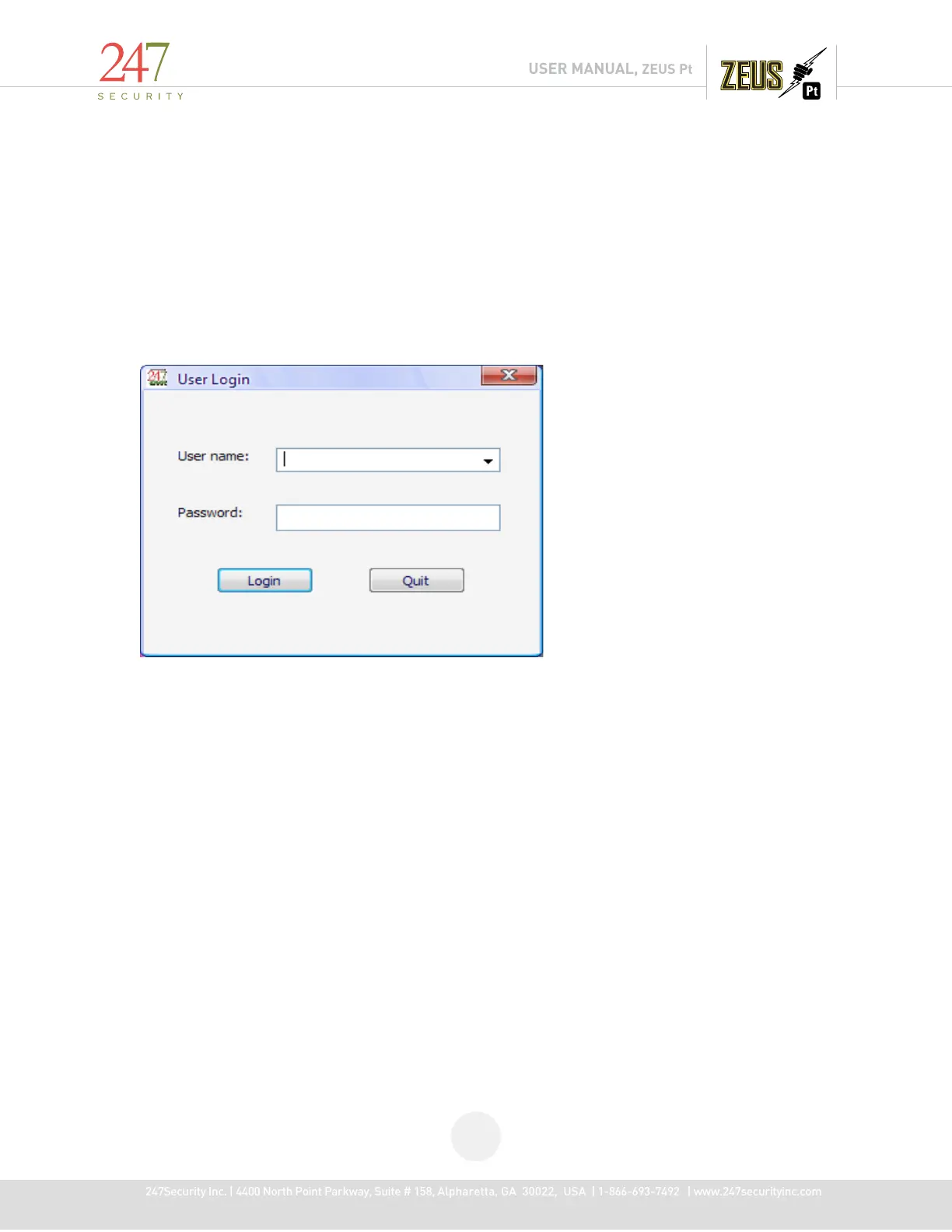
The first screen that appears when you start the DVRViewer application will be the LOGIN screen. If
this is the first-time logging in the default username and password will be “admin” and
“247SECURITYINC”. Both the Username and password are case sensitive. If you forget or lose your
password please contact 247Security Inc. Technical Support for help.
Please make sure you change your temporary admin password to something else that is easier for
you to remember by clicking on the “Users” button. Follow instructions on the screen to assign a new
password.


 To Next Page