247Security Inc. | 4400 North Point Parkway, Suite # 158, Alpharetta, GA 30022, USA | 1-866-693-7492 | www.247securityinc.com
USER MANUAL, ZEUS Pt
25
4.3 CONNECTING TO DVR
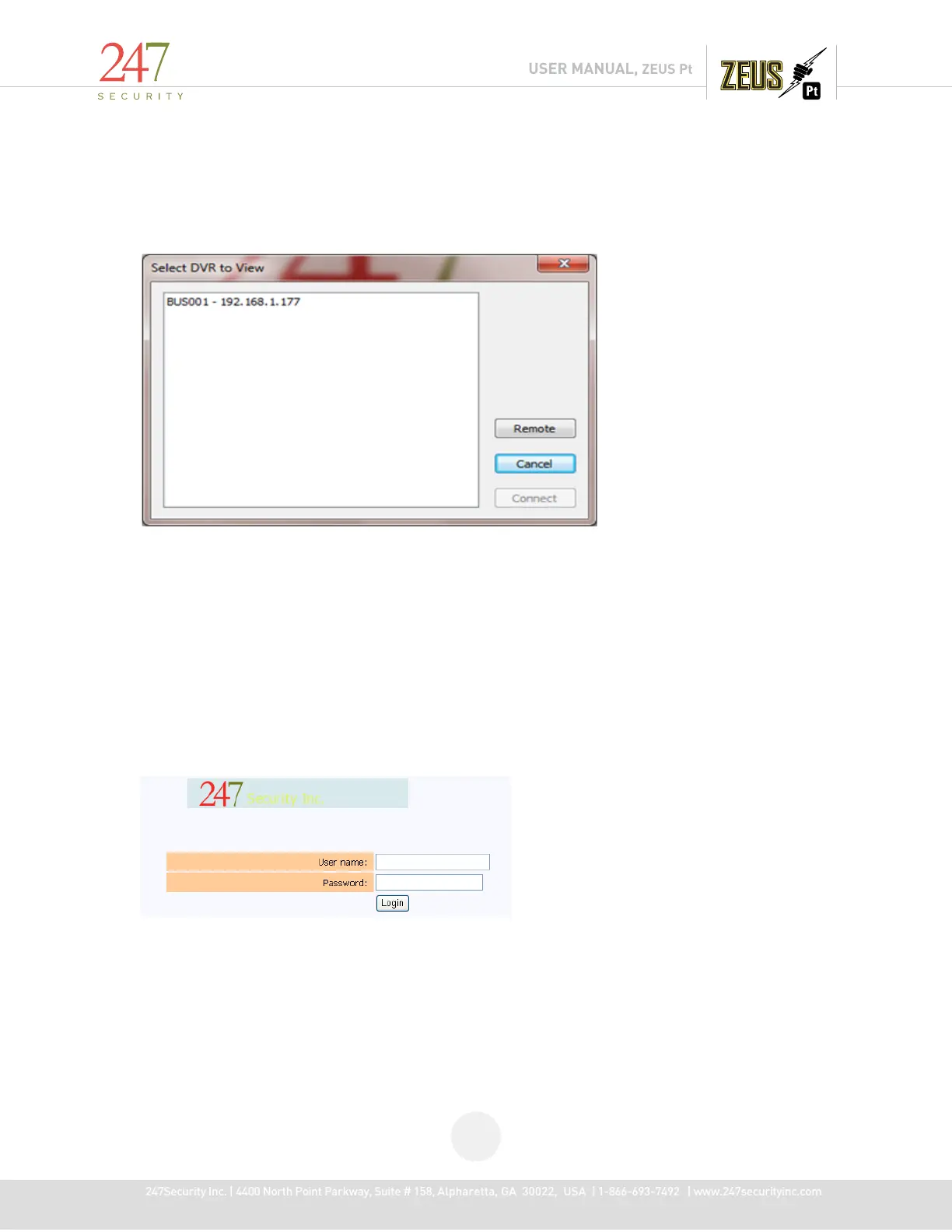
Once the DVRViewer application is running click on the play button and selects “Live View”. You will
get the following window
Select the DVR you want to connect to so that it’s highlighted and then click on “Connect” button.
The first time you do this the default bus ID of bus001 – 192.168.1.100 will appear in the window.
4.4 SETUP LOGIN
In this section, we will discuss how to configure the ZEUS to meet your requirements. The process is
straightforward and easy to follow; the DVR setup is divided into six major components: SYSTEM,
CAMERA, SENSOR, NETWORK, STATUS and TOOLS. The system will already have been configured at the
factory for your specific system requirements, but of course can be updated as needed.
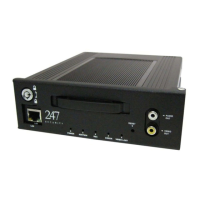
You can access the SYSTEM CONFIGURATION by clicking on the “SETUP” button from the DVRViewer
application and login in using the default username and password of “admin” and “admin”.


 To Next Page