247Security Inc. | 4400 North Point Parkway, Suite # 158, Alpharetta, GA 30022, USA | 1-866-693-7492 | www.247securityinc.com
USER MANUAL, ZEUS Pt
61
5.13 BLURRING & DISPLAY MAP
5.13.1 BLURRING FEATURE
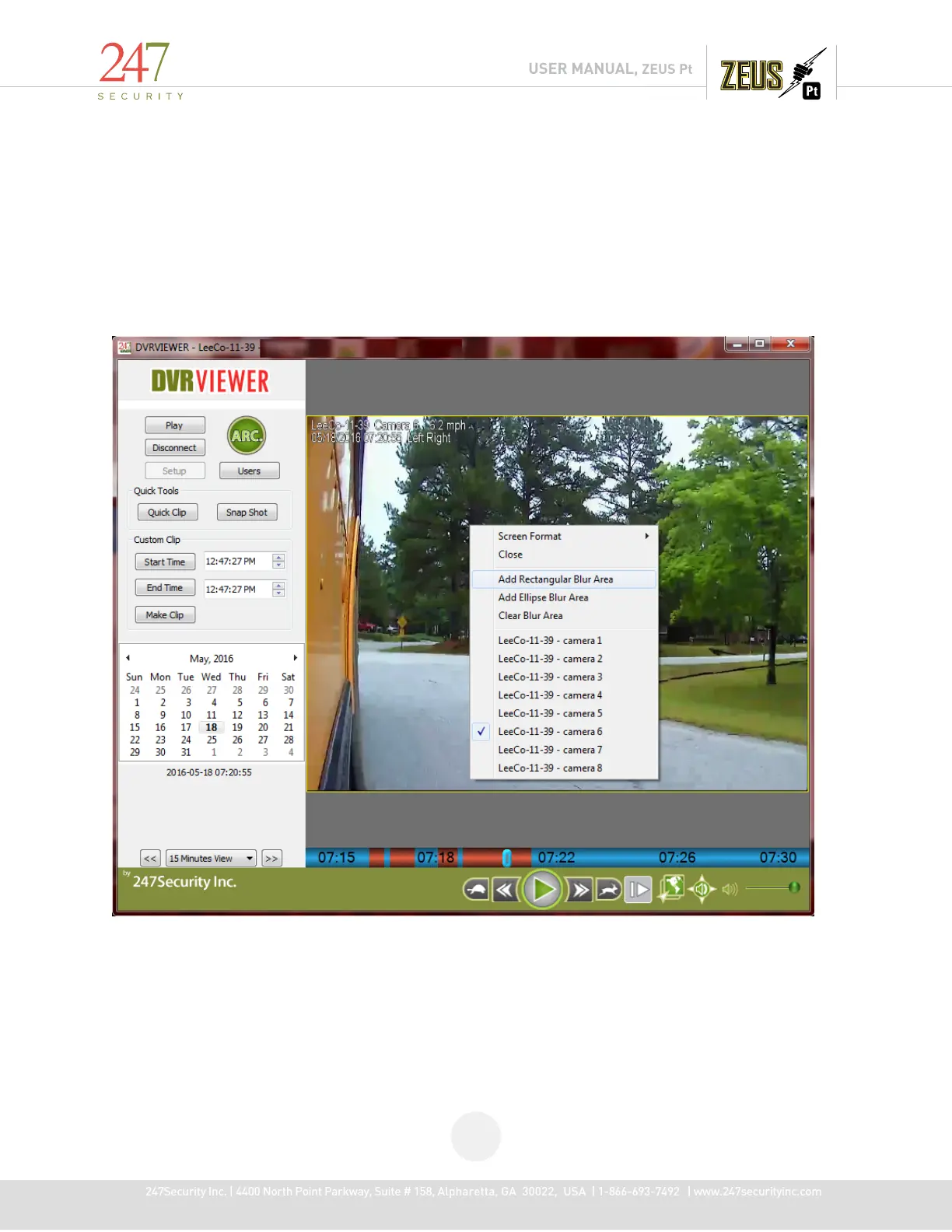
Play Archive the DVR HDD, select a camera display, right-click on video area, the pop-up menu will show these 3
items: "Add Rectangle Blur Area", "Add Ellipse Blur Area", "Clear Blur Area", up to 10 blur areas can be added to a
single channel.
To add blur area, select one of the blur options from the right-click menu. Then left-click on the video on the location
you wish to blur, hold the left-click and drag the mouse across the screen until the blur is the correct size.
After blur area is defined, "Snap Shot" and save to a JPEG file or "Make Clip" and save to an AVI file would save
video with blurred images (.DVR file not supported).


 To Next Page