247Security Inc. | 4400 North Point Parkway, Suite # 158, Alpharetta, GA 30022, USA | 1-866-693-7492 | www.247securityinc.com
USER MANUAL, ZEUS Pt
50
5 DVRVIEWER
5.1 INTRODUCTION
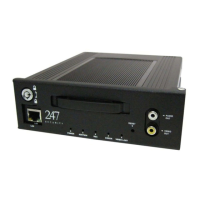
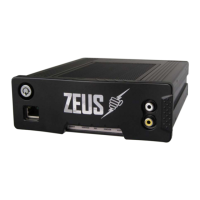
The DVRViewer application allows user to preview, playback and setup the ZEUS which can be
installed on multiple computers or laptops. A laptop is very useful when installing the ZEUS in the
vehicle so that installer can properly aim the cameras and setup the camera parameters as well as
system configuration. DVRViewer can also be installed on an office computer to be able to search and
playback video or events from the ZEUS storage media.
5.2 SOFTWARE CLIENT FEATURES
● Multiple Channel Screen Pre-view formats: 2x2, 3x3, 4x4 and 1, 2 & 4 channels
● Real time remote Preview, Remote Search / Playback, Video Screen Snap Shot
● Fast forward / Backward, Slow Play, Frame by Frame stepping, 20 seconds jump forward /
backward, and Pause are supported in Play Back Mode
● Client Software can remotely configure ZEUS via a network cross-over cable or a wireless
network connection
● Search / Play Back when removable storage media is connected to local computer
● Convenient coded color timeline bar to search and retrieve video files by time /date/month
in a few mouse clicks. A calendar is also available to allow users to search for video for the
day and month required.
● User can create custom video files by specifying Start and End Times using the “Custom Clip”
feature and then save these files to their local hard drive.
● User Management allows only the “Admin” user to gain complete access to the ZEUS system
such as configuration, update maintenance, copy/delete video files, and create users
account. Alternatively, normal User has limited access to the ZEUS system.
5.3 SYSTEM REQUIREMENTS
The Recommended System Requirements are:
● Windows Win 7/Win10
● Dual Core or higher
● 4GB RAM or higher
● Graphics card with 64MB of RAM or more and supporting 24-bit color or better using Intel,
ATI or NVIDIA GPU
● 24-bit color is recommended for best video quality
● Screen resolution of at least 1024x768
● DirectX 7 compatible sound card
● DirectX 9 or higher with DirectDraw Acceleration enabled
● Internet Explorer 11 or higher, latest Firefox or Chrome
● USB 2.0 port
5.4 INSTALLATION
Insert the CD that came with the ZEUS. Locate the CD and look for the installation file. Once
installation has finished there should be an icon called “DVRViewer” on the desktop. Double-click on the
icon “DVRViewer” to start the DVR client software.


 To Next Page