247Security Inc. | 4400 North Point Parkway, Suite # 158, Alpharetta, GA 30022, USA | 1-866-693-7492 | www.247securityinc.com
USER MANUAL, ZEUS Pt
39
4.6.18 PRE-RECORDING & POST-RECORDING TIME
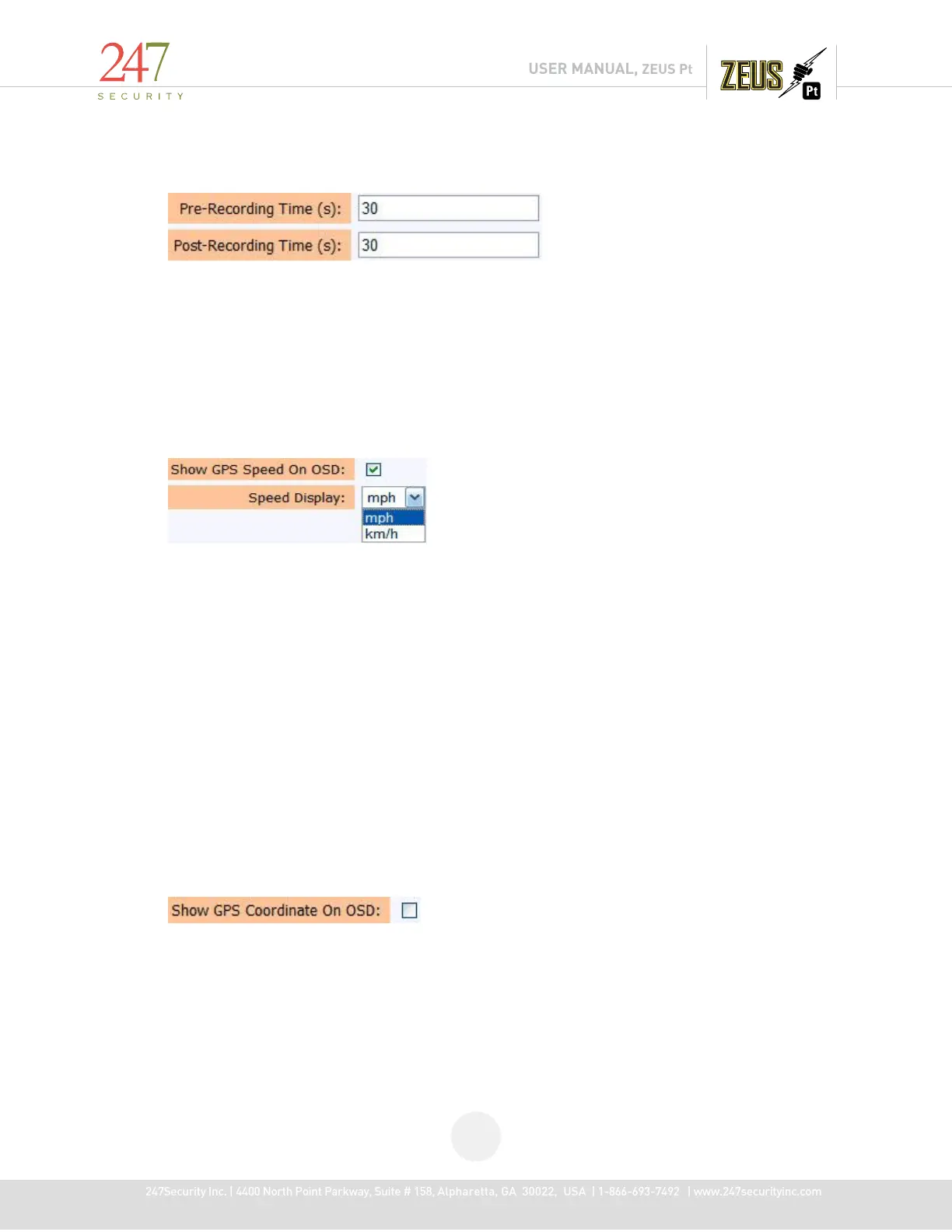
Pre-recording defines how many seconds of video you want to include in the triggered event
prior to the time the trigger occurred. Post-recording defines how many seconds of video you want to
include in the triggered event after the time the trigger occurred.
For the above example, if the sensor got triggered at 12:00:00, the event would include 30
seconds of video before the trigger and 30 seconds after the trigger, from 11:59:30 to 12:00:30 creating
a marked event containing 60 seconds of video. Values can be from 1 second to 600 seconds (10
minutes).
4.6.19 SHOW GPS SPEED ON OSD
GPS information is also available on the ZEUS provided you have the GPS option which includes
a GPS antenna that connects to the ZEUS and is installed on the vehicle. GPS data is recorded on the
storage media as well as embedded into the video stream. Place a check mark in the box to display and
record the vehicle GPS speed in the video stream. Speed can be displayed in “mph” or “km/h”. If this
option is not enabled, GPS data is still recorded in a log file on the video storage media.
MiniTRACK is a software application, combining recorded GPS data with GIS mapping to allow
you to monitor vital vehicle information. Track Stopping, Idling and speeding occurrences; Create
custom reports; Export data to other software for review and analysis. MiniTRACK not only helps
reconstruct disputes and incidents, but can also provide valuable information to improve your fleet
management strategies.
VideoTRACK builds on the features of MiniTRACK allowing you to visually manage recorded
video that’s been synchronized with GPS data, enabling you to not only know, but also see exactly what
happened where, and at precisely what time.
Contact your dealer for further information on these products.
4.6.20 SHOW GPS COORDINATE ON OSD
Place a check mark in this box to display and record the vehicle GPS coordinates in the video
stream. Coordinates are displayed as longitude and latitude values. If this option is not enabled, GPS
coordinates are still recorded in a log file on the video storage media.


 To Next Page