30
C
HAPTER
2: I
NSTALLING
THE
H
ARDWARE
■
Tran smit
Yellow —
indicates that data is being transmitted on
the port.
■
Link
Green —
indicates that the link between the port and
the next piece of network equipment is OK.
Off —
indicates that nothing is connected to the port or
that the link has failed.
Internet Firewall
Rear Panel
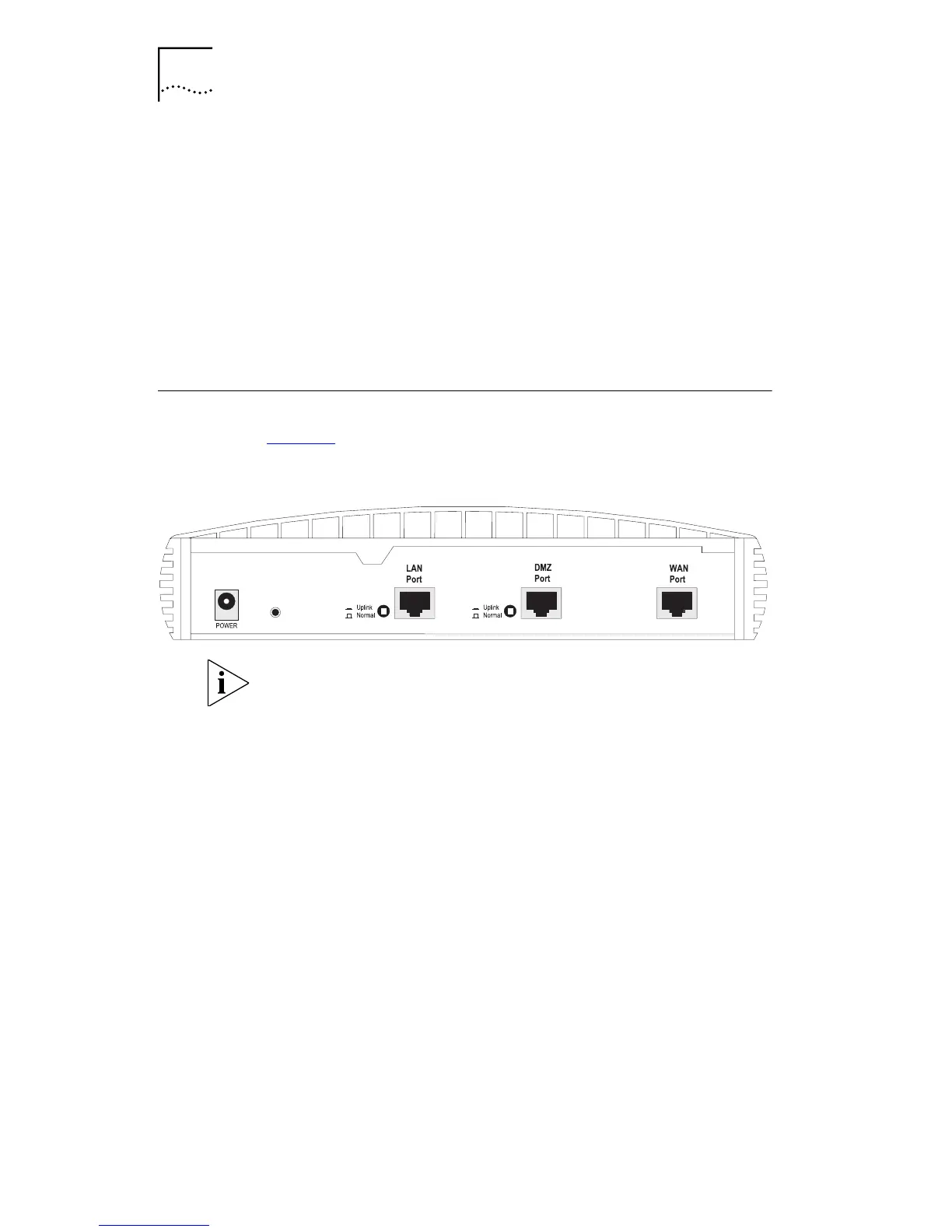
Figure 5 shows the rear panel of the Internet Firewall DMZ.
Figure 5
Internet Firewall DMZ Rear Panel
The Internet Firewall 25 does not have a DMZ port.
The Internet Firewall rear panel contains the following:
■
Power Adapter socket
Only use the power adapter supplied with the Internet
Firewall. Do not use any other adapter.
■
Reset Switch (recessed)
■
LAN Port
Use 10BASE-T cable with RJ-45 connectors. You can
connect the Internet Firewall to any workstation or
piece of equipment that has a 10BASE-T port.
■
DMZ Port (Internet Firewall DMZ only)
Use a 10BASE-T cable with RJ-45 connectors. Use this
port to connect the Internet Firewall to any server,
workstation or piece of equipment that has a 10BASE-T
port.
■
WAN Port



 To Next Page