Chapter 4: Exploring Adaptec Storage Manager ● 46
What do the Enterprise View icons mean?
The Physical Devices View
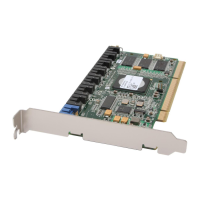
When you select a controller in the Enterprise View, information about the physical devices
connected to that controller appear in the Physical Devices View. Disk drives designated as hot
spares have plus signs (+) beside them.
Hold your cursor over any disk drive to see its status, connector/ID number, and
maximum speed. You can also click the arrow, shown at right, to see this same
information. See Revealing More Device Information on page 49 to change how disk drives
are represented.
To view the logical drives associated with a particular disk drive, see The Logical Devices View
on page 47.
Icon Description
System with direct attached storage controller and directly attached disk drives or enclosures
Enclosure
Controller
...has six connectors and one
onboard expander, and is
connected to 28 disk drives.
Controller 1...


 To Next Page