242
ADOBE ILLUSTRATOR CS2
User Guide
A
B C
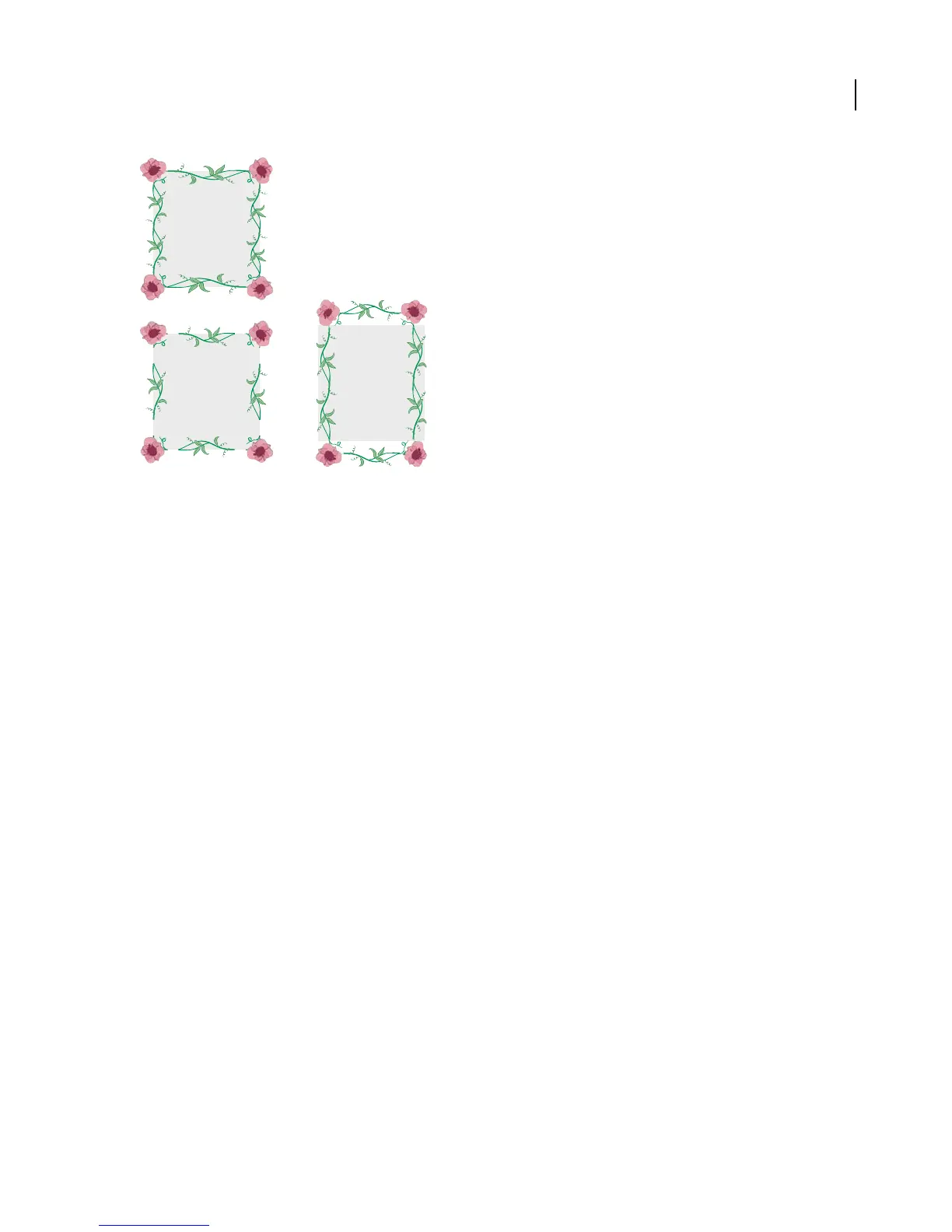
Fit options
A. Stretch To Fit B. Add Space To Fit C. Approximate Path
See also
“About patterns” on page 255
“To create corner tiles for brush patterns” on page 259
Colorization options for brushes
The colors that a scatter, art, or pattern brush paints depend on the current stroke color and the colorization method
of the brush. To set the colorization method, select one of the following options in the Brush Options dialog box:
None Displays colors as they appear in the brush in the Brushes palette. Choose None to keep a brush the same
colors as in the Brushes palette.
Tints Displays the brush stroke in tints of the stroke color. Portions of the art that are black become the stroke color,
portions that aren’t black become tints of the stroke color, and white remains white. If you use a spot color as the
stroke, Tints generates tints of the spot color. Choose Tints for brushes that are in black and white, or when you want
to paint a brush stroke with a spot color.
Tints And Shades Displays the brush stroke in tints and shades of the stroke color. Tints and Shades maintains black
andwhite, andeverythingbetween becomesablendfromblack to whitethrough thestrokecolor.Because blackis
addedyou maynot be able to printtoasingle platewhenusing Tintsand Shades with aspotcolor.ChooseTints and
Shades for brushes that are in grayscale.
Hue Shift Uses the key color in the brush artwork, as shown in the Key Color box. (By default, the key color is the
most prominent color in the art.) Everything in the brush artwork that is the key color becomes the stroke color.
Other colors in the brush artwork become colors related to the stroke color. Hue Shift maintains black, white, and
gray.ChooseHue Shiftfor brushesthatuse multiple colors.Tochangethe keycolor,click theKey Coloreyedropper,
move theeyedroppertothe previewinthe dialog box, andclick thecolor youwanttouse as thekey color. Thecolor
in the Key Color box changes. Click the eyedropper again to deselect it.
For information and samples about each choice, click Tips.



 To Next Page