ADOBE ILLUSTRATOR CS2
249
User Guide
AB C
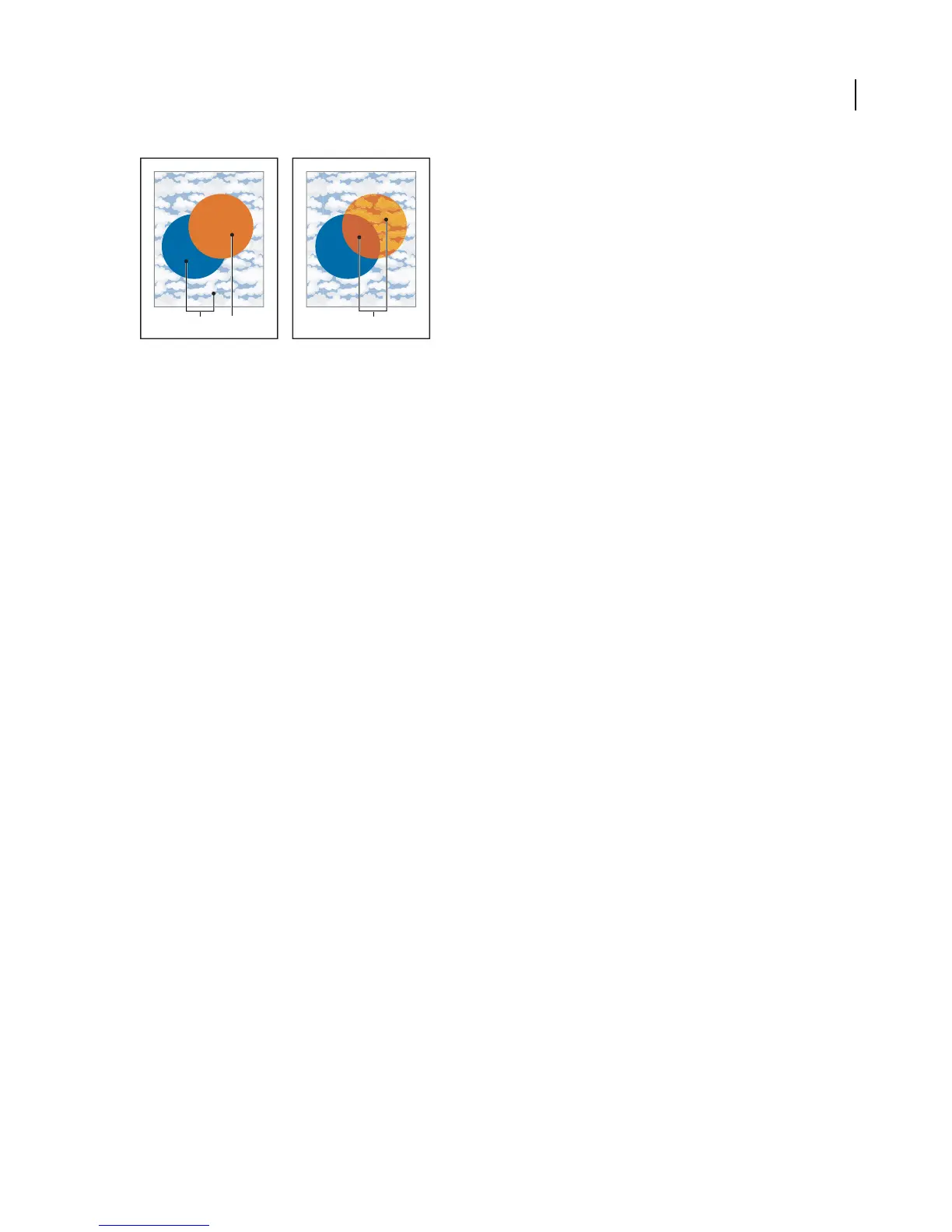
Topmost object with Normal blending (left) compared to Hard Light blending mode (right)
A. Base colors in underlying objects at 100% opacity B. Blend color in topmost object C. Resulting colors after applying the Hard Light
blending mode to the topmost object
Illustrator provides the following blending modes:
Normal Paints the selection with the blend color, without interaction with the base color. This is the default mode.
Darken Selects the base or blend color—whichever is darker—as the resulting color. Areas lighter than the blend
color are replaced. Areas darker than the blend color do not change.
Multiply Multiplies the base color by the blend color. The resulting color is always a darker color. Multiplying any
color with black produces black. Multiplying any color with white leaves the color unchanged. The effect is similar
to drawing on the page with multiple magic markers.
Color Burn Darkens the base color to reflect the blend color. Blending with white produces no change.
Lighten Selects the base or blend color—whichever is lighter—as the resulting color. Areas darker than the blend
color are replaced. Areas lighter than the blend color do not change.
Screen Multiplies the inverse of the blend and base colors. The resulting color is always a lighter color. Screening
with black leaves the color unchanged. Screening with white produces white. The effect is similar to projecting
multiple slide images on top of each other.
Color Dodge Brightens the base color to reflect the blend color. Blending with black produces no change.
Overlay Multiplies or screens the colors, depending on the base color. Patterns or colors overlay the existing artwork,
preserving the highlights and shadows of the base color while mixing in the blend color to reflect the lightness or
darkness of the original color.
Soft Light Darkens or lightens the colors, depending on the blend color. The effect is similar to shining a diffused
spotlight on the artwork.
If the blend color (light source) is lighter than 50% gray, the artwork is lightened, as if it were dodged. If the blend
color is darker than 50% gray, the artwork is darkened, as if it were burned in. Painting with pure black or white
produces a distinctly darker or lighter area but does not result in pure black or white.
Hard Light Multiplies or screens the colors, depending on the blend color. The effect is similar to shining a harsh
spotlight on the artwork.
If the blend color (light source) is lighter than 50% gray, the artwork is lightened, as if it were screened. This is useful
for adding highlights to artwork. If the blend color is darker than 50% gray, the artwork is darkened, as if it were
multiplied. This is useful for adding shadows to artwork. Painting with pure black or white results in pure black or
white.



 To Next Page