250
ADOBE ILLUSTRATOR CS2
User Guide
Difference Subtracts either the blend color from the base color or the base color from the blend color, depending on
which has the greater brightness value. Blending with white inverts the base-color values. Blending with black
produces no change.
Exclusion Creates an effect similar to but lower in contrast than the Difference mode. Blending with white inverts
the base-color components. Blending with black produces no change.
Hue Creates a resulting color with the luminance and saturation of the base color and the hue of the blend color.
Saturation Creates a resulting color with the luminance and hue of the base color and the saturation of the blend
color. Painting with this mode in an area with no saturation (gray) causes no change.
Color Creates a resulting color with the luminance of the base color and the hue and saturation of the blend color.
This preserves the gray levels in the artwork and is useful for coloring monochrome artwork and for tinting color
artwork.
Luminosity Creates a resulting color with the hue and saturation of the base color and the luminance of the blend
color. This mode creates an inverse effect from that of the Color mode.
Note: The Difference, Exclusion, Hue, Saturation, Color, and Luminosity modes do not blend spot colors—and with
most blending modes, a black designated as 100% K knocks out the color on the underlying layer. Instead of 100% black,
specify a rich black using CMYK values.
To change the blending mode of artwork
1 Select an object or group (or target a layer in the Layers palette).
If you want to change the blending mode of a fill or stroke, select the object, and then select the fill or stroke in the
Appearance palette.
2 In the Transparency palette, choose a blending mode from the pop-up menu.
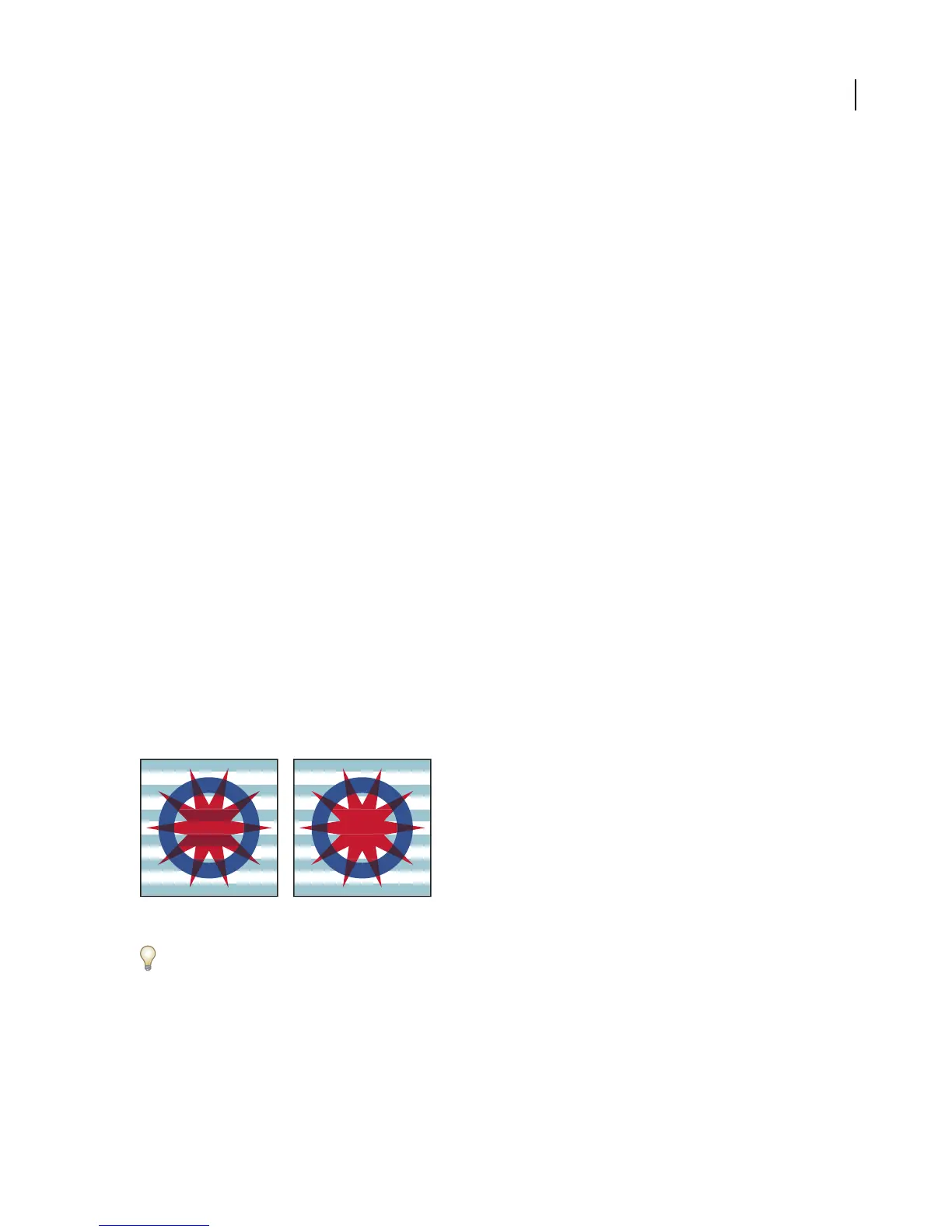
You can isolate the blending mode to a targeted layer or group in order to leave objects beneath unaffected. To do
this, select the target icon to the right of a group or layer in the Layers palette that contains an object using a blending
mode. In the Transparency palette, select Isolate Blending. (If the Isolate Blending option isn’t visible, select Show
Options from the Transparency palette menu.)
Group (star and circle) with Isolate Blending option deselected (left) compared to selected (right)
To select allobjects that usethe same blending mode,selectanobjectwiththatblending mode,ordeselecteverything
and choose the blending mode in the Transparency palette. Then choose Select > Same > Blending Mode.
See also
“About the Transparency palette” on page 243
“About targeting” on page 420



 To Next Page