23
ADOBE ILLUSTRATOR CS2
User Guide
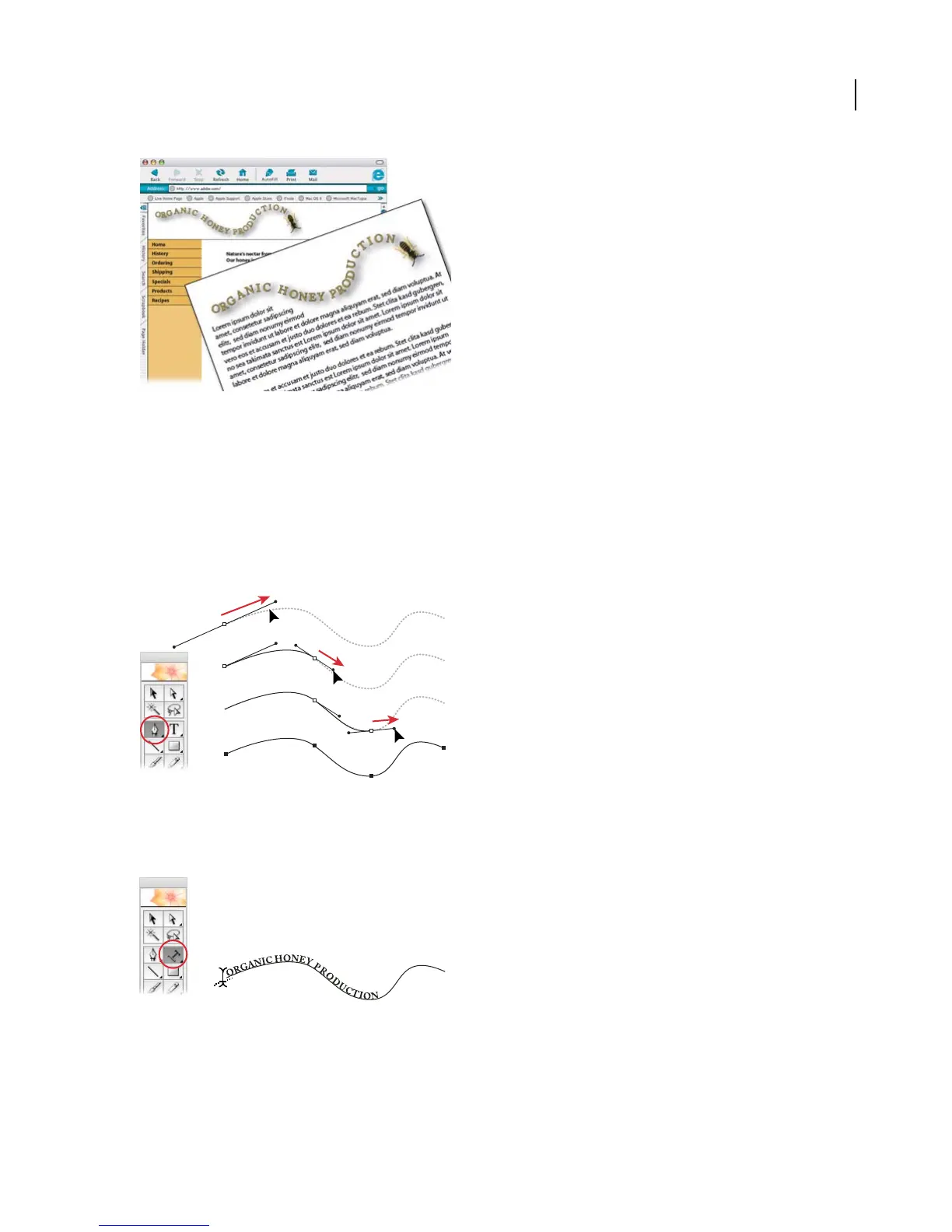
1. Draw a curved path.
Select the Pen tool, and position the pointer where you want to start your path. Click and drag in the direction you
want the curve to go. Release the mouse button and move the pointer; then click and drag again in the direction you
want the curve to go. You can repeat this as many times as you want. When you are finished drawing, Ctrl-click
(Windows) or Command-click (Mac OS) away from the line.
If this is your firsttimeusing thePen tool,itmay take some practice to getthe hang of it;however,itwillbetimewell
spent. When you’re comfortable using the Pen tool, you can draw any line or shape with precision. (See “To draw
curves with the Pen tool” on page 154.)
2. Add type along the path.
Select theTypeOnAPath tool.Click thepathtoset theinsertion point, andtypethe desiredtext. Don’tworry about
the position of the type on the path—you’ll learn how to adjust it later on.
3. Format the type.
Click the Selection tool to select the type, and choose a font family, font style, and font size in the Control palette.
You can also change the color of the type by selecting a Fill color in the Control palette.



 To Next Page