24
ADOBE ILLUSTRATOR CS2
User Guide
Illustrator comes with a variety of fonts that you can use in your artwork. To view a catalog of fonts, choose Help >
Welcome Screen and click Browse Cool Extras.
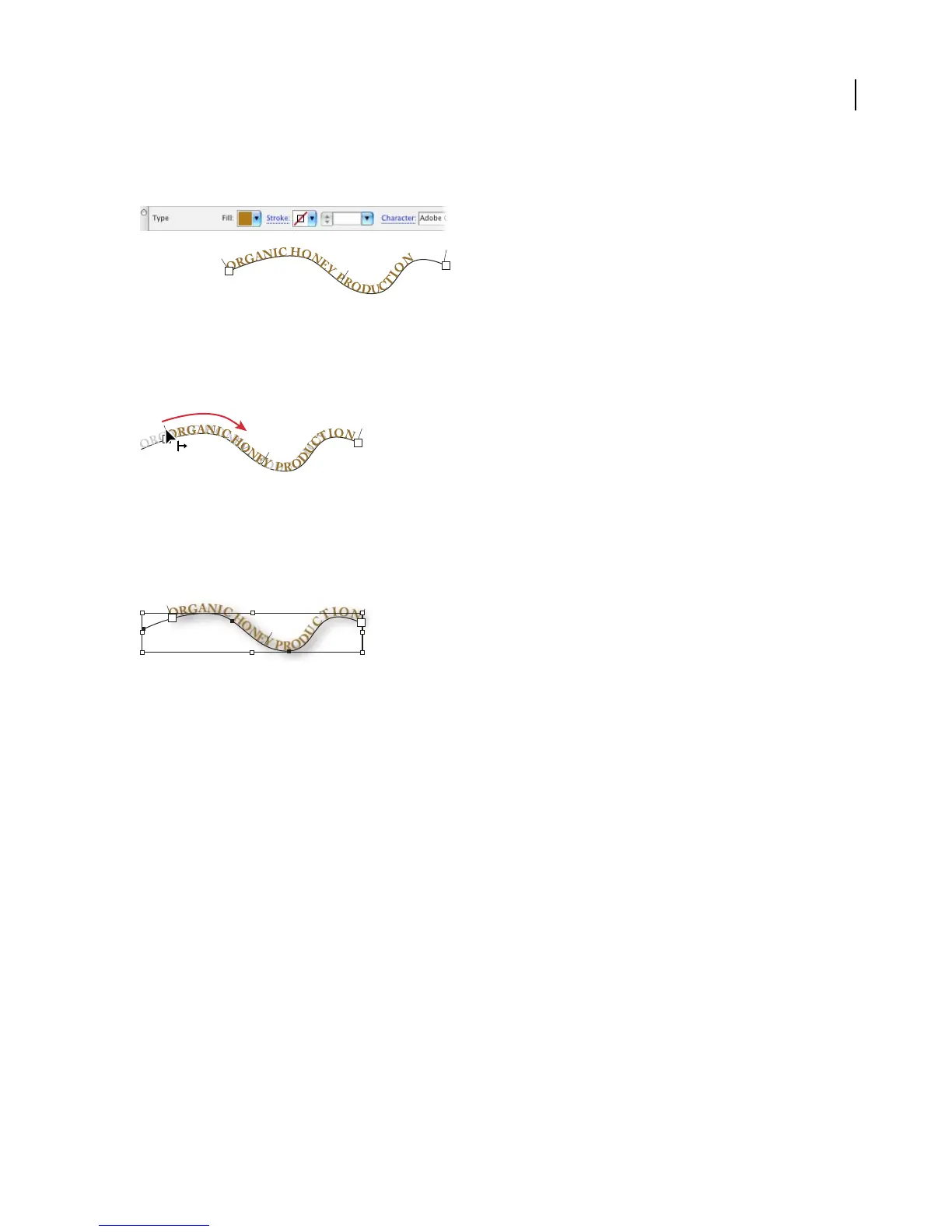
4. Reposition the type if necessary.
Position the Selection tool over the type’s start, center, or end bracket until a small icon appears next to the pointer.
(If the pointer doesn’t change, make sure the Selection tool is still selected.) Drag to the right or left to reposition the
type on the path.
5. Apply a drop shadow to the type.
Choose Effect > Stylize > Drop Shadow. Select Preview, and adjust the drop shadow options. (We used the default
values.) When you’re satisfied with the results, click OK.
You can still edit the type after applying an effect.
6. Place a symbol instance.
If the Symbols palette isn’t showing, choose Window > Symbols. The Symbols palette displays a variety of default
symbols; however, many additional symbols are available to you through symbol libraries.Toopenasymbol library,
click the triangle icon at the top right corner of the Symbols palette, and choose an option from the Open Symbol
Library submenu.
Once you locate the symbol you want to use, drag it from the palette into the document window. The placed symbol
is called a symbol instance. We used the Bee symbol from the Nature symbol library. After placing the symbol, we
rotated it and applied a drop shadow to match the text.



 To Next Page