ADOBE ILLUSTRATOR CS2
317
User Guide
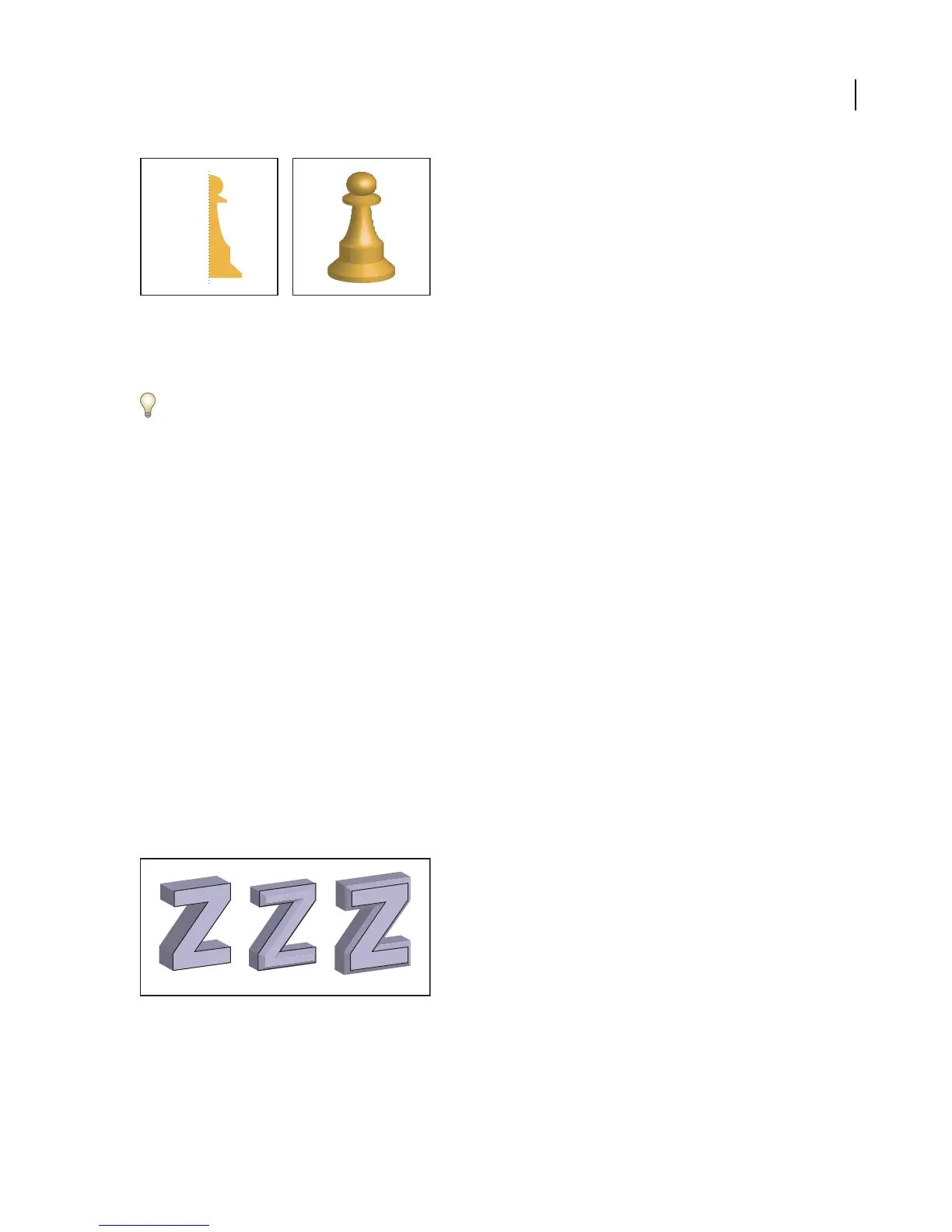
Revolving an object
Note: 3D objects may display anti-aliasing artifacts on screen, but these artifacts won’t print or appear in artwork
optimized for the web.
To apply or modify 3D effects for an existing 3D object, select the object and then double-click the effect in the
Appearance palette.
To create a 3D object by extruding
1 Select the object.
2 Choose Effect > 3D > Extrude & Bevel.
3 Click More Options to view the complete list of options, or Fewer Options to hide the extra options.
4 Select Preview to preview the effect in the document window.
5 Specify options:
Position Sets howthe object is rotatedand theperspective from whichyou view it.(See“To set3Drotationposition
options” on page 318.)
Extrude & Bevel Determines theobject’sdepth andthe extent of anybevel addedtoorcut from it.(See“Extrude&
Bevel options” on page 319.)
Surface Creates a wide variety of surfaces, from dull and unshaded matte surfaces to glossy and highlighted surfaces
that look like plastic. (See “Surface shading options” on page 321.)
Lighting Adds one or more lights, varies the light intensity, changes the object’s shading color, and moves lights
around the object, for dramatic effects. (See “Lighting options” on page 322.)
Map Maps artwork onto the surfaces of a 3D object. (See “To map artwork to a 3D object” on page 323.)
6 Click OK.
Extruded object without a beveled edge (left) compared to object with Bevel Extent In (middle) and with Bevel Extent Out (right)
To create a 3D object by revolving
1 Select the object.



 To Next Page