366
ADOBE ILLUSTRATOR CS2
User Guide
• Select the type object using the Selection tool or Layers palette, and choose Type > Area Type Options. Enter
values for Width and Height, and click OK. If the text area is not a rectangle, these values determine the dimen-
sions of the object’s bounding box.
To change the margin around a text area
When working with an area type object, you can control the margin between the text and the bounding path. This
margin is referred to as the inset spacing.
1 Select an area type object.
2 Choose Type > Area Type Options.
3 Specify a value for Inset Spacing, and click OK.
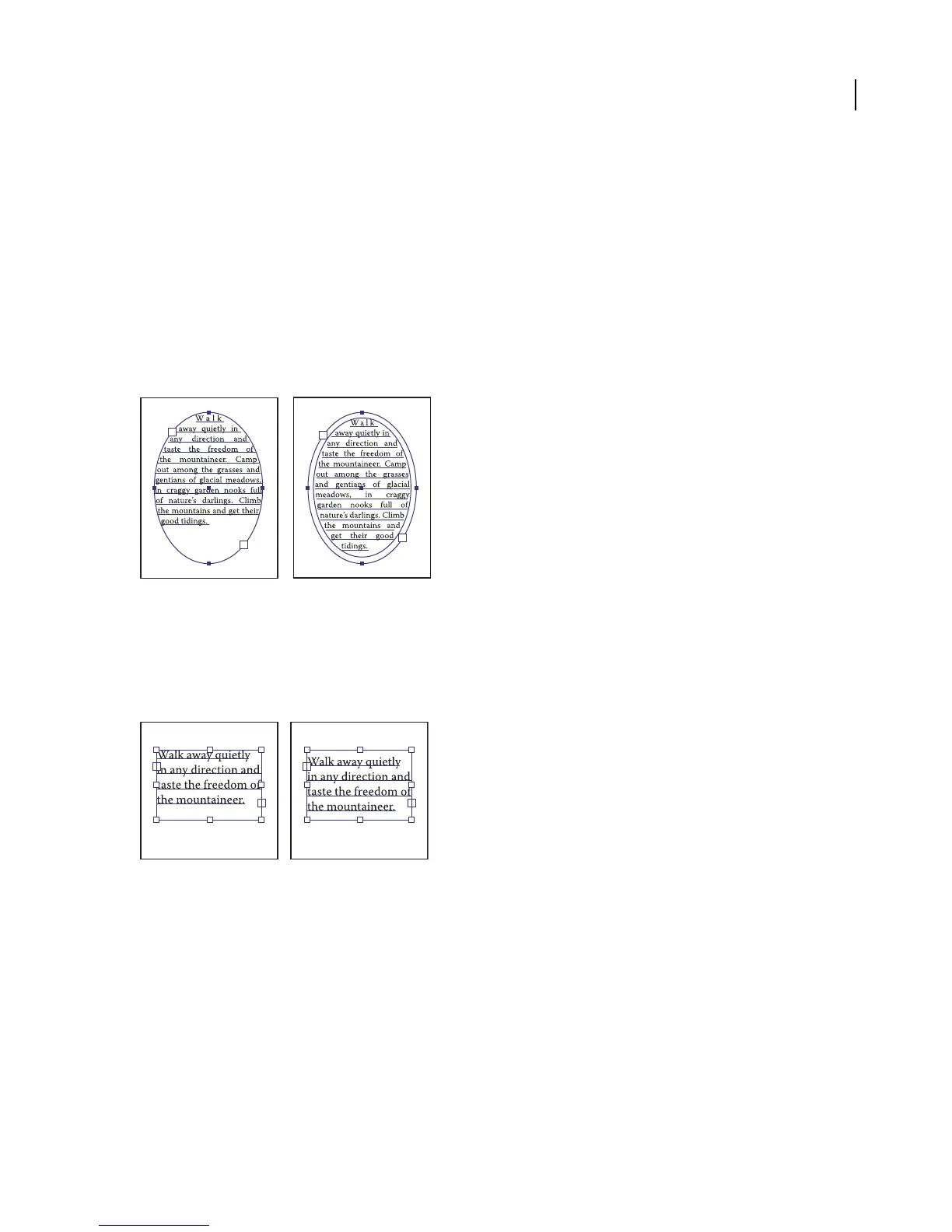
Type without inset spacing (left) compared to type with inset spacing (right)
To raise or lower the first baseline in a text area
When working with an area type object, you can control the alignment of the first line of text with the top of the
object.Thisalignmentisreferredtoasthe first baseline offset. For example, you can make text stick up above the top
of the object or fall a specific distance below the top of the object.
Type with First Baseline set to Cap Height (left) compared to type with First Baseline set to Leading (right)
1 Select an area type object.
2 Choose Type > Area Type Options.
3 For First Baseline, choose one of the following options:
Ascent The height of the “d” character falls below the top of the type object.
Cap Height The tops of uppercase letters touch the top of the type object.
Leading Uses the text’s leading value as the distance between the baseline of the first line of text and the top of the
type object.
x Height The height of the “x” character falls below the top of the type object.



 To Next Page