31
ADOBE ILLUSTRATOR CS2
User Guide
“Graph tool gallery” on page 510
“Slicing and cutting tool gallery” on page 444
“Moving and zooming tool gallery” on page 37
Using tools
You use tools in the toolbox to create, select, and manipulate objects in Illustrator. You can select a tool by clicking it
or pressing the tool’s keyboard shortcut. The name of the tool and its keyboard shortcut appear when you hold the
pointer over the tool—this text is called the tool tip.
To hide tool tips, choose Edit > Preferences > General (Windows) or Illustrator > Preferences > General (Mac OS),
and deselect Show Tool Tips.
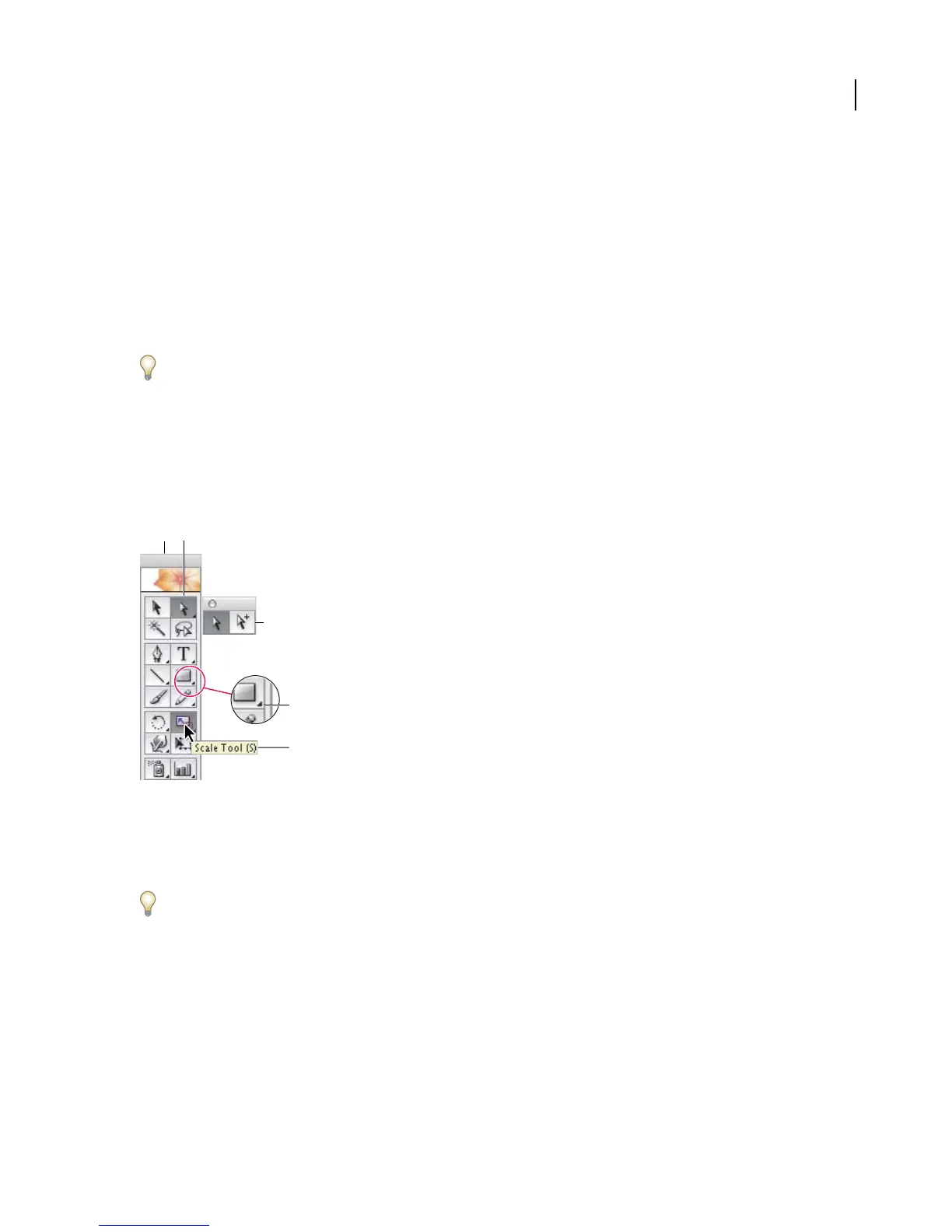
Some tools have additional tools beneath them—these are called hidden tools. A small triangle at the lower right
corner of the tool icon indicates that there are hidden tools. To view hidden tools, hold down the mouse button on
the visible tool. To select a hidden tool, continue to hold down the mouse button, drag the pointer over the tool you
want to select, and then release the mouse button. To tear off hidden tools into a separate palette, drag the pointer
over thearrow at theend of thetoolbox andrelease themouse button.Click theclose boxonthe palette’stitle barto
return the tools to the toolbox.
A B
C
D
E
Selecting a hidden tool
A. Toolbox B. Active tool C. Tear off palette with hidden tools D. Hidden tool triangle E. Tool name and shortcut
You can move the toolbox around the work area by dragging its title bar. You can also hide the toolbox by choosing
Window > Tools.
The mouse pointer for most tools matches that tool’s icon. If you prefer, you can use a precision pointer for greater
accuracy when working with detailed artwork. Choose Edit > Preferences > General (Windows) or Illustrator >
Preferences > General (Mac OS), and select Use Precise Cursors. Alternatively, press Caps Lock on the keyboard.
To work with palettes
Palettes help you monitor and modify your work. You can customize the default palette arrangement in the following
ways:
• To show or hide a palette, select the palette name from the Window menu. A check mark next to the palette name
indicates that the palette is currently open.



 To Next Page