410
ADOBE ILLUSTRATOR CS2
User Guide
Alignment Specifies the alignment of warichu characters. For example, in a vertical frame grid, selecting Top will
align the beginning of the warichu characters at the top of the frame. The alignment proxy shows how the warichu
text appears relative to the parent text.
Line Breaking Options Specifies the minimum number of characters required before and after the line breaks to start
a new line.
See also
“To display Asian type options” on page 406
Aligning different character sizes in the same line
When a line of text contains different sizes of characters, you can specify how to align text to the largest characters
in the line: to the top, center, or bottom of the embox (right, center, and left for vertical frames), to the roman
baseline, or to the top or bottom of the ICF box (right or left for vertical frames). The ICF is the space where
characters can be placed.
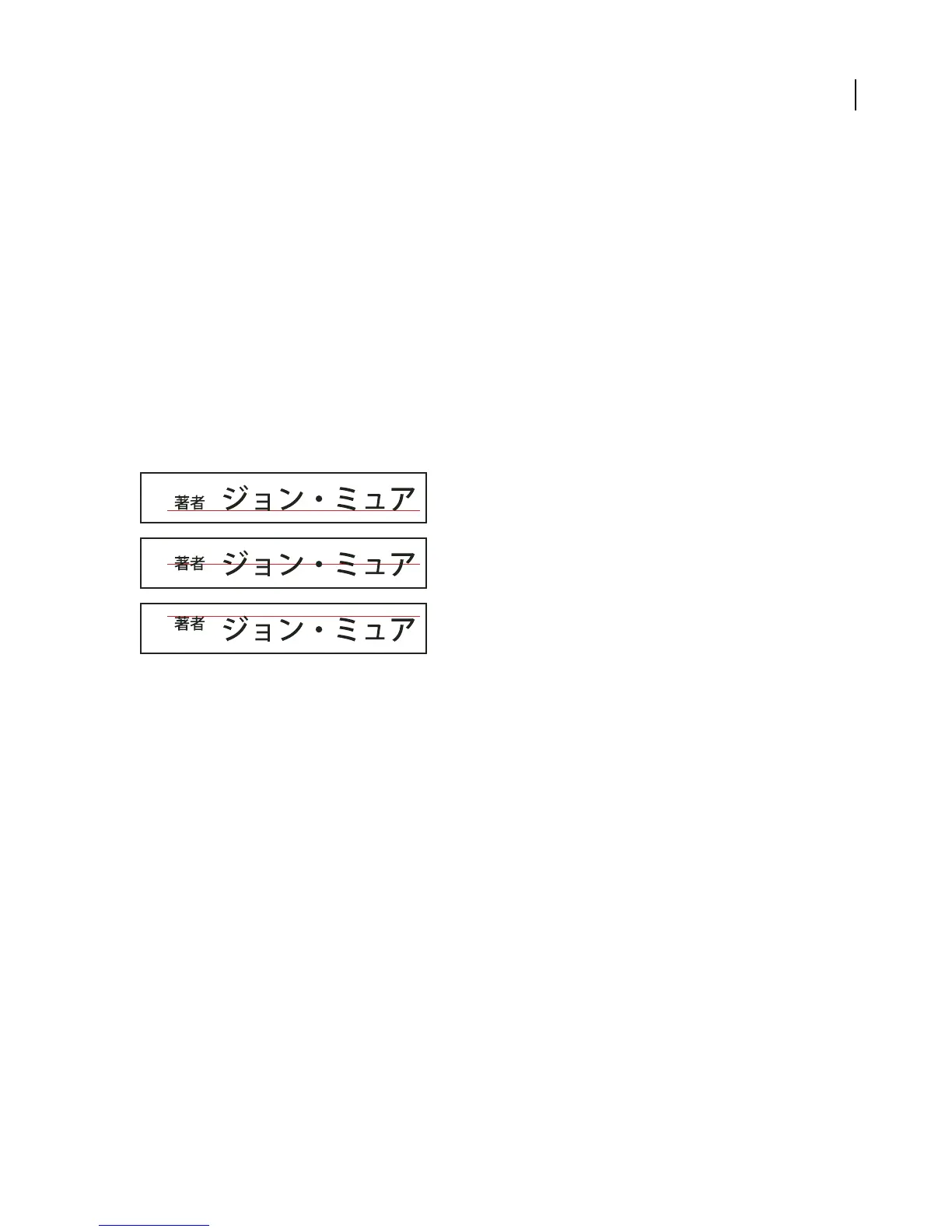
A
B
C
Character alignment options
A. Small characters aligned to the bottom B. Small characters aligned to the middle C. Small characters aligned to the top
See also
“To display Asian type options” on page 406
To align Asian characters
❖ In the Character palette menu, choose an option from the Character Alignment submenu:
Roman Baseline to align the small characters in a line to the large character.
Embox Top/Right, Embox Center, or Embox Bottom/Left to align the small characters in a line to the specified
position of the large character’s embox. In vertical text frames, Embox Top/Right aligns the text to the right of the
embox, and Embox Bottom/Left aligns the text to the left of the embox.
ICF Top/Right and ICF Bottom/Left to align the small characters in a line to the ICF specified by the large characters.
In vertical text frames, ICF Top/Right aligns the text to the right of the ICF, and ICF Bottom/Left aligns the text to
the left of the ICF.
See also
“To display Asian type options” on page 406



 To Next Page