A
L
B
E
D
O
T
e
l
e
c
o
m
-
J
o
a
n
d
’
À
u
s
t
r
i
a
,
1
1
2
-
B
a
r
c
e
l
o
n
a
-
0
8
0
1
8
-
w
w
w
.
a
l
b
e
d
o
t
e
l
e
c
o
m
.
c
o
m
User Guide
74
2. From the Home panel, go to CONFIG,
The test port settings panel is displayed.
3. Select Port A or Port B to enter in the port specific configuration.
4. Enter in the Bandwidth profile menu.
5. Select one of the traffic flows between Flow #1 and Flow #8 to enter in the flow
specific configuration.
All configuration items related with the bandwidth profile are displayed.
6. Configure the transmission mode to one of the available profiles with the help of
the Mode control.
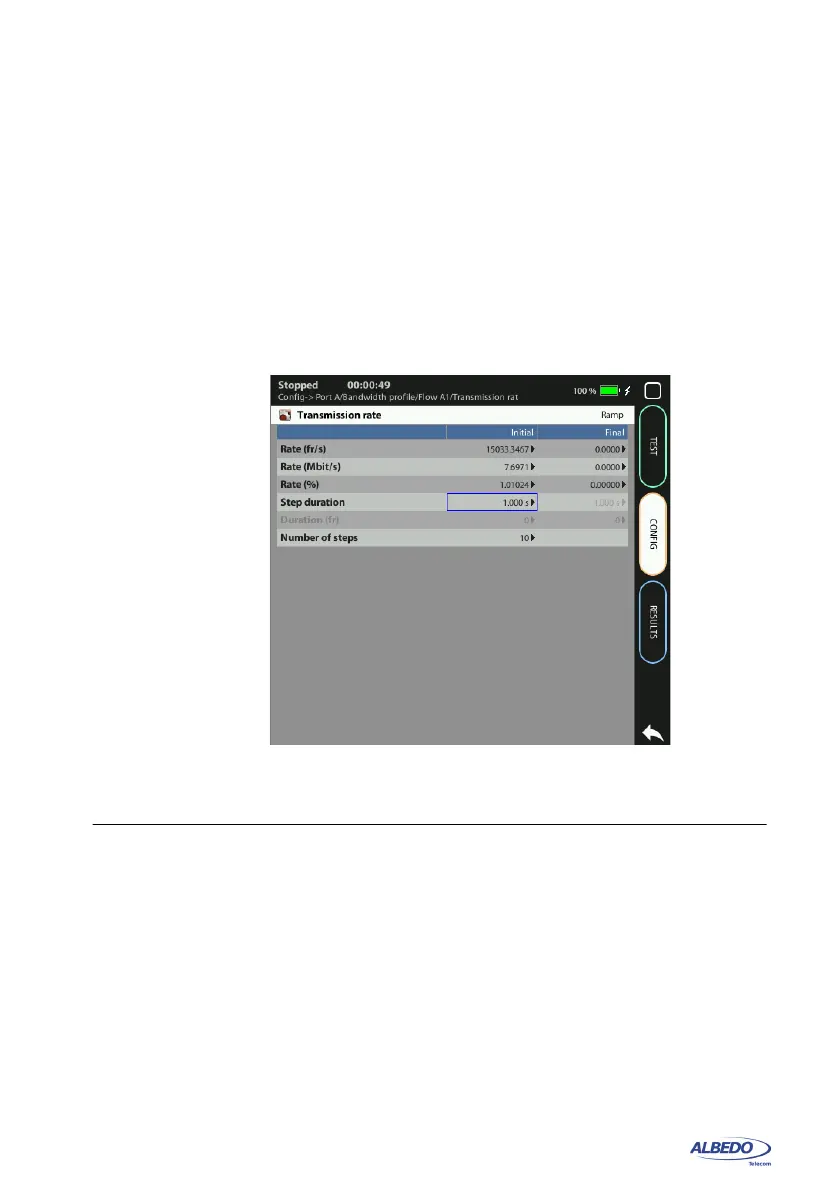
7. Configure the transmission rate parameters with Transmission Rate.
Note: Depending on the current transmission mode you will be requested to enter
different traffic parameters in the Transmission Rate panel.
Note: Changing some transmission parameter may affect the value of other
parameters previously configured in the same panel. For example, setting the
transmission rate in frames per second modifies the rate in bits per second and
the percentage value of the transmission rate.
Note: If the channel capacity varies, the transmission rates configured as percent-
ages of the overall channel capacity are kept to the same value but the bits per
second and frames per second are recomputed for the new channel capacity.
Figure 4.3: Albedo xGenius bandwidth profile configuration panel.


 To Next Page