©2019 ALL-TEST Pro, LLC All Rights Reserved 59 Rev 06/20/2019
If a test is saved by choosing “SAVE” upon its completion, then Location, Motor ID and Type of
Motor will be displayed. If the test is saved by “QUICK SAVE”, then only the Motor ID will be
shown.
1. Press the ˃ key to highlight the VIEW function
2. Press OK key to display the condition of the Motor data for the current displayed record.
This will display the results screen for the selected Motor data test set.
3. Press the TEST ˅ key to view the previous test record.
4. Press the MENU ˄ key to view the next test record.
Exiting Test Records Screen
1. Press the ˃ key 2 times to highlight CANCEL
2. Press OK key to return to will display the VIEW Test Records screen
Deleting Test Records
This function is the only method of deleting test records in the instrument. Note, it deletes the
last Motor test only for each operation.
The MCA software provides additional capability for handling test records, e.g. it can clear the
whole memory at one time.
1. From the Main Menu; press ˃ key 3 times to highlight the SET function.
2. Press the OK key, this will display the Setup Menu.
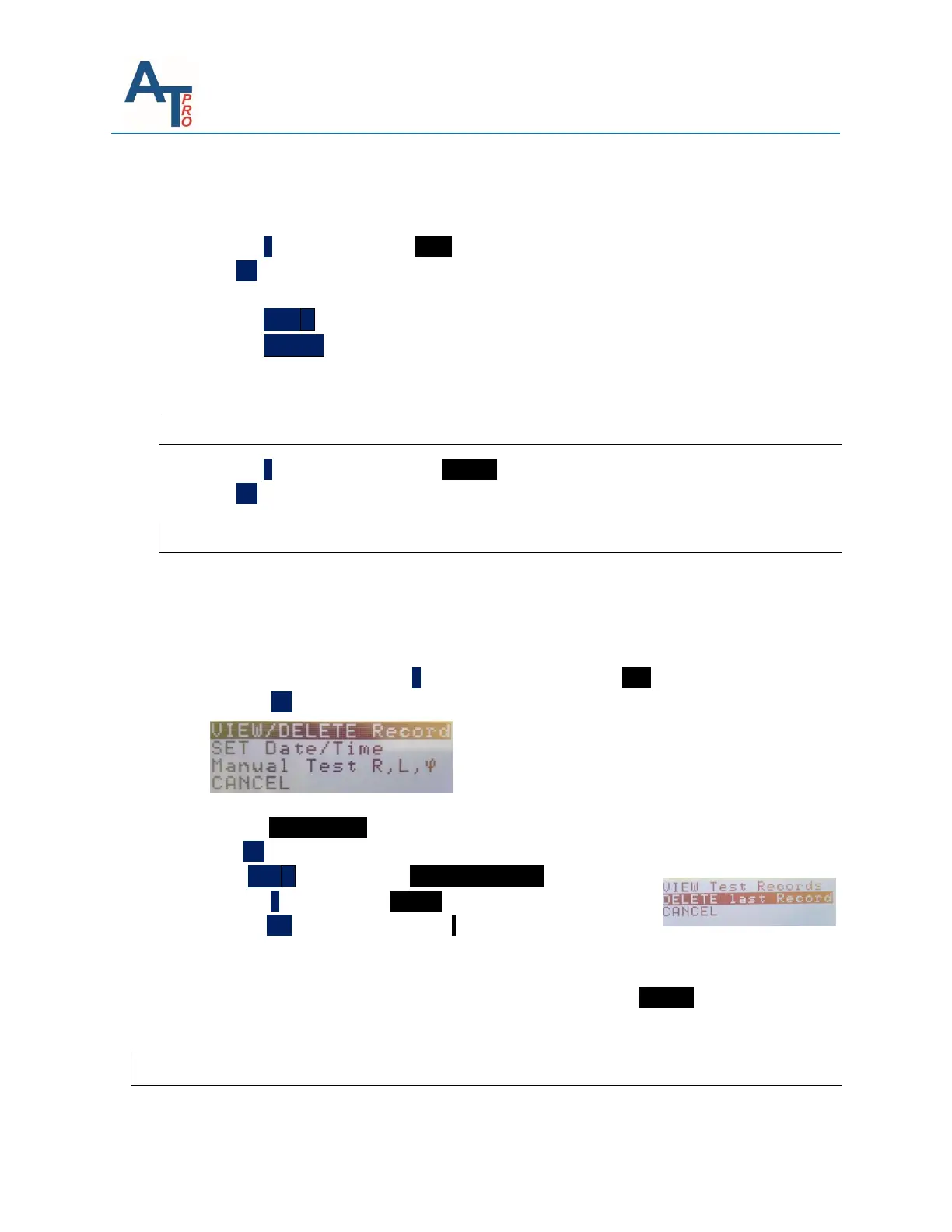
3. Highlight VIEW/DELETE record.
4. Press OK key, this will display VIEW/DELETE Test Records Display screen.
5. Press TEST ˅ key to highlight DELETE last Record
6. Press the ˃key to highlight DELETE
7. Press the OK key this will delete the last motor test record.
stored in the instrument and return to the VIEW/DELETE Test Records Display screen
8. To delete another test record repeat steps 5,6,& 7
9. From the VIEW/DELETE Test Records Display screen Highlight CANCEL to return to Main
Menu
Set Up Date/Time
From the Main Menu:



 To Next Page