Round radio buttons
These buttons typically appear on screens that require a selection
from several items. The button with a filled circle is the current
selection.
To change your selection, touch an unfilled circle. The newly selected circle (but-
ton) will now be highlighted.
Input fields
Input fields are used for alphanumeric data input. To edit the field value, press the
input area. If the input area is active, the cursor sign (|) appears in it.
Entering information directly on the instrument
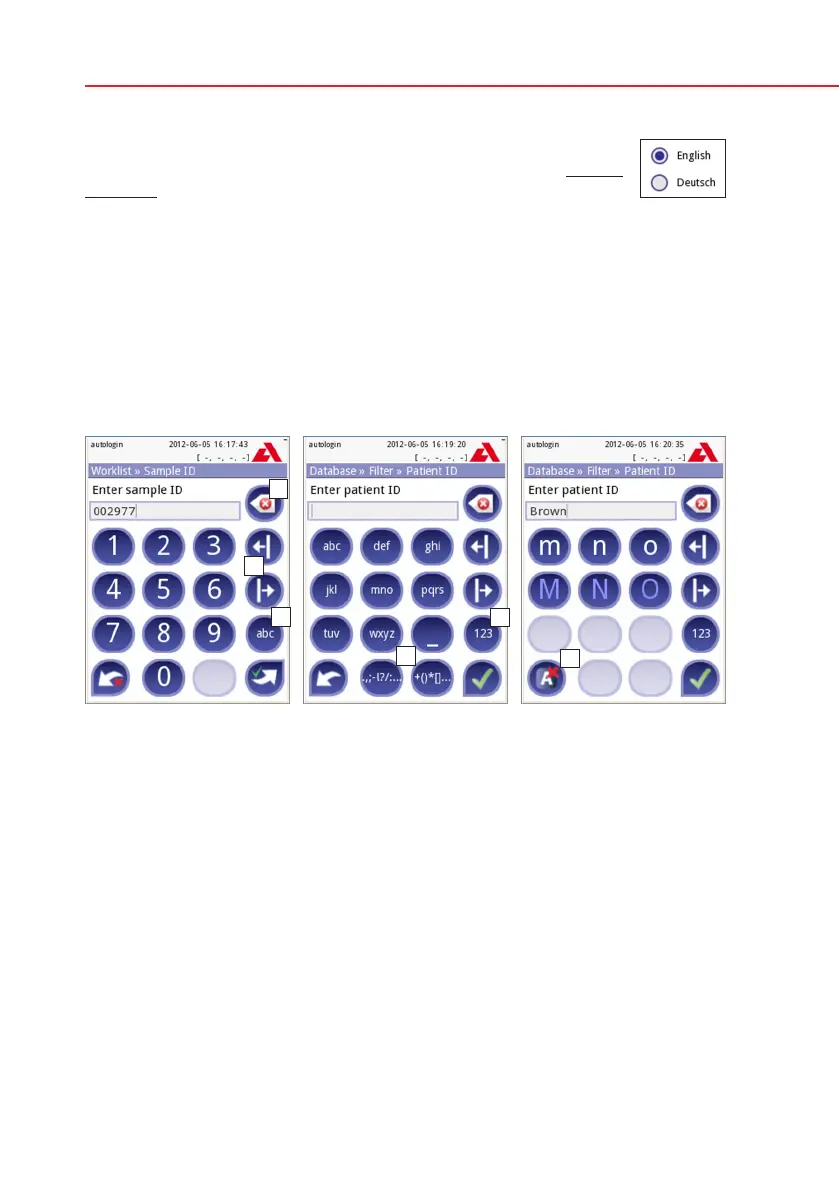
When the screen prompts you to enter information, a numeric or alphabetical
keyboard appears on the screen.
Numbers can be entered easily. To enter an alphabetical character first select the
button representing the character group, and then select the lowercase or upper
case character. To enter special characters use the special selection .,;-:+*…
or ()[] buttons to go to the selection list. To switch between the numeric and
alphabetic keyboard, use the 123 and abc buttons .
Wrong entries may be erased by pressing backspace . To move the cursor left
and right use the movement buttons . To cancel entering a character from the
actual selection list, press button . Once you have finished entering the infor-
mation, touch Apply or Apply&Next.
Numerical input Character input selection Character input



 To Next Page