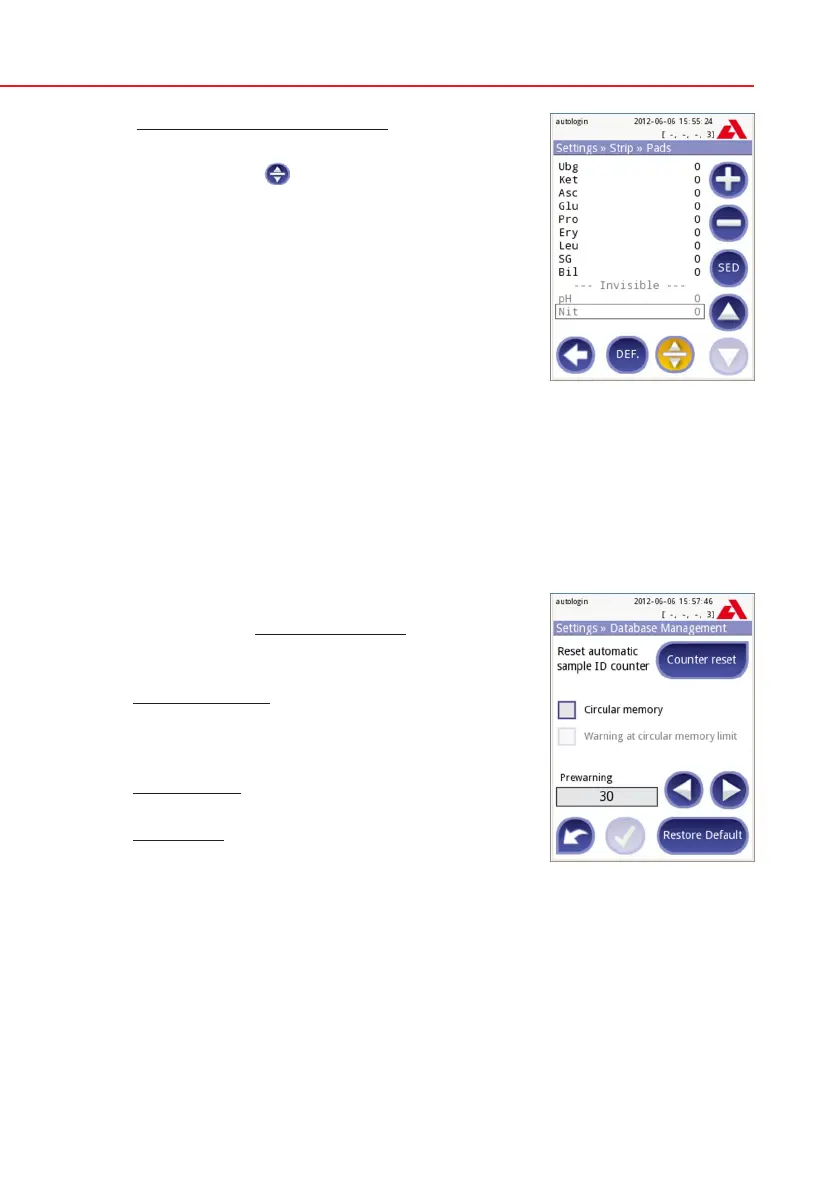
To modify the displayed pad order:
1 Select the pad.
2 Press the Move
button. It will be active and its
background will be changed to orange.
3 Use the up and down arrows to move the position
of the selected pad. If it is at the desired position,
press the Move button to deactivate the move-
ment and release it.
If you want to exclude a specific pad from the results
view, move the pad below the —Invisible— line. The
pads below this line won’t be listed in the results.
Please note that the invisible pads will be always analyzed as well and the results
are also stored for these in the database. So if you change the visibility settings
later, information will therefore be available for these too.
11.7 Database management
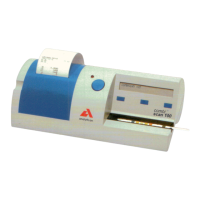
At the Database management screen you can define how the Urilyzer 100 man-
ages the storage of the records.
You can specify the following:
• TheautomaticSample ID counter can be reseted
by pressing the Counter reset button. The execu-
tion requires confirmation.
• Circular memory on or off. Circular memory on
will continuously record, writing over old data
when memory is full. Circular memory off will stop
recording when memory is full.
• Warning at…: If it is on, you receive a warning
before old data is overwritten.
• Prewarning: define the amount of records when
you receive warning before the memory is full.
Adding new records is still possible but you are
advised to free up database memory by erasing
data.
11.8 QC options (Pro only)
The detailed description of the QC options screen can be found in
9.1 QC
Options.
Invisible pads
Settings » Database



 To Next Page