After all data have been entered the next screen displayed will either be:
Analyzing … — if the strip is still being analyzed
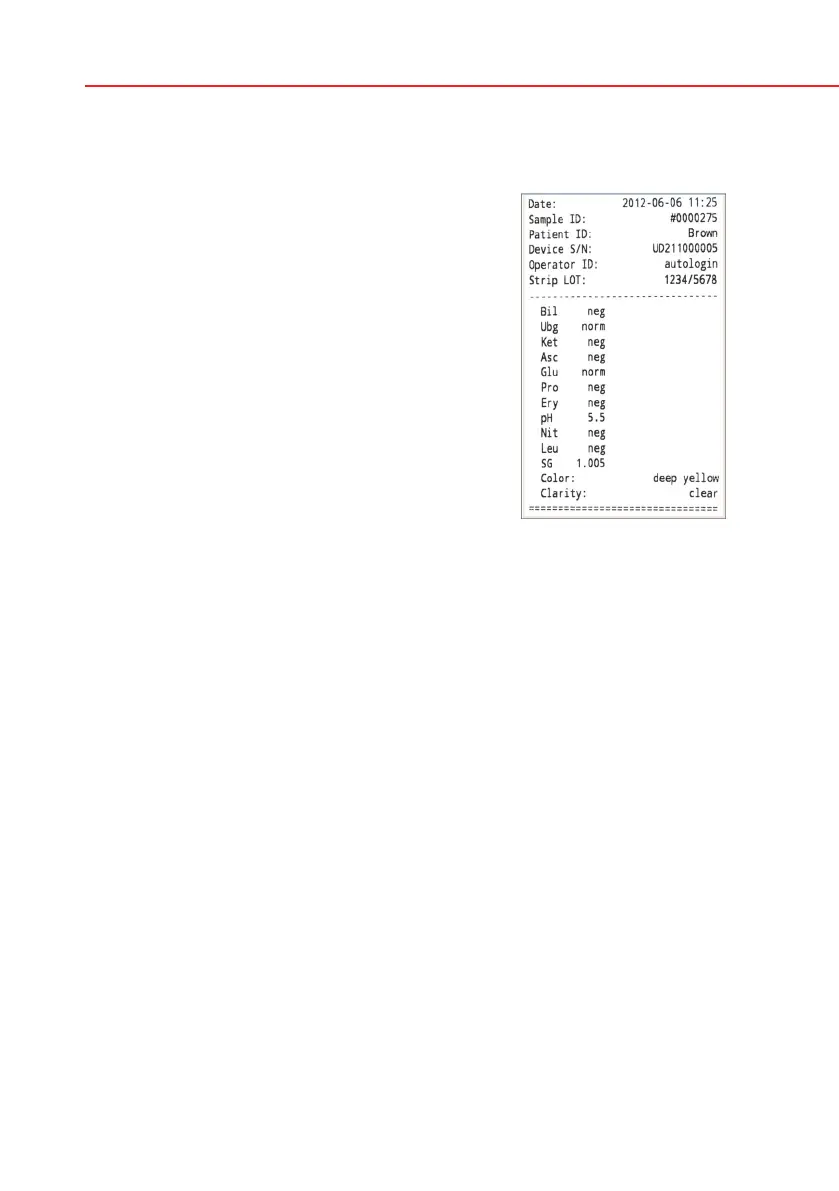
Result — if analyzing the strip has been completed
It is not required to input all data during the incu-
bation time, the system will analyze the strip in the
background and move out the test strip tray.
Once you have finished the data input, the Result
screen will appear.
If Autostart is ON: The result screen will be displayed
until you remove the test strip from the tray. Once the
strip is removed, the display automatically returns to
the Measurement screen.
If Autostart is OFF: The result screen will be
displayed for approximately 5 seconds – while
displaying a circle animation – then the display
will return to the Measurement screen (if no error
occurred during the readout). If you touch the display
while the circle animation is displayed, the system
will not automatically return back.
7.4 Latest result
If a measurement was performed since the analyzer was switched on, the latest
result can be easily reviewed from the Measurement screen with the Latest
button.
Here you not only have the possibility to edit the fields if necessary, but even to
revoke the result.
7.5 Worklist management
The worklist is a predefined sequence of samples and contains the sample IDs
and patient IDs in the sequence of planned evaluation.
The worklist can be generated:
• manuallythroughthetouchscreen,oraconnectedexternalkeyboardorbar-
code reader,
• orautomaticallybydownloadingtheworklistitemsfromtheLIS.
The sample ID is a maximum 15 character long numeric string.
The patient ID is a maximum 33 character long string containing either numeric,
alphabetic or special characters.
Push the Worklist button on the Measurement screen to go to the worklist
management.
Printed report of a Full
Test



 To Next Page