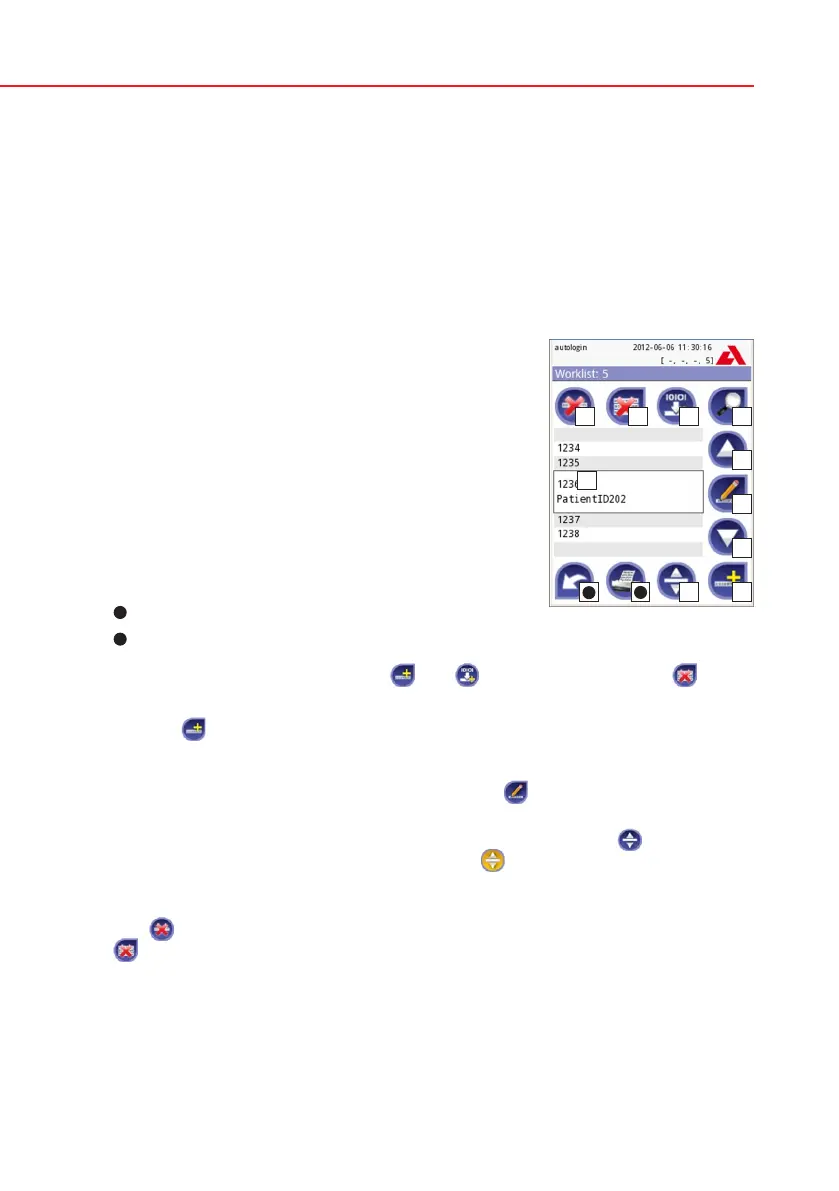
In the Worklist menu you can:
1) Manually add, modify, delete the worklist items
2) Download the worklist from the LIS
3) Modify the sequence of the items
4) Search for a sample ID in the worklist
5) Print the worklist
6) Delete the whole worklist
Legend
Worklist items
Delete active item
Delete all items
Download worklist from LIS
Search for sample ID
Move up by one record in the list
Modify item
Move down by one record in the list
Add new item
Action: select actual item
11
Print worklist
12
Return to Measurement menu
If the worklist is empty, only the
and buttons are active. The button
is active, if the worklist contains at least 2 items.
Use the
Add item button to add a new entry to the list. Set the sample and
patient ID as described in the testing procedure. By using external keyboard or
barcode reader the editing process can be speeded up considerably. The new
item will be added to the end of the list. Use the
Modify button to modify an
already existing record.
To change the position of the active item in the list, press the
Move button.
The button background is changed to orange
and the item can be moved up
and down in the list by using the arrows on the right side. To finish movement,
press the Move button again, so it becomes inactive.
The
Delete button removes the actual item without confirmation, while the
Delete all button deletes the whole worklist. The deletion of all items requires
user confirmation.
Worklist
11
12



 To Next Page