The option to enable Fast mode only appears on the User options screen, if this
option is enabled on the Settings»Measurement screen.
7.2.2 Customization of testing
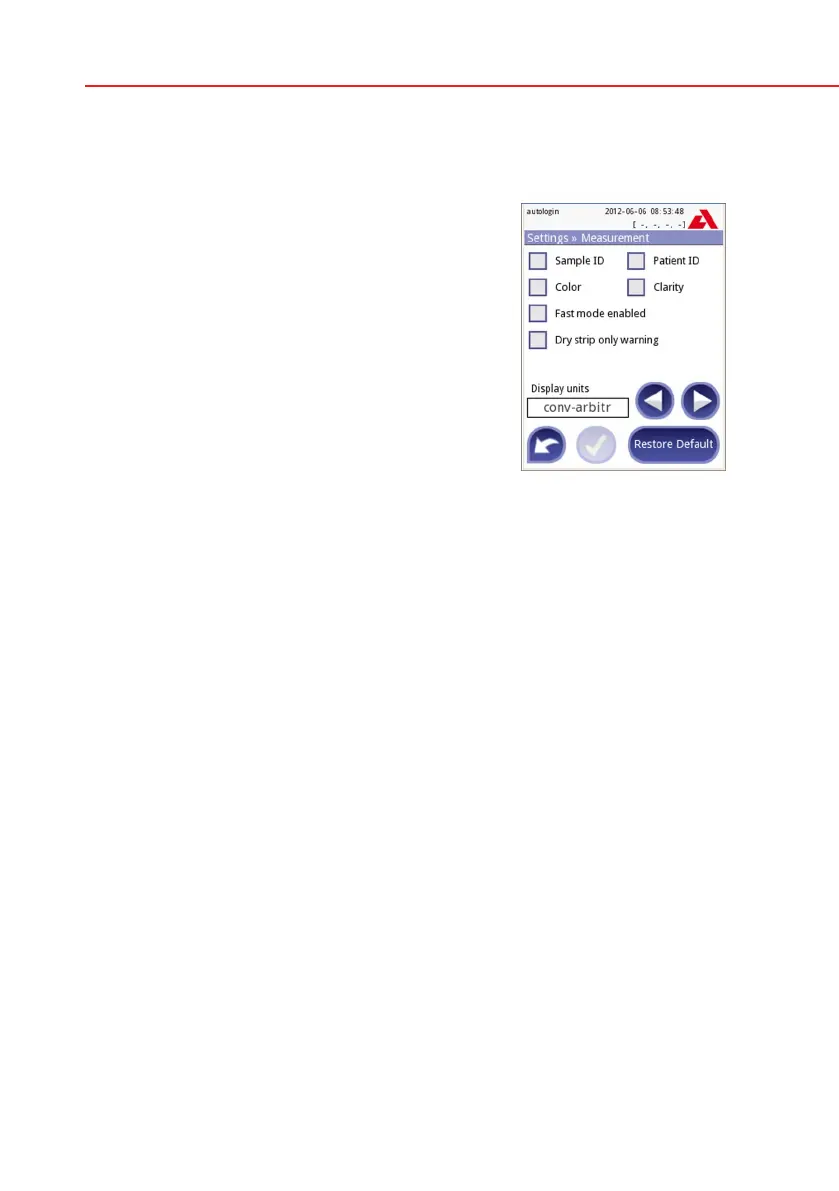
On the Settings»Measurement screen you can cus-
tomize which fields are enabled during acquisition,
to disable fast mode at the system level or to allow
analysis of (partially) dry strips and modify the set-
tings. You can set the display units here as well.
By default all extra fields are disabled and the display
unit is set to conv-arbitr.
Sample ID: The system by default assigns each reading with a consecutive se-
quence number having a maximum of 7 digits. If the sample ID is enabled, you
have the option to replace the automatic ID and manually set the sample ID dur-
ing the test.
Patient ID: If enabled, you can set the patient ID during the test.
Color: If enabled, you can set the visually observed color of the sample during
the test.
Clarity: If enabled, you can set the visually observed clarity of the sample during
the test.
Fast mode enabled: If enabled, the Fast mode button is operational, so fast
mode can be enabled in User Options. If disabled, the analyzer is not allowed
to operate in fast mode.
Dry strip only warning: If enabled, the result of a (partially) dry strip with pad
values is saved in the database with a warning comment. If disabled, (partially)
dry strip results are only saved with an error code.
Display units: changes the display units on system level. Selectable options:
conv-arbitr, SI-arbitr, conv, SI, arbitr. Use the left and right arrows to change the
value.
Settings » Measurement



 To Next Page