11.14.5 User management
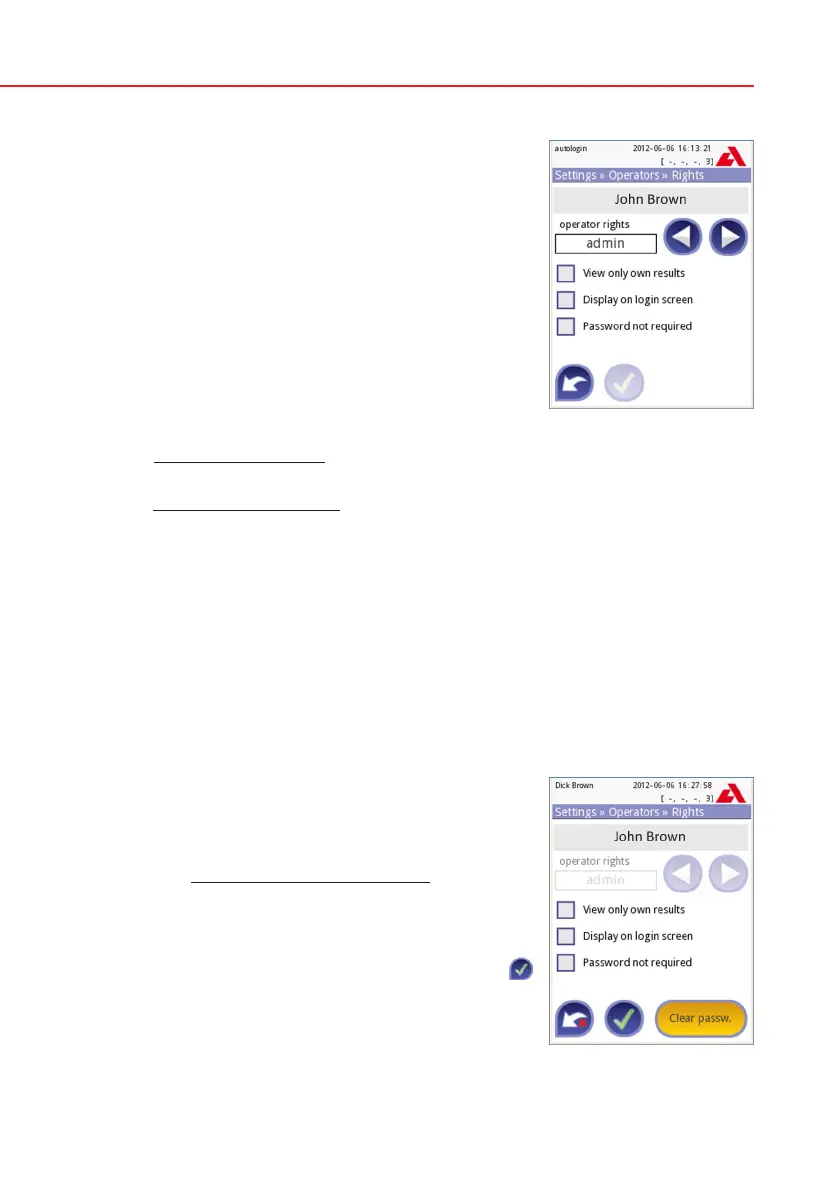
To add a new user, push the Add new operator but-
ton at the right-bottom corner on the Operators
screen.
1. On the next screen set the Operator ID.
2. On the second screen
a. determine the rights of the operator: user, ad-
min, supervisor.
Please note that based on the level of the actual
user the available selection changes (e.g. an admin
is able to add a new operator only with user or admin
level).
The availability of the following switches is based on
the applied security level.
b. view only own results on or off: If on, the operator can only see her/his own
results in the database.
c. login without password on or off: If on, the user can login with the operator
without password.
To modify the settings of an existing operator, push the Modify operator rights
button on the Operators screen.
Setting password for the operator
After the operator is created and password usage is mandatory for it (determined
by the settings) the system will ask for a new password at the first login. The
password input has to be repeated twice. After setting the new password, the
user will be returned to the login screen to input again its operator name and
password to actually log in to the system.
Lost password
The operators may change their passwords at the
User Options screen. However if the password is
lost, the administrator cannot recover the password,
as the passwords are encrypted.
However the password can be cleared by adminis-
trators on the Operators»Rights screen.
To reset the password, press the Clear passw.
button; its background will change to orange.
To confirm the password reset press the Apply
button.
Operators»Rights
Clearing password



 To Next Page