To scan a barcode using the hand-held barcode scanner:
1.
Select the eld in the instrument softw
are where you want to enter the barcode.
2.
Hold the hand-held barcode scanner 20–30 cm away from a plate or array card
and aim at the center of the barcode, then press the trigger. Slowly move the
scanning beam across the barcode until the scanner emits a high-pitched tone.
When the scanner scans a barcode, it automatically:
• Transmits the alphanumeric equivalent of the barcode to the instrument software.
The software enters the barcode text wherever the cursor is active.
• Transmits a carriage-return character (the equivalent of pressing the Enter key).
For more information on the hand-held barcode scanner, see the user documentation
shipped with the barcode scanner.
IMPORTANT! The Applied Biosystems
™
T
wister
™
Robot component is supported
only by the QuantStudio
™
7 Flex System.
The QuantStudio
™
7 Flex System supports the use of the Applied Biosystems
™
T
wister
™
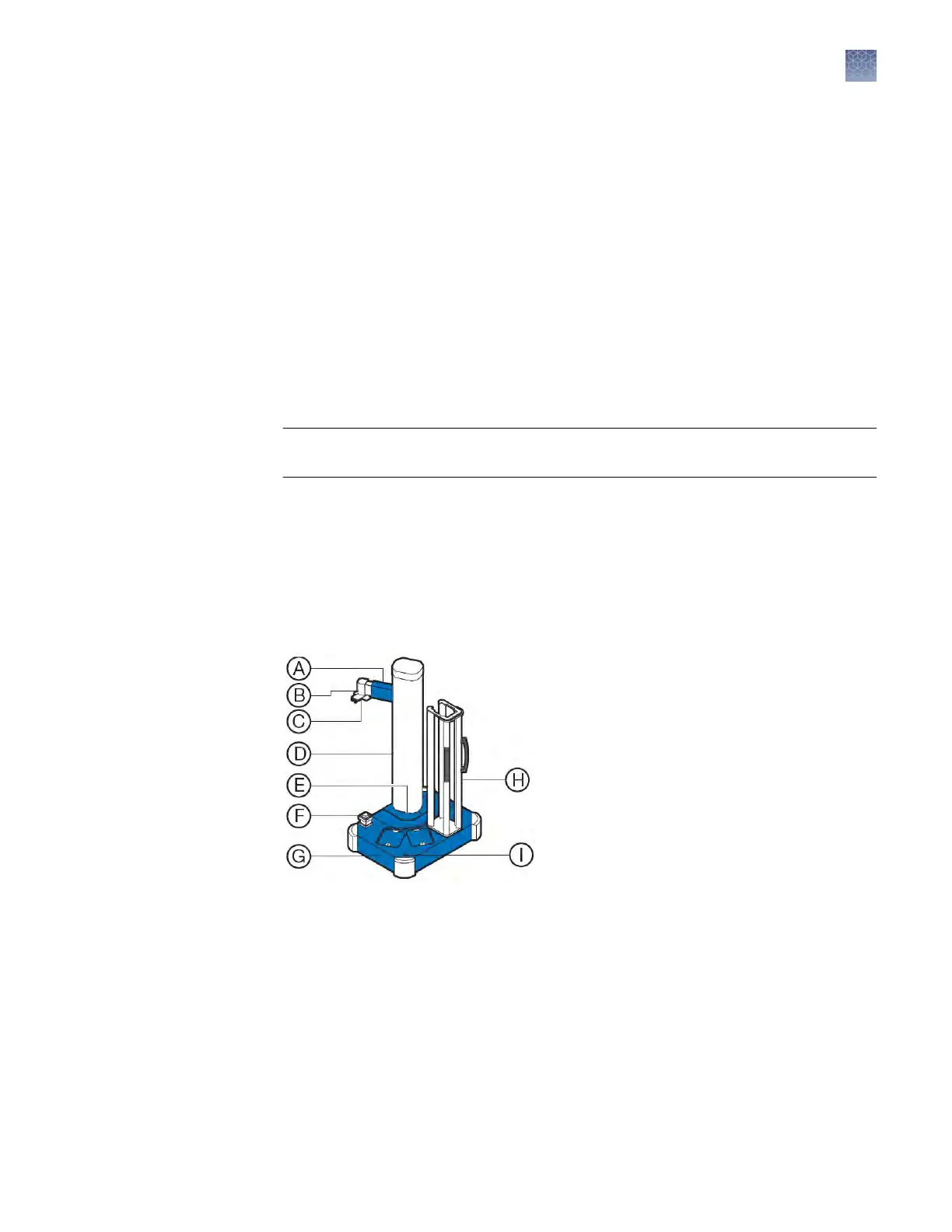
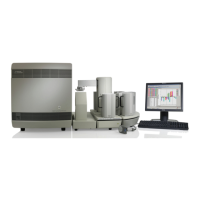
Robot, an optional accessory that consists of the components shown below.
Note: See the Applied Biosystems
™
Twister
™
Robot Automation Accessory User Guide
(Pub. No. 4470693) for information on operating, calibrating, maintaining and
integrating the Twister
™
Robot.
Front view
Twister
™
Robot
c
omponents
Chapter 1 Getting s
tarted
Instrument hardware
1
QuantStudio
™
6 and 7 Flex Real-Time PCR Systems v1.6 Maintenance and Administration Guide
19



 To Next Page