You can use the QuantStudio
™
6 or 7 Flex System touchscreen to perform a
comprehensiv
e self test of the QuantStudio
™
6 or 7 Flex System subsystems. After the
self test is complete, the QuantStudio
™
6 or 7 Flex System generates two les that
provide a detailed summary of the instrument condition and function. In the event of
a problem, you can save the results les to a USB drive and email them to Technical
Support for a diagnosis.
Note: We recommend running the self test as part of regular maintenance to ensure
optimal performance of the QuantStudio
™
6 or 7 Flex System.
1.
From the Main Menu of the instrument touchscreen, touch Tools, then touch
Run Self Test.
2.
From the Self Test screen, touch
Start Self T
est, then wait for the test to
complete.
3.
(Optional) When the QuantStudio
™
6 or 7 Flex System completes the self test,
save the results to a USB drive:
a.
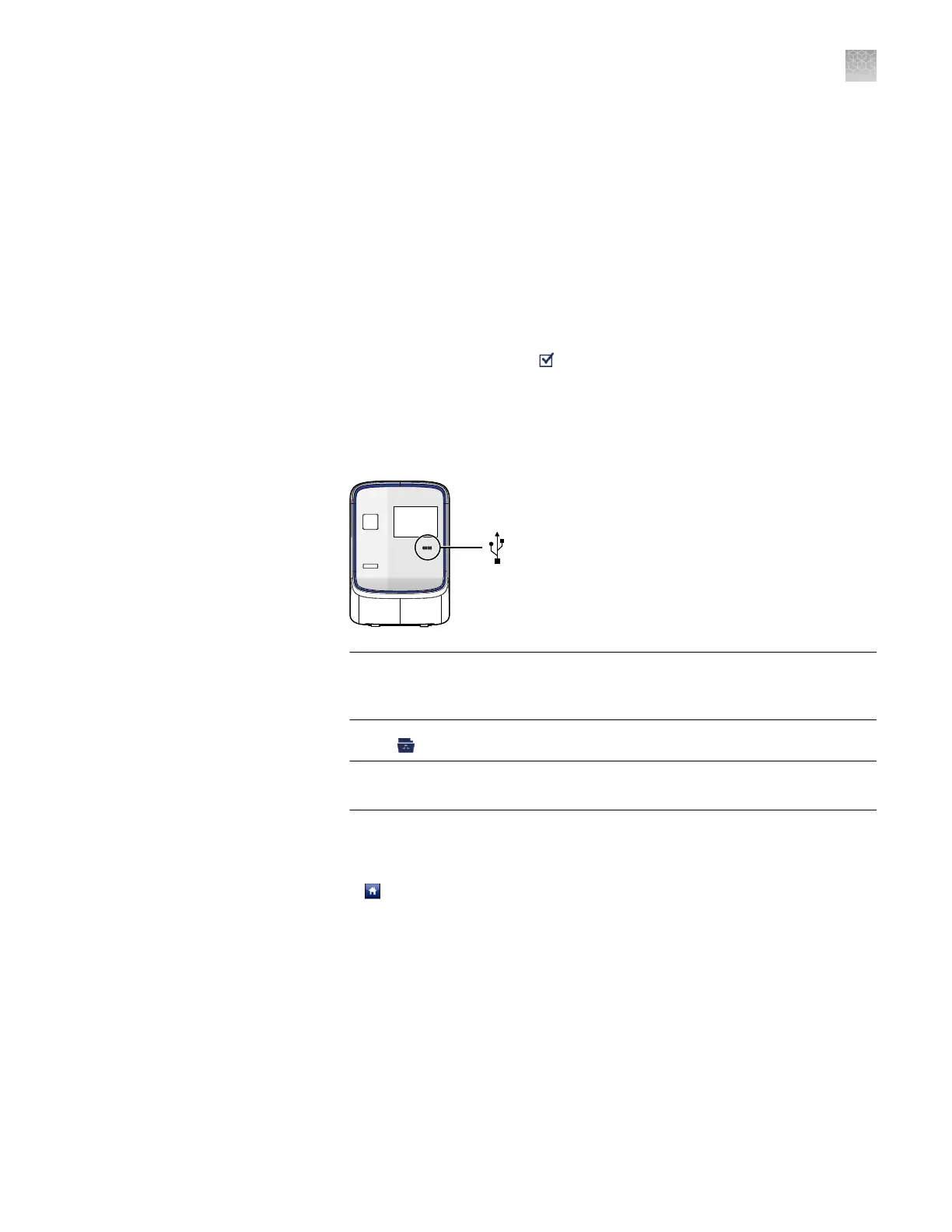
Plug a USB drive into the USB port below the touchscreen.
IMPORTANT! Do not use the USB ports on the rear panel of the
QuantStudio
™
6 and 7 Flex Systems. The rear USB ports are for use by
Thermo Fisher Scientic personnel to service the instrument.
b.
T
ouch
Save.
IMPORTANT! Do not remov
e the USB drive from the QuantStudio
™
6 or 7
Flex System until instructed.
c.
When the QuantStudio
™
6 or 7 Flex System nishes writing the results to the
USB driv
e, touch OK, then remove the USB drive.
4.
Touch
to return to the Main Menu.
Y
ou can download the QuantStudio
™
6 and 7 Flex Systems rmware updates at
thermosher.com/qpcrsoftware. After obtaining a rmware update, transfer the
update to the system using a USB drive.
1.
Download the rmware update:
a.
Go to thermosher.com/qpcrsoftware.
b.
In the Real-Time PCR section, select Applied Biosystems
™
QuantStudio
™
6
and 7 Flex Real-Time PCR Systems.
c.
In the Software Downloads page, click Updates - Patches.
Perform an
instrument self
test
Update the
ins
trument
firmware
Appendix A Manual ins
trument operation
Maintain the instrument from the touchscreen
A
QuantStudio
™
6 and 7 Flex Real-Time PCR Systems v1.6 Maintenance and Administration Guide
89



 To Next Page