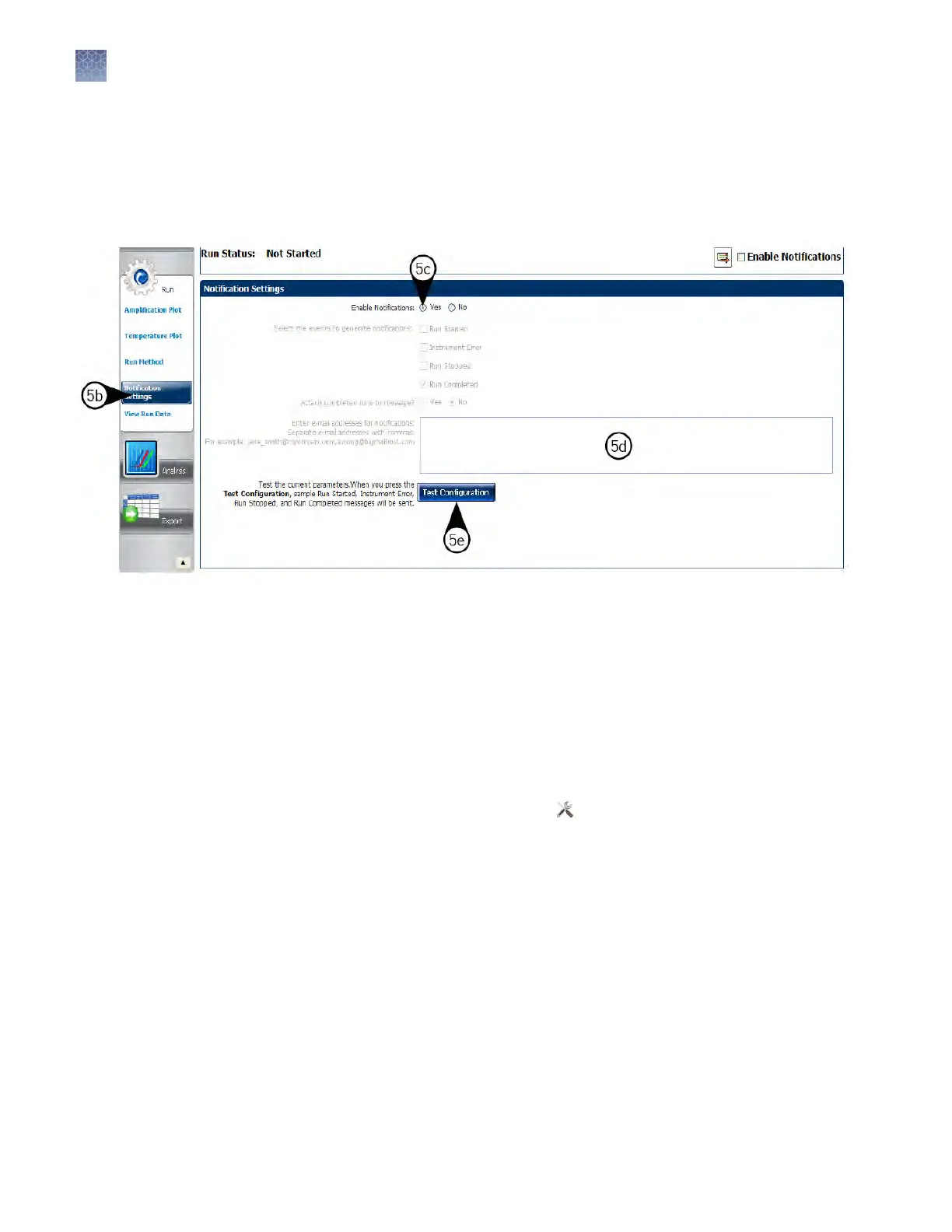
e.
Click Test Conguration to test the mail server seings.
Conrm that the email account you specied in substep 5d received the test
messages from the QuantStudio
™
Real-Time PCR Software. If not, consult
your network administrator to conrm that the mail server seings are
dened correctly.
1.
Open the Calibration Reminders screen for the QuantStudio
™
6 or 7 Flex Real-
Time PCR System:
a.
In the QuantStudio
™
Real-Time PCR Software Home tab, click Instrument
Console.
b.
In the Instrument Console, select the icon for your instrument, then click
Manage Instrument.
Note: If the Manage Instrument buon is inactive, add your instrument to
the My Instruments group.
c.
In the Instrument Manager, click
Maintenance, then click Calibration
Reminders.
2.
In the Calibration Reminders Seing table, congure the notication seings for
the calibrations in interest. For each calibration that you want to monitor:
a.
In the Send a Reminder column, select the check box to congure the
QuantStudio
™
Real-Time PCR Software to email a reminder to perform the
calibration.
b.
In the Reminder Interval column, enter the number of days before the
calibration expires that the software should send a reminder email.
3.
In the Enter e-mail addresses for notications eld, enter the email address(es)
that you want to receive notications. Separate multiple email addresses with
commas (
,
).
4.
Click Apply to change the notication seings.
Modify the
notific
ation
settings for a
monitored
instrument
Chapter 2 Calibr
ate the instrument
Enable or change the calibration reminders
2
34
QuantStudio
™
6 and 7 Flex Real-Time PCR Systems v1.6 Maintenance and Administration Guide



 To Next Page