3.1.3. User Guide
You don't need to register your AudioFuse 16Rig to download this manual, but the
registration process will help you make sure you have the latest edition.
3.2. Preparing the AudioFuse 16Rig to work with your
computer: macOS or Windows?
Once you've downloaded and installed AudioFuse Control Center, you'll need to check a
couple of settings on your computer to ensure the best communication with your interface.
3.2.1. macOS
Connect the AudioFuse 16Rig to its power supply, plug it into your Mac with the appropriate
USB cable, and power it up.
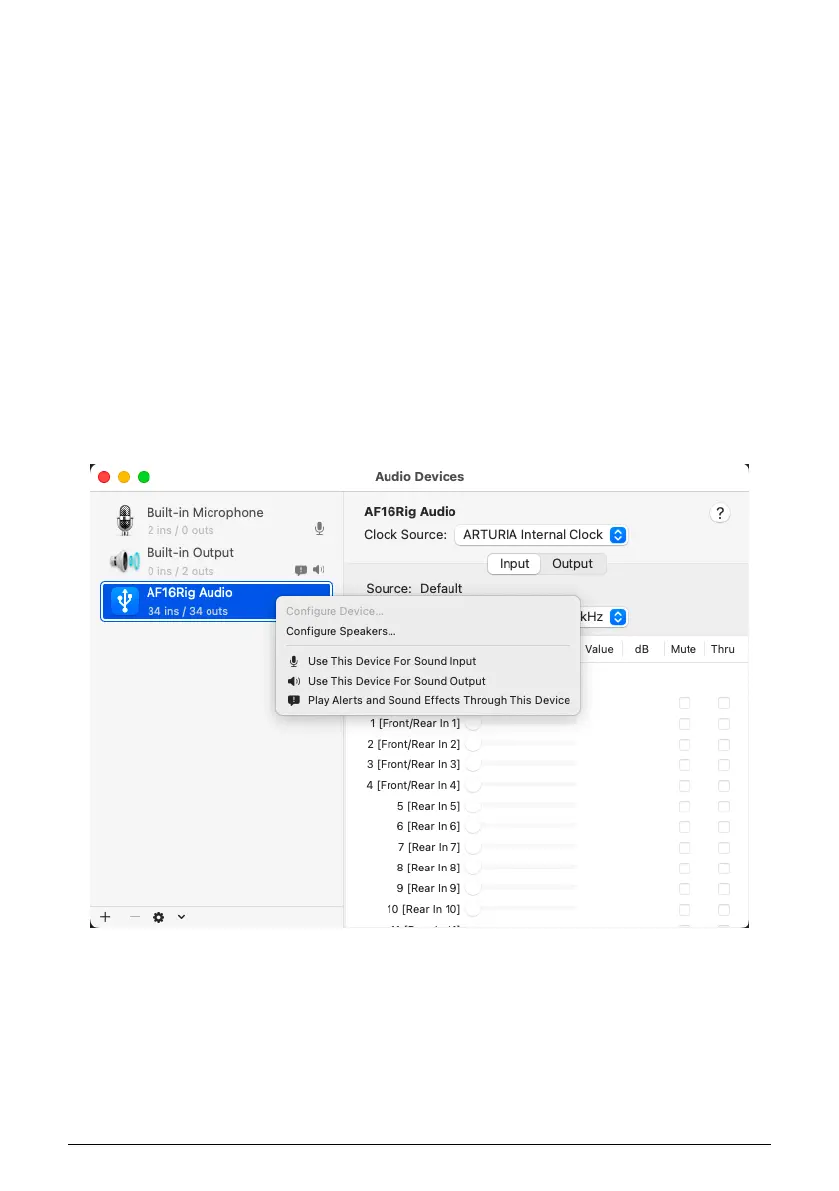
Launch Audio MIDI Setup (you'll find it in Applications/Utilities) and the AudioFuse 16Rig
should already be there.
To set up the AudioFuse 16Rig as your default audio device:
1. Open the Audio Devices window and find "AF16Rig Audio" on the list of devices at left.
Audio MIDI Setup on macOS
Arturia - User Manual AudioFuse 16Rig - Registration and Software Setup 9




 To Next Page