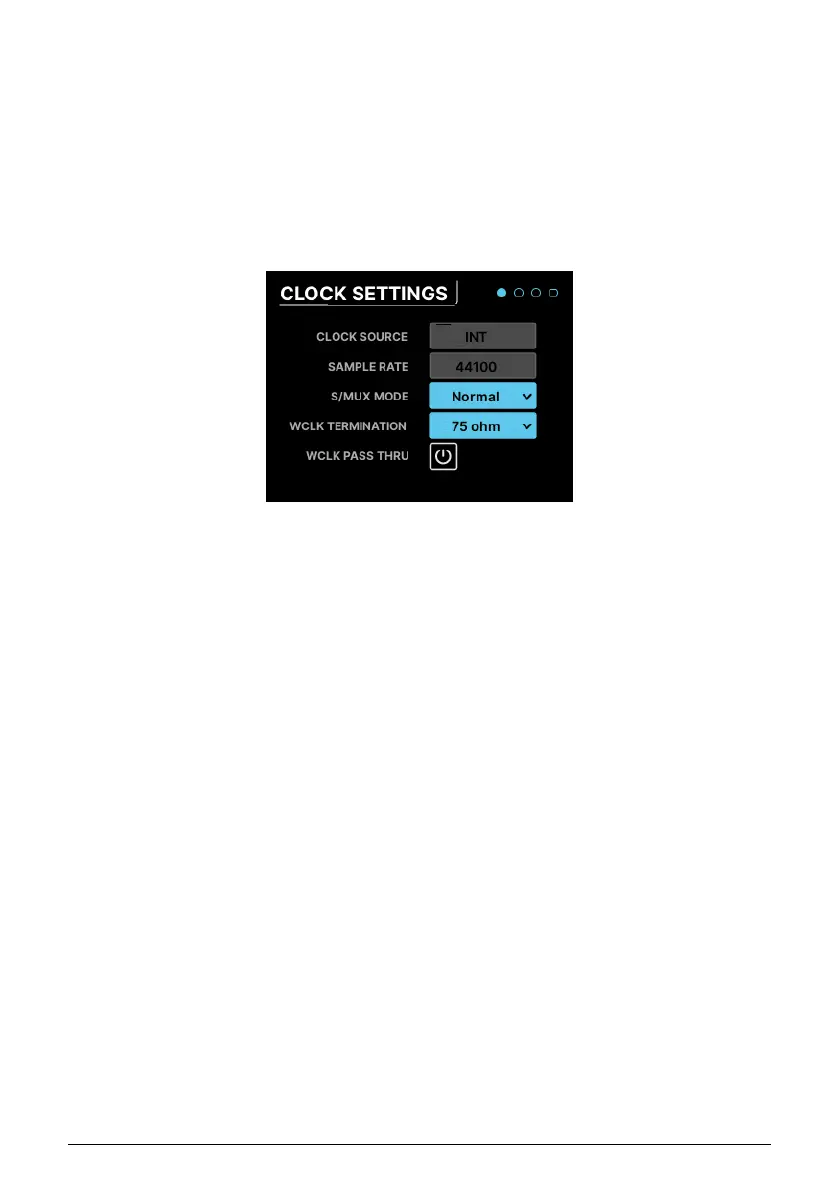
6.2.3. Scroll, Select, Activate
Once you're on the page you want, use the Encoder to scroll to the function you want to
work with. Then click to change it.
6.3. "Why is this function greyed out?"
Sometimes you'll run into a function that you can't select. This isn't a bug! The interface is
smart enough to know when a feature can't be used, and will tell you that by making it
inaccessible.
The most obvious example is Inputs 1 & 2. If nothing is plugged into one of the front panel
inputs, none of the functions specific to that input will be available. For example, if you
connect an XLR cable to the front panel input, a 48V switch will appear. If there is no mic
connected, that button will not be shown since there is no need for it.
6.4. Don’t forget the software!
Remember that all of these functions and more are available in the AudioFuse Control
Center software, in a neat graphical interface with instant visual feedback. While we
recommend that you read the software's user manual, you will find that many of the
features there are self-explanatory once you've learned your way around the hardware.
Parameters on a typical screen page
Arturia - User Manual AudioFuse 16Rig - Getting Around 31




 To Next Page