At the far left of the Upper Toolbar is the AFCC Menu. Click on the logo to get a drop-down
menu with the following three choices:
• Resize Window: Lets you choose an optimal interface size for your computer's
display.
• Manual: opens this manual.
• Shortcuts: Opens a window with all AFCC and AudioFuse 16Rig shortcuts
conveniently located in one place. Memorizing these will really help you speed
up your workflow in the longrun.
• About: opens a window with the current software version and a list of credits.
(Now you know whom to thank for this cool program!)
Next to the AFCC Menu logo is the type of interface connected (in this case, "AudioFuse
16Rig") and the name of your interface, which you can set in the Settings menu [p.42].
8.1.2. Screen Selectors
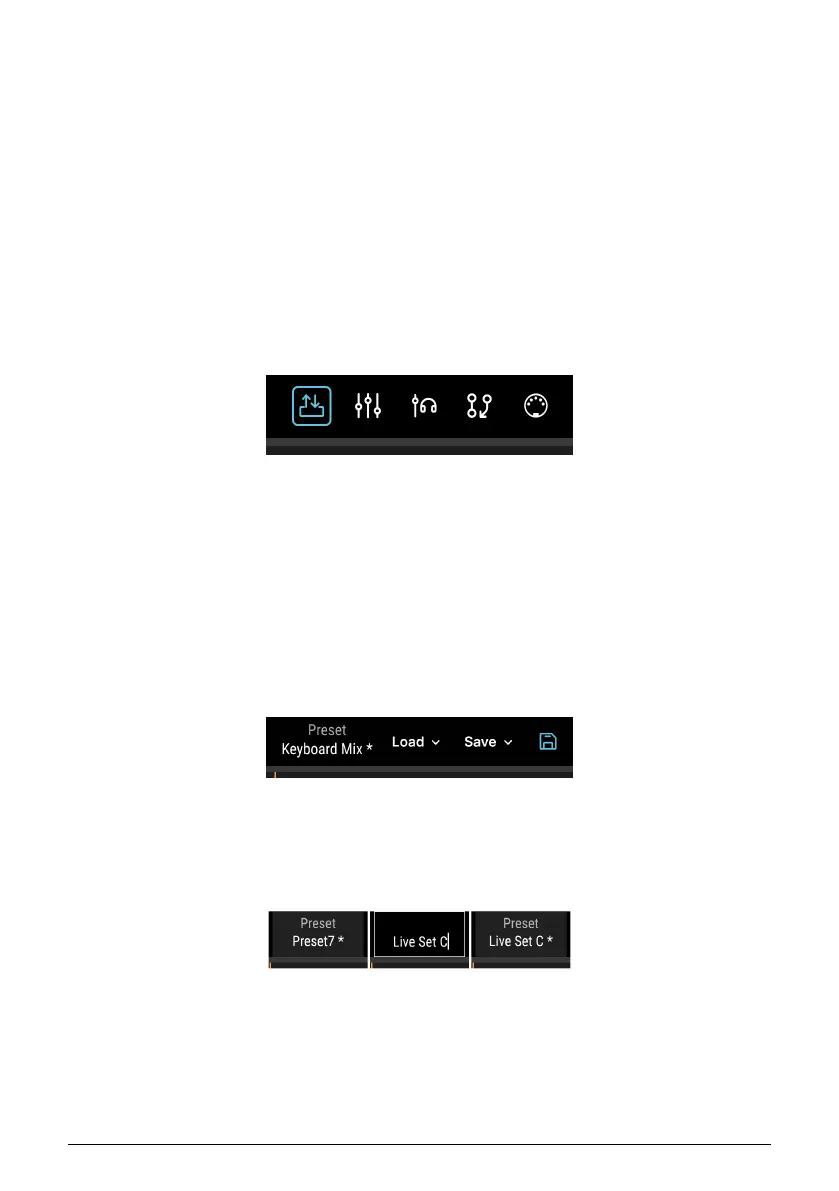
The five Screen Selectors in the center of the Upper Toolbar let you select the desired screen
(view) of the plug-in interface. We will cover these in detail below; they are:
• Overview
• Mixer
• Cue
• Routing
• MIDI
8.1.3. Preset Controls
Next are the Preset Controls. These include the following functions:
8.1.3.1. Preset Name (and Rename)
To rename a preset (left), click inside the
field and retype (center), then press Enter
or click outside the field to save the name
(right).
46 Arturia - User Manual AudioFuse 16Rig - AudioFuse Control Center




 To Next Page