8.7.4.2. Adjusting Channels per Bank
Some desktop control surfaces have fewer than 8 channel controls (sliders, knobs, etc.)
In fact, many of the smallest controllers only have one channel’s worth of controls. To
accommodate smaller controllers, AFCC’s MIDI screen has a “Channels per bank” drop-
down menu that lets you set the number of mixer channels that can be in a bank. So, for
example, if your controller only has one channel’s worth of controls, set this to 1 and you’re
all set.
8.7.4.3. MIDI Learn
To make MIDI programming easier, we’ve added a MIDI Learn function (if you don’t see
this on your screen, make sure you have updated to the latest firmware and AFCC!)
To use the MIDI Learn function:
1. Click the MIDI Learn button at the top right (it turns red when MIDI Learn mode
is engaged)
2. Click any on-screen control you’d like to re-map
3. Push, turn or move a physical control on your MIDI Controller
4. Continue steps 2-3 until you have mapped all desired controls
5. Click the MIDI Learn button again to switch off MIDI Learn mode
The Main Mixer is now re-mapped to your hardware controller.
8.8. Hover Tips
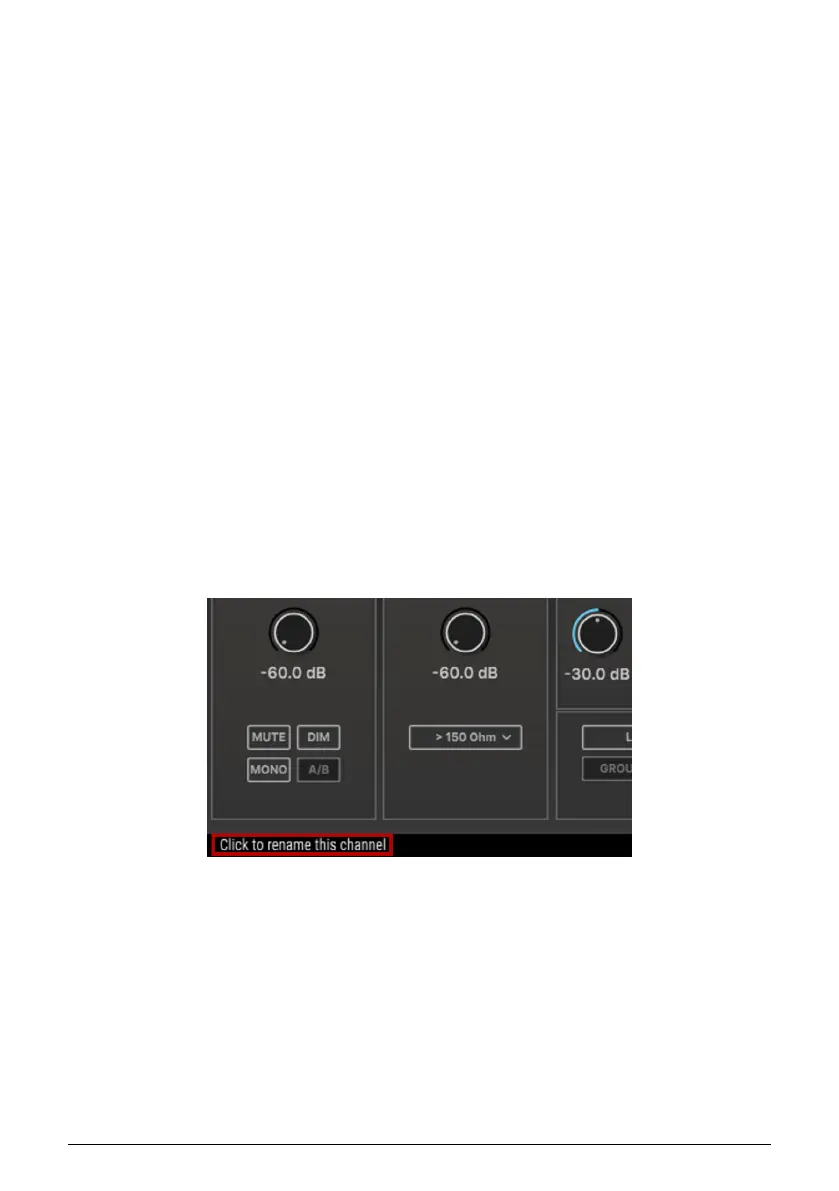
One last thing to point out, if you didn't notice it in the very first screenshot: hovering your
mouse over any control will display a detailed explanation of what the control does, shown
in the Hover Tips display at the bottom of the plug-in window. After all, everybody needs a
little extra help now and then!
Arturia - User Manual AudioFuse 16Rig - AudioFuse Control Center 65




 To Next Page